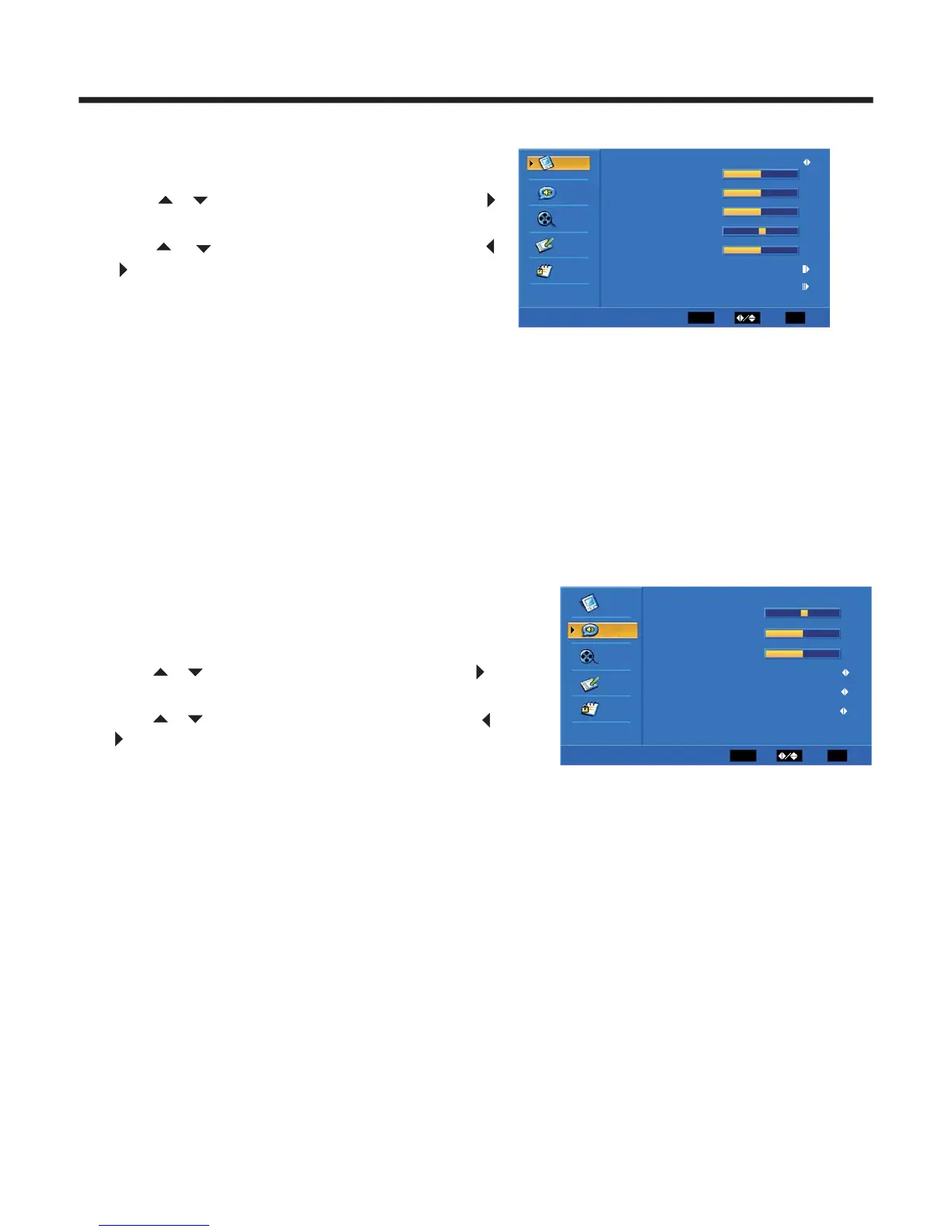
1.Press MENU. The OSD appears.
2.Press or to highlight Video, then press
to enter the Video menu.
3.Press or highlight an option, then press
or to adjust the option. You can
adjust:
Brightness-Increases the brightness to add
more light to dark areas of the picture.
Decrease the brightness to reduce the brightness to light areas of the picture.
Contrast-Increase the picture level to adjust the white areas of the picture.
Decreases the picture level to adjust the black areas of the picture.
Saturation- Adjust the intensity of the colors.
HUE-Adjust the overall color of the picture.
Sharpness-Increases the sharpness level to show clearer images.
Decreases the level to show a smoother or softer picture.
Color temperature-Changes the color temperature. You can select Cool (blue), Standard,
or Warm (red).
Advanced Video-Accesses advanced video settings such as DNR, Black Level,
Extension, White Peak Limiter, Fleshtone, and Adaptive Luma Control.
1.Press MENU. The OSD opens.
2.Press or to highlight Audio, then press
to enter the Audio menu.
3.Press or highlight an option, then press
or to adjust the option. You can
adjust:
Balance-Adjusts the volume from the left and right speakers.
Bass-Adjust the bass(low )
Treble- Adjust the treble .
Sound Surround-Turns the surround sound effect on or off.
Equalizer-Turns the equalizer effect on or off.
SPDIF Type-Selects the SPDIF type. You can select PCM,Dolby Digital,
or Off.
Auto Volume Control-Turns automatic volume control on or off. The option keeps
the audio in a preset range to eliminate large in volum .
-pitch sounds
(high-pitch sounds).
increases e when changing channels
◆
◆
◆
◆
◆
◆
◆
◆
◆
◆
◆
◆
◆
◆
Menu operation
-14-
Video mode adjustment
Audio mode adjustment
Note: When using SPDIF Type, you may choose the optical digital audio out type.
If Audio Volume Control is On, it means audio out control is activated.
Video
Video
ENTER
Enter
Select
EXIT
Exit
AudioAudio
TVTV
Setup
Parental
Brightness 50
contrast 50
Saturation 50
HUE 0
Sharpness 4
Picture Mode User
Color Temperature
Advanced Video
VideoVideo
ENTER
Enter
Select
EXIT
Exit
AudioAudio
Audio
TVTV
Setup
Parental
Balance 0
Bass 50
Treble 50
Sound Surround On
Equalizer Off
SPDIF Type PCM
Auto Volume Control


 To Next Page