26
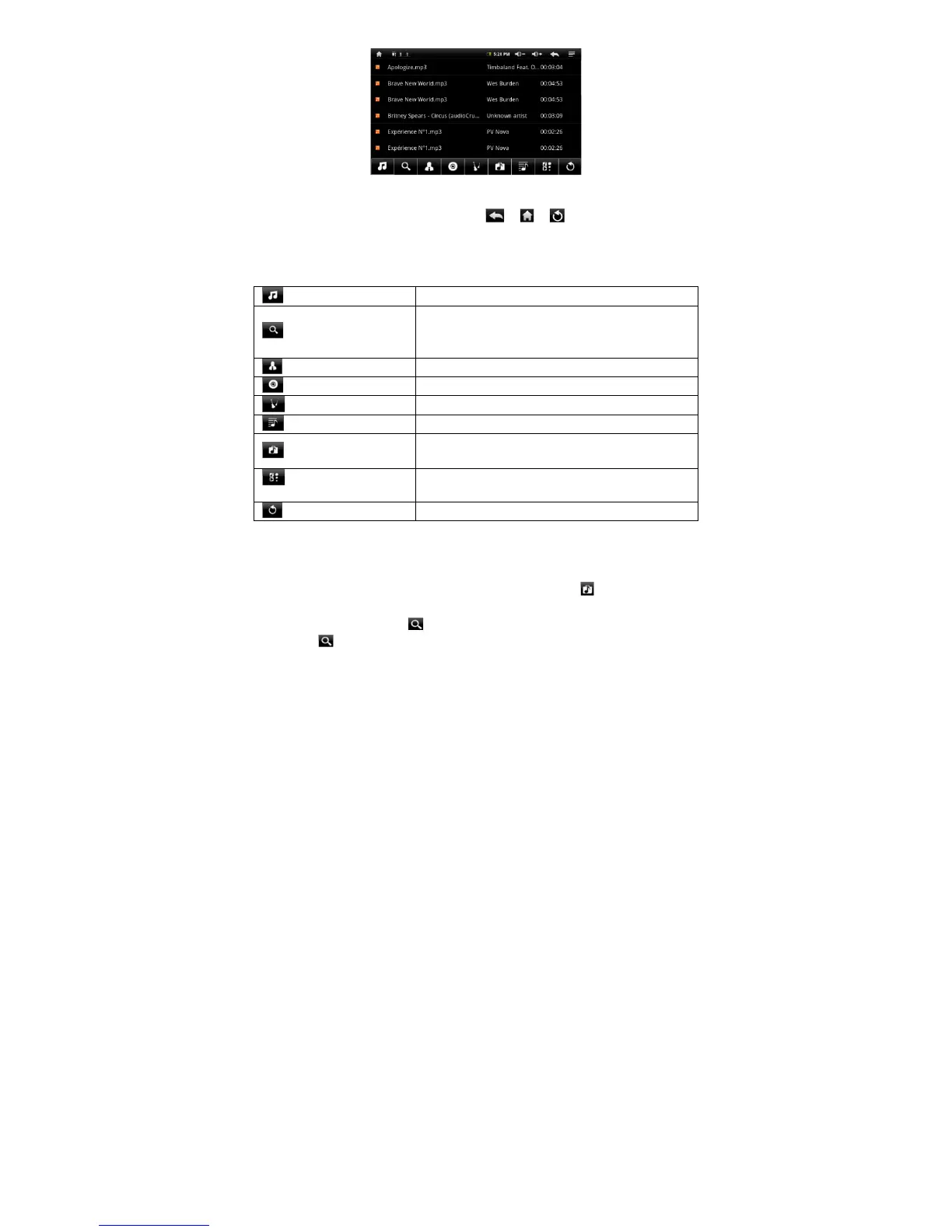
You can drag your finger up and down on the file list to scroll through the list.
Tap on a track to play a track.
To return to the Home Screen, tap on / / .
Music Library Menu
Once you enter the music library, you should see the toolbar at the bottom of the
screen. Tap and hold your finger on the icon and you should see its name.
Allows you to search for a specific song on
Internet by entering a few letters or a word and
download the song from the Internet.
List music files by artist.
List music files by album.
List music files by genre.
Navigate through music files and folders stored
in the internal memory and memory card.
Go to the Now Playing screen.
Search for Tracks
You can search for tracks in the internal memory or memory card by inputting a
few key words.
(1) In the music library, tap on the Directory Browsing icon in the menu.
(2) Choose the memory device in which you want to search for tracks.
(3) Tap on the Search icon , and then input a few key words of the track.
(4) Tap on to start searching. The track should be listed if found.
Sort Tracks/Folders
You can sort all tracks/folders by their leading leters in order of A to Z, the
creation time of the track/folder, the file size or the file type.







 To Next Page