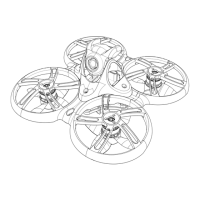
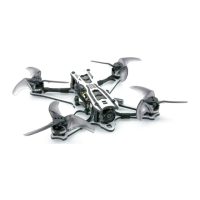
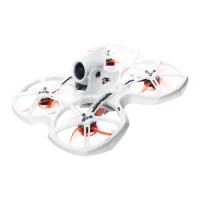
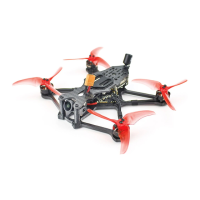
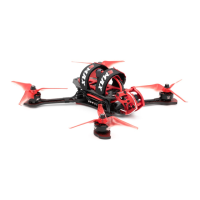
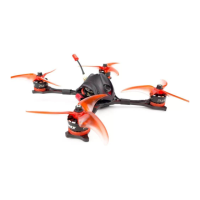
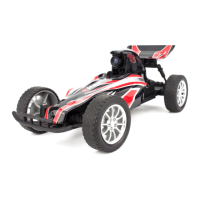
Tinyhawk III Plus Freestyle
Record Format: Chooses the recording format (MOV/TS format).
Record OSD: Specifies whether to keep the on-screen display (OSD) during
recording (Yes/No).
Auto Scan: Enables or disables the auto-scan feature.
About: Displays version information and manufacturer details.
2.3.3 DVR Function
(1) Automatic Recording Mode When the HD goggles meet the following
conditions: 1.1 - Valid video signal (not a black screen) 1.2 - Available space on
the TF (microSD) card is over 200MB And video signal is connected upon
powering on, the goggles will automatically enter the automatic recording mode.
During this mode, the "Recording Indicator Light" will flash green, and the
"Screen Recording Dot" will remain red, indicating that the goggles are in
recording mode.
(2) Manual Recording Mode When the HD goggles meet the following
conditions: 2.1 - Valid video signal (not a black screen) 2.2 - Available space on
the TF (microSD) card is over 200MB And video signal is connected upon
powering on, long-press the "Confirm Button" to enter the manual recording
mode. Similar to automatic recording, the "Recording Indicator Light" will flash
green, and the "Screen Recording Dot" will remain red, indicating that the
goggles are in recording mode. Long-press the "Confirm Button" again to stop
recording. During this state, the "Recording Indicator Light" will remain solid
green, and the "Screen Recording Dot" will be lit in gray.
Note: When the TF (microSD) card is full, the DVR recording will
automatically stop, but real-time video output will not be affected. If no TF
(microSD) card is inserted or if there is insufficient memory, video recording will
not occur.
Note: When the TF (microSD) card is full, DVR recording will automatically
stop, while real-time video output remains unaffected. If no TF card is inserted
or the memory is insufficient, video recording will not occur.
2.3.4 TF (microSD) Card Before use, please format the card:
Format using the "Format" option in the HD Goggles system settings menu
(recommended).
If formatting on a computer, choose "File System" as "FAT32" and
"Allocation Unit Size" as "64KB."
It's recommended to use an 8-32GB TF card with a minimum write speed of
C10.
Note: When formatting is required for the TF card, it's advised to use the
"HD Goggles Format" option for formatting.


 To Next Page