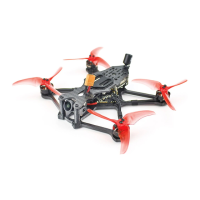
Tinyhawk III Plus Freestyle
2.3.5 Screen Brightness Adjustment
In preview mode (including Preview 1 (no video signal) and Preview 2 (with
video signal)):
Long press the "Down Button" to display the brightness bar.
Short press the "Down Button" to decrease screen brightness.
Short press the "Up Button" to increase screen brightness.
Long press the "Down Button" again to close the brightness bar.
2.3.6 Video Playback Function In the system settings menu, select the
"Playback" option. Short press the "Confirm Button" to enter "Video Playback
Selection Mode." Select a video and short press the "Confirm Button" to play the
video, entering "Video Playback Mode."
Short press the "Up/Menu Button" to play the video in reverse.
Short press the "Down Button" to play the video forward.
Short press the "Confirm Button" to pause the video playback.
During this time, long press the "Up/Menu Button" to return to "Video
Playback Selection Mode."
Long press the "Up/Menu Button" again to return to the "System Settings
Menu Mode."
Top of Form
2.4 Transporter II HD Firmware Update
2.4.1 Firmware Update (Regular Update)
Follow these steps for the update:
Format the TF (microSD) Card: Power off the HD Goggles and format the TF
card.
Extract Firmware: On your computer, extract the Emax Transporter II HD
firmware update package to the root directory of the TF card.
Insert TF Card: Insert the TF card into the HD Goggles, power on the
goggles. At this point, both the "Recording Indicator Light" and "Firmware
Update Indicator Light" will be solid green. Wait for the prompt message
"Success" or similar. Once the lights turn off, the update is successful.
Note:
During the update, ensure that the HD Goggles have a stable power supply.
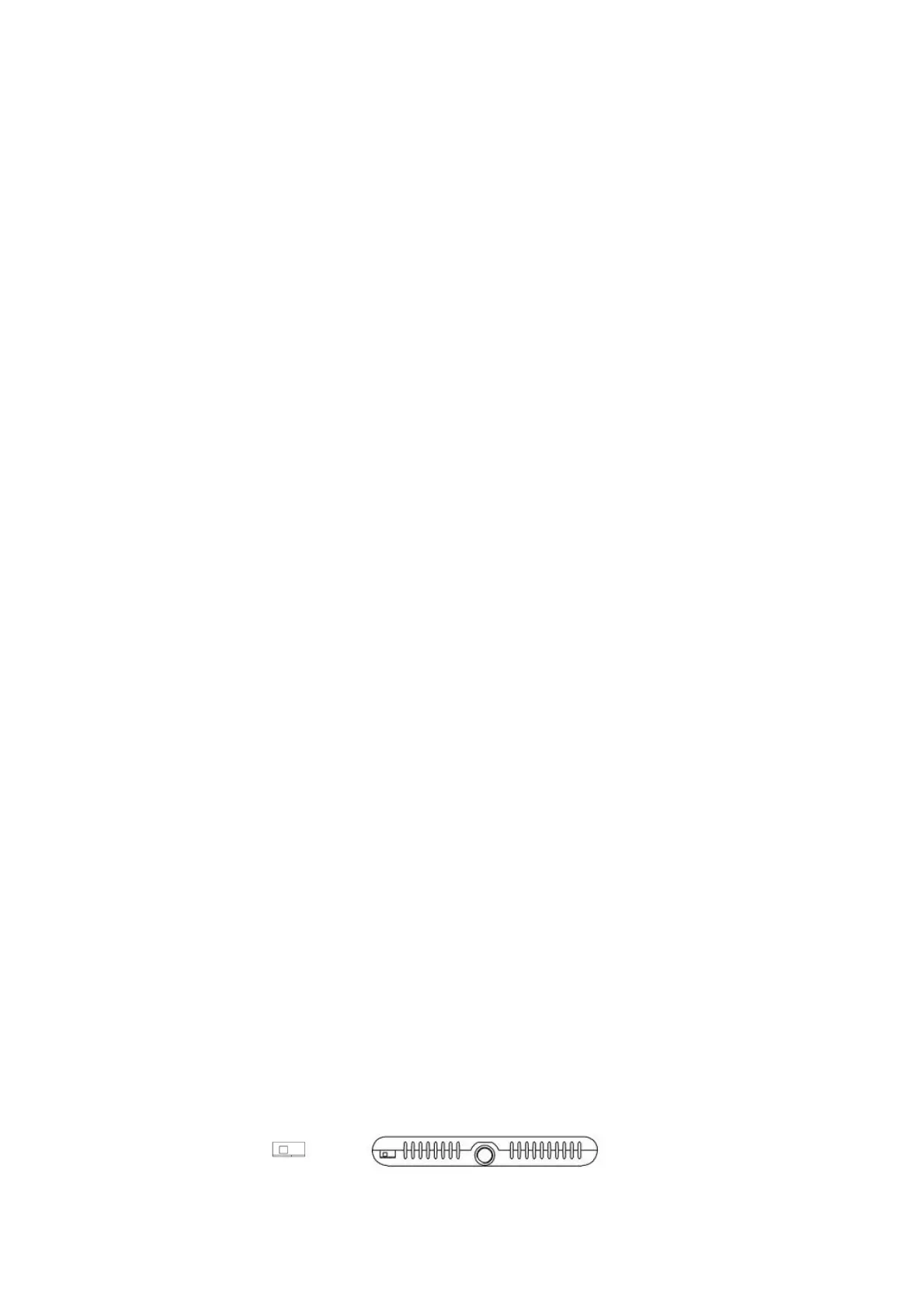
Ensure that the "Boot Switch" is on the left side as shown in the diagram.
Top of Form


 To Next Page