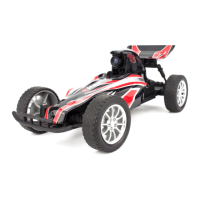
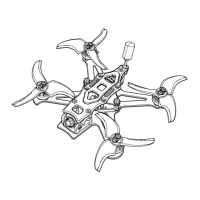
Tinyhawk III Plus Freestyle
Setting Record Duration: To set the recording duration, press the
screen/card record parameter settings, then short press the right-side B/C
button to choose from options: 3 minutes, 5 minutes, 10 minutes, or Off.
3.3.5 Card Record Parameter Settings
Short press the left-side M button to access the screen/card record
parameter settings menu (TF card needs to be purchased separately).
Press the left-side M button again to choose the screen/card record
parameter settings submenu. Each press of the left-side M button selects the
next submenu.
Short press the right-side B/C button to select suitable parameters.
3.3.6 Screen Parameter Settings
Press the single button "M" to open the menu, where you can adjust
brightness, contrast, saturation, and language.
Inside the menu, press the "M" button once to select the next menu option.
The currently selected menu will be highlighted, and you can use the "B"
and "C" buttons to adjust the increment and decrement.
If no button input is detected, the menu will automatically close after 3
seconds.
3.3.7 Battery & Charging
The Transporter II comes with a pre-installed 1300mAh lithium-ion battery.
If you need to reinstall or replace the battery, please contact us or seek
assistance on our official website. Do not attempt to open the back cover on
your own to avoid damaging the product.
Charging and Battery Status:
To charge the Transporter II, use a 5V-1A adapter along with a micro-USB
cable. After inserting the USB cable, the charging indicator light will show the
following statuses:
Solid red light: Charging in progress
Solid green light: Charging complete
Note: The Transporter II's screen displays the battery level in the upper-
right corner. When the screen shows "Low Battery," please charge the device
promptly. If not charged, the Transporter II will shut down within two minutes.
Top of Form


 To Next Page