2
Connecting the Emlid Flow app to the Emlid unit
Make sure you have disconnected your phone or tablet from any Wi-Fi network.
Open the Wi-Fi settings on your phone or tablet and connect to the Wi-Fi network created by
your Emlid unit. This is called reach:xx:xx Use the password emlidreach to connect.
Note: If the Emlid is connected to a Wi-Fi network, you can connect your mobile device to the
same network and proceed as below.
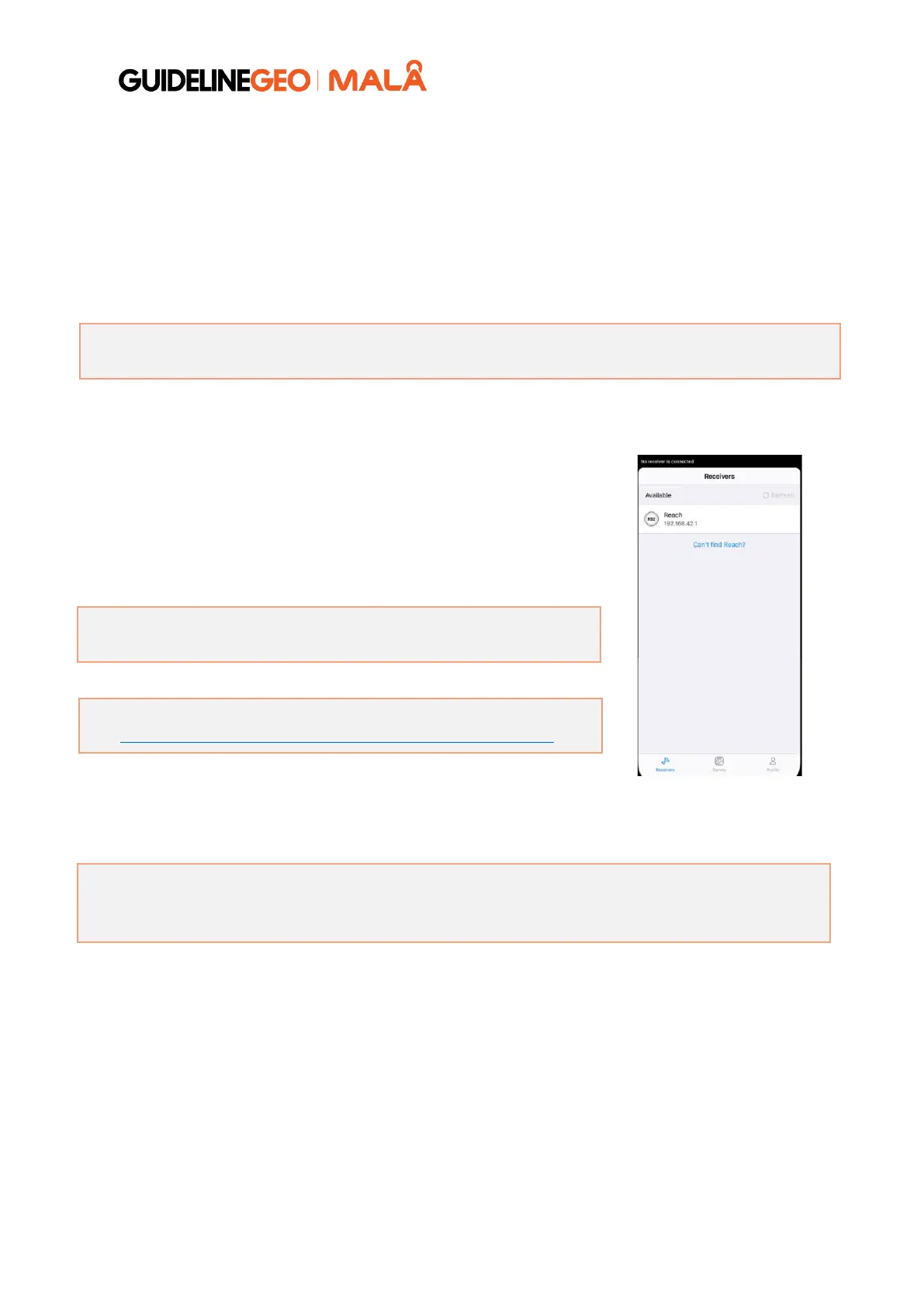
Start the Emlid Flow app on your phone or tablet.
Press the refresh button in the app and connect to the correct
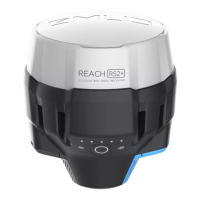
Emlid RS2 / RS2+ / RS3 unit.
If you have several Emlid units powered on simultaneously, like a
base and a rover, both will be displayed in the list.
Note: You can rename the Emlid units in the Emlid Flow app, for
easier differentiation.
Note: More information is found here
https://docs.emlid.com/reachrs2/before-you-start/first-setup/
Note: Please ensure the firmware on the GNSS receiver is up to date by checking on the EMLID
Flow App. Failure to do so may result in errors or issues when connecting to the GPR.



 To Next Page