15
Select a 2.4 GHz Wi-Fi network, enter the password and tap Next.
Check o Conrm that the indicator is ashing rapidly and tap Next.
The chosen thermostat should appear in the app within 2 minutes.
Tap the green arrow on the right; the thermostat will be added into the app.
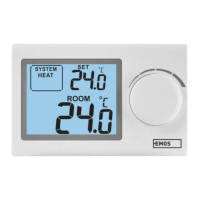
Then tap the thermostat icon in the app to open the main control menu.
Note:
If the thermostat fails to pair, repeat the process.
5 GHz Wi-Fi networks are not supported.
The thermostat can only be controlled via the app by 1 user at a time. If another
user wants to control the thermostat, the previous user must log out.
Description of the Main Menu of the Mobile App (see g. 7)
Tap the thermostat icon in the app to open the main control menu.
1. Thermostat status (ON/OFF) – Anti-freeze mode, temperature xed to 5 °C
2. Work mode setting (detailed information in the WORK MODES chapter of
this manual)
Automatic
Manual – see HOLD mode
Temporary – see Temporary change mode
Boost – see Timed temporary change mode
Holiday – see Holiday mode
3. Schedule (see g. 8)
1 – add a time period
2 – delete a time period
3 – day display
7 days (Mon → Sun)
5+2 days (Mon → Fri + Sat → Sun)
24-hour
Every day can be divided into a maximum of 6 periods.
When in 7 day mode, you can copy the temperature settings from one day into
other days (see g. 9).
Example:
Long-press the Thursday icon; a menu of other days will open. Mark them orange
by tapping them and conrm.
Thursday‘s schedule will copy over to Monday, Tuesday and Wednesday.
4. Setting (see g. 10)
1 – reset the thermostat to factory settings
2 – key lock
3 – correction of ambient temperature (-3 °C to +3 °C in 0.5 °C increments)
4 – heating/cooling system mode
5 – calendar mode (7 days, 5+2, 24 h)
5. Thermostat mode icon
heating
cooling
o


 To Next Page