21
Screen Illumination
Pressing any button will illuminate the screen for 15 seconds.
Other Technical Settings
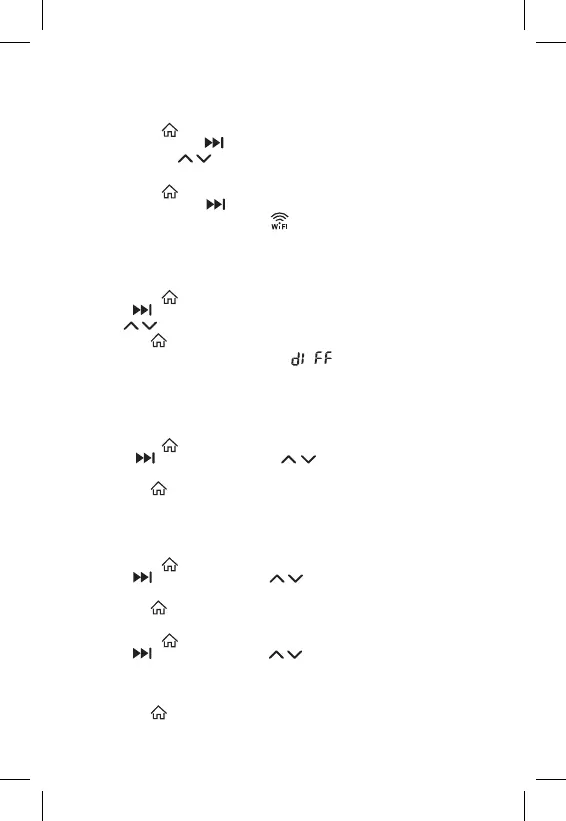
Long-press the button for about 5 seconds.
Repeatedly pressing the
button selects from the functions below, values are
adjusted using the buttons.
Connecting the Thermostat to WiFi (COFI)
Long-press the button for about 5 seconds.
Then press and hold the button for 3 seconds.
E2 will appear on the screen and the
icon will be ashing.
Complete the pairing of the thermostat in the mobile app.
See instructions for Connecting the Thermostat to a WiFi Network for Control
via the Mobile App.
Switching Heating/Cooling Mode
Long-press the button for about 5 seconds.
Press the button once.
Use the buttons to switch to heating (HEAT) or cooling (COOL) mode.
Conrm with .
Setting the Temperature Dierential
The temperature dierential (hysteresis) is the dierence in temperature required
for switching the system on and o. If, for example, you set the temperature in
the heating system to 20 °C and the dierential to 0.2 °C, the thermostat activates
heating as soon as room temperature drops to 19.8 °C and switches heating o
when temperature reaches 20.2 °C.
Long-press the button for about 5 seconds.
Press the button 2× and use the buttons to set the temperature
dierential value (0.2 °C to 2 °C in 0.1 °C increments).
Conrm with .
Ambient Temperature Calibration (CAL)
The temperature sensor in the thermostat is calibrated from production, but
additional calibration can be done to optimise the thermostat further, for instance
by comparing the measured room temperature with a reference thermometer.
Long-press the button for about 5 seconds.
Press the button 3× and use the buttons to set the calibration value
(-3 °C to +3 °C in 0.5 °C increments).
Conrm with .
Time Synchronisation (SYNC)
Long-press the button for about 5 seconds.
Press the button 4× and use the buttons to set:
ON – time will be automatically synchronised with the Wi-Fi network;
OFF – time will not be synchronised with the Wi-Fi network and the time you
set manually will be used.
Conrm with .


 To Next Page