[pg.41]
Radio: You can turn on/off the wireless radio. If wireless Radio is off, you cannot set an access point through wireless.
Mode: Select Access Point mode or Wireless Distribution Service (WDS) mode for your router.
• AP: Use the ESR300H as a Wireless Access Point for wireless devices to connect.
• WDS: In a WDS, access points are used to expand the wireless area by connecting to each other, without all of them having a wired
backbone. To set up a WDS, enter the MAC Addresses of the other Access Points configured for WDS (up to 4 maximum) and set
the WDS rate.
Set Security: you can select disable, WEP, or WPA for WDS security.
Band: You can select one of the wireless standards for your wireless network. The options are:
• 2.4 GHz (B)
• 2.4 GHz (G)
• 2.4 GHz (N)
• 2.4 GHz (B+G)
• 2.4 GHz (B+G+N)
1. Enable SSID#: Set the number of Wireless Groups. Up to 4 can be set.
2. SSID[#]: The Name of the wireless network.
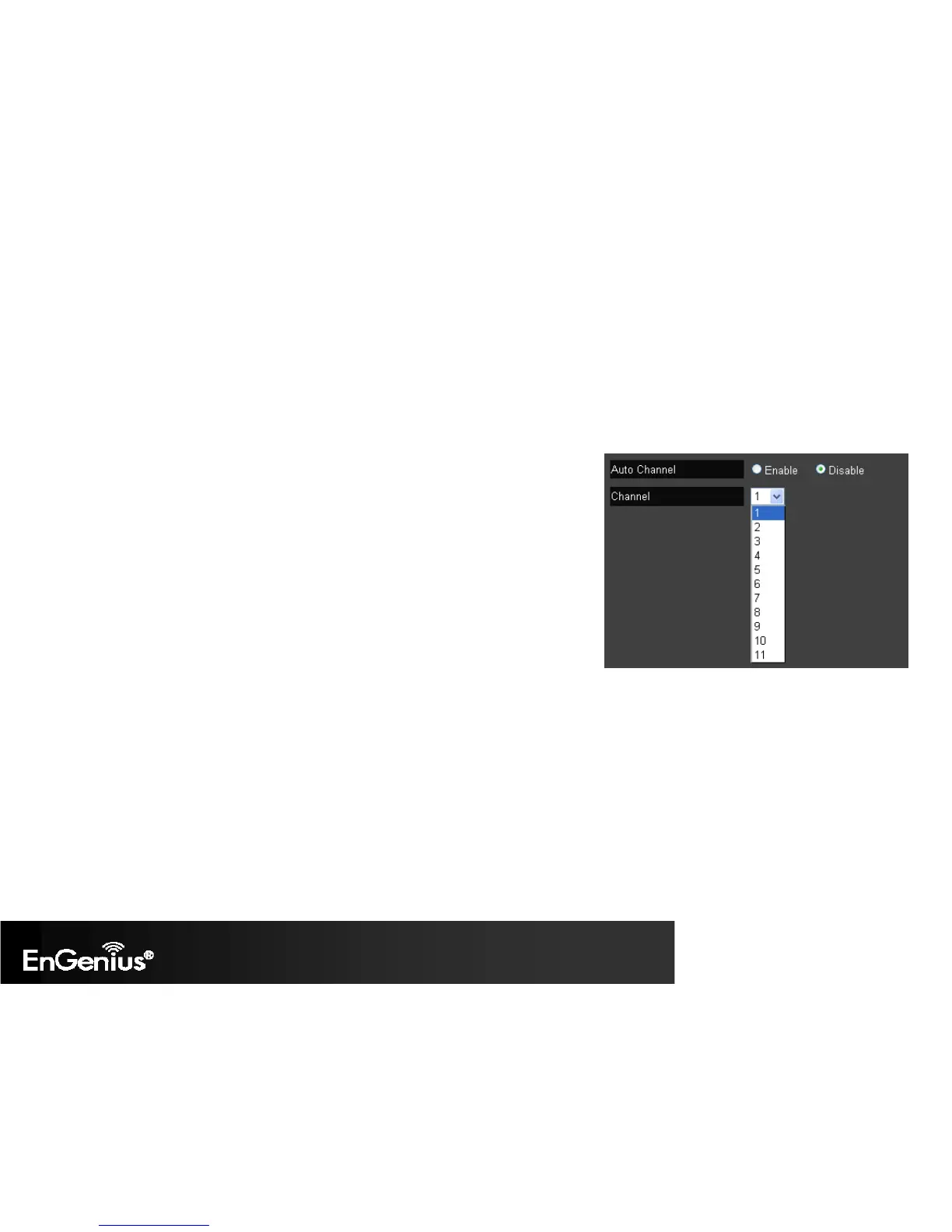
3. Auto Channel: Auto channel is enabled by default. If you wish to select an appropriate
channel for your wireless network, please disable Auto Channel, and select Channel
from 1 – 11.
4. Check Channel Time: if Auto Channel is enabled, please select time period you wish
the system check the appropriate channel for your router.
Wireless > Advanced
To change more advanced wireless features of the EAS300H, select the Advanced option of the Wireless section.
In the Advanced option, you can change the following:
1. Fragment Threshold: This specifies the maximum size of a packet during data transmission. A value too low could lead to low performance.
2. RTS Threshold: If the packet size is smaller than the RTS threshold, the ESR300H will not use RTS/CTS to send the data packet.
3. Beacon Interval: This is the amount of time that the ESR300H will resynchronize the network.
4. Delivery Traffic Indication Message (DTIM) Period: The DTIM is a countdown informing clients of the next point of broadcast and
multicast messages over the network. This is a value between 1 and 255.


 To Next Page