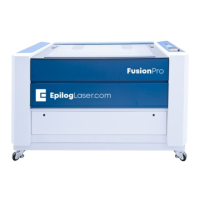
Setting Up/Printing Your Job
1. Find your material you would like to engrave (i.e. wood,
anodized aluminum, plastic, etc).
2. In your graphic program, create a new page that is the
same size as the piece of material you will be engraving.
3. Turn on your laser and wait for a beep to note the
machine is initialized.
4. Place your material onto the table in the upper left
corner. Make sure the table is low enough to accommodate
the material (If not low enough, press the Focus key, then
the down arrow to lower the table before placing your item
on the table).
5. Close the door and turn on air assist.
6. In your graphic software, print the file. Select the laser as
your printer.
7. Click Properties to see the Laser Dashboard. Set a
resolution (check chart), check the box next to Auto Focus,
set a page size to match the size of the file.
8. Choose a speed and power setting under raster settings.
See “Epilog Mini / Helix Suggested Material Settings” for
suggested speed and powers.
9. Click Ok to exit the Laser Dashboard and click Print to
print the page to your laser.
10. Turn on your exhaust fan or filtration unit.
11. At the laser, the job you sent over will be shown on the
LCD display. Press the Go key to run the job. The print will
start.



 To Previous Page