Pearl Mini User Guide Disable the video output port
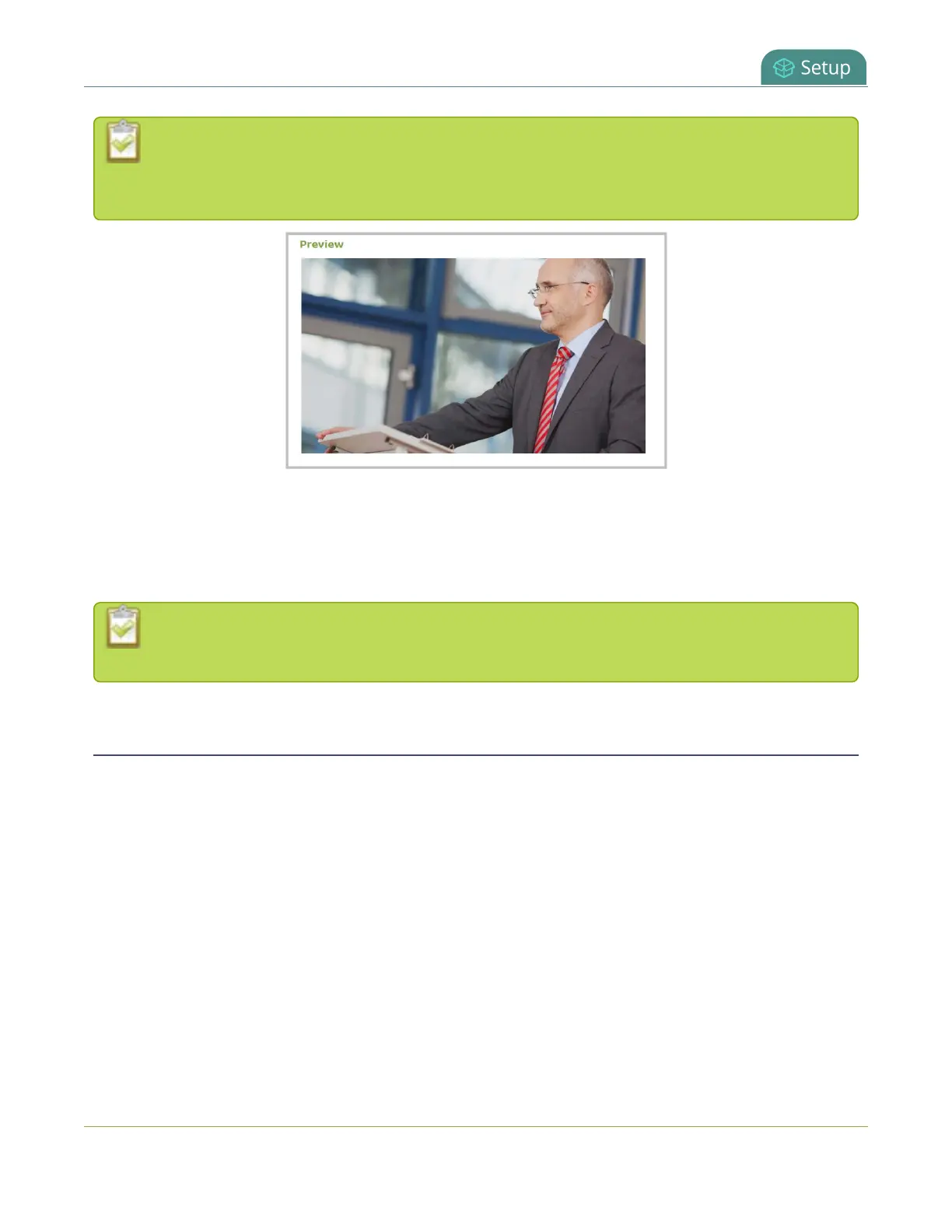
The preview is updated every few seconds and always maintains the same aspect ratio as the
source it is copying. It doesn't reflect black bars, the audio meter or actual aspect ratio/resolution
on the display.
If the video output port is showing a source and that source has no signal, the source's no signal image is
displayed.
If the video output port is showing a channel and that channel is unavailable or has no signal, a no signal
message is shown for 2.5 seconds, then the display output is changed to a black screen.
You can also preview video output ports using the Epiphan Live control interface. See Monitor
and setup the output port source and audio for more information.
Disable the video output port
You can use the Admin panel to disable a video output port so that even if a display is connected, nothing is
shown.
To disable video output ports using the Epiphan Live, see Monitor and setup the output port source and
audio.
To disable the video output port using the Admin panel:
1. Login to the Admin panel as admin, see Connect to the Admin panel.
2. From the Outputs menu, click the output port (HDMI 1 or HDMI 2). The video output port
configuration page opens.
3. In the Source field, select none to disable the video output port and then click Apply.
131


 To Next Page