For facilities not using an epoc Data Management System, skip steps 2 and 3.
Step 2: Connect to your Wi-Fi Network
NOTE:
Please read Step 2 in its entirety before starting. It may be necessary to
contact your facility’s Information Technology department to obtain the
proper Wireless connection and security settings.
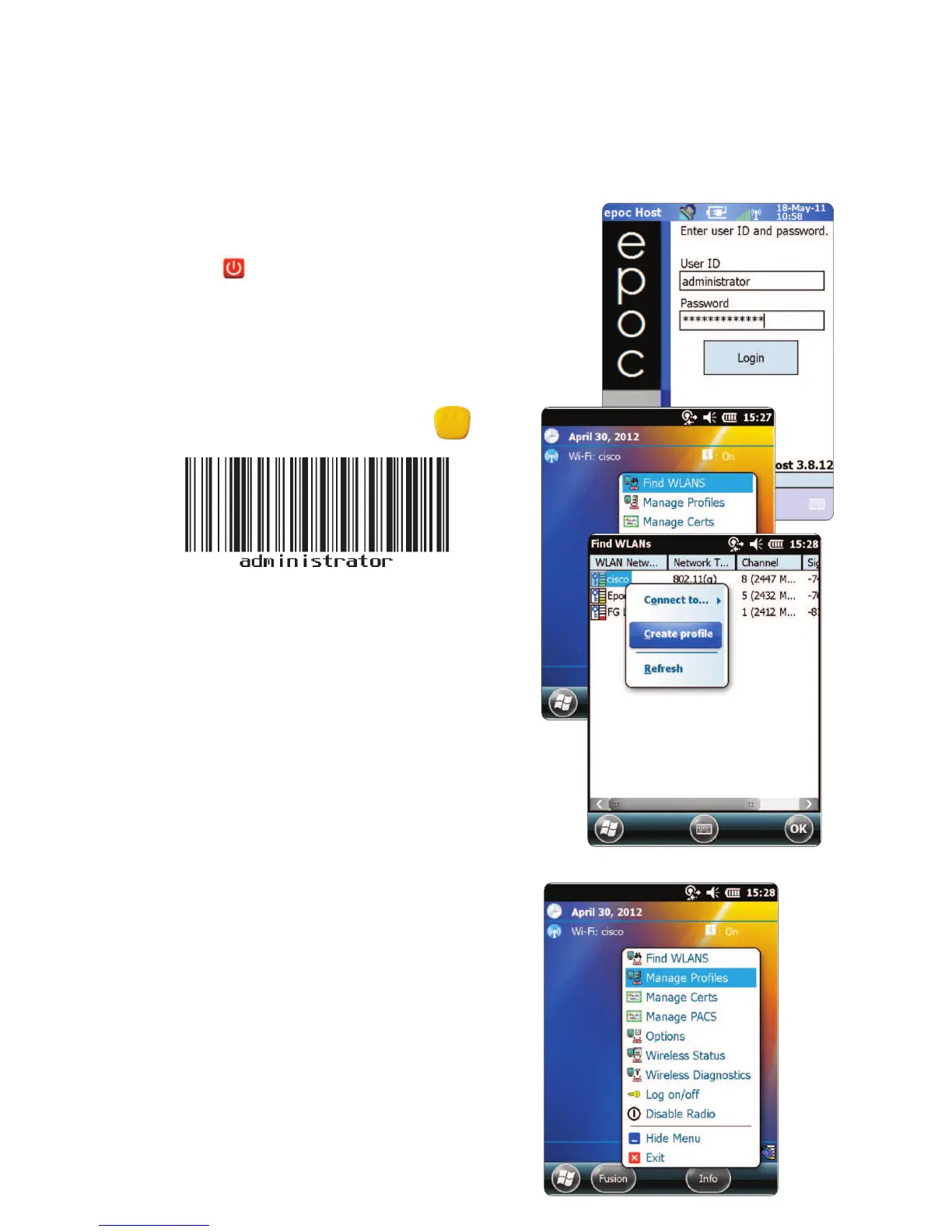
1. Run Motorola Wireless Fusion.
• Turn on the
epoc Host
2
by pressing the power
button.
•
At the login screen, scan or enter the word
“administrator”
into the User ID and
Password elds.
• To scan, aim the Barcode Scanner at the
barcode and press the Scan Key.
• Exit the
epoc Host
2
application
by tapping “Tools”, then “Exit”
from the menu.
For networks that broadcast their SSID:
• Tap the “Fusion” on-screen icon and
select “Find WLANS” from the menu.
• Tap and hold desired WLAN and select
“Create Prole” from the menu.
•
Proceed to Congure the Wi-Fi Network
Prole as described on the next page,
starting with the 3rd bullet. Typically, your
settings will be already entered.
For networks that DO NOT broadcast their SSID:
• Tap the “Fusion” on-screen icon and
select “Manage Proles” from the menu.
•
Proceed to Congure the Wi-Fi Network
Prole as described on the next page
.
You will need to enter
your settings
manually.
3


 To Next Page