EN
EN
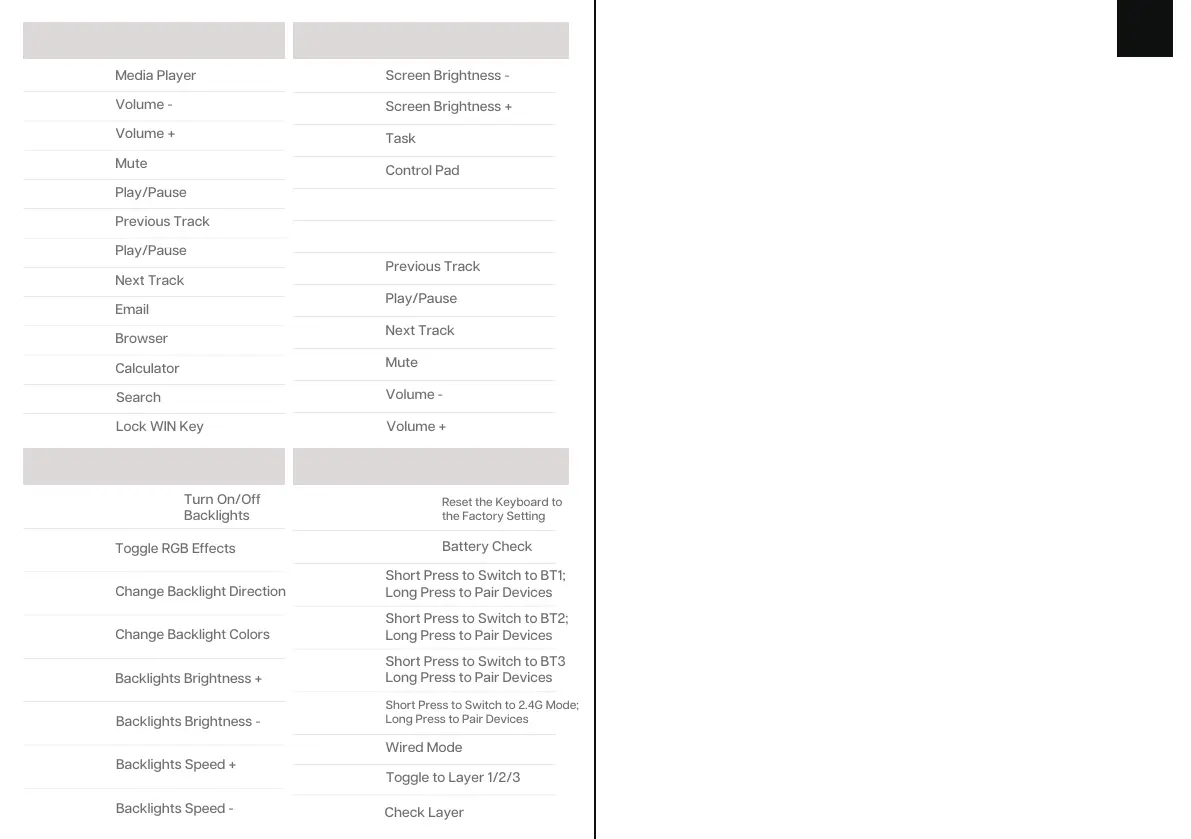
WINDOWS SHORTCUT
LIGHT EFFECTS
FN + F1
FN + F2
FN + F3
FN + F4
FN + F5
FN + F6
FN + F7
FN + F8
FN + SPACEBAR
FN + Z/X/C
FN + V
FN + F9
FN + F10
FN + F11
FN+ESC
(HOLD 3S)
(HOLD 3S)
Reset the Keyboard to
the Factory Setting
FN + 1!
Short Press to Switch to BT1;
Long Press to Pair Devices
FN + 2@
Short Press to Switch to BT2;
Long Press to Pair Devices
FN + 3#
Short Press to Switch to BT3
Long Press to Pair Devices
FN + 4$
Short Press to Switch to 2.4G Mode;
Long Press to Pair Devices
FN + 5%
FUNCTION KEY COMBINATIONS
PAIRING BLUETOOTH
Toggle the switch in the back to ON to make sure that the keyboard is under
the Wireless mode
1. Press Fn+1!/2@/3# and the whole keyboard flashes white 3 times, the keyboard is
under the Bluetooth mode;
2. Hold Fn+1!/2@/3# for 3-5 seconds till the 1!/2@/3# indicators flashes fast in
red/green/blue, the keyboard is ready to pair;
3. Turn on your Bluetooth device and find ‘EP84 PLUS3.0’ or ‘EP84 PLUS 5.0’, then
connect. When the keyboard is connected to the Bluetooth device, the light on the
1!/2@/3# key stops flashing and the connection is done.
4.Press Fn+1!/2@/3# to toggle between the Bluetooth devices 1/2/3.
Toggle the switch in the back to ON to make sure that the keyboard is under
the Wireless mode
PAIRING WIRELESS 2.4GHZ
1. Short press the FN + 4$ key combination, the backlight will flash blue 3 times, the
keyboard will enter 2.4G mode
2. Long press the FN + 4$ key combination for 3-5 seconds to enter pairing mode, the
4$ indicator light will flash white, insert the receiver, after successful pairing, the 4$
indicator light will be on for 2 seconds and then turn off, the connection is successful
CHANGE RGB EFFECTS
Press Fn + \| to switch the RGB effects of your Epomaker EP84 Plus keyboard.
MAC SHORTCUT
FN + F12
FN + WIN
FN + BACKSPACE
FN + \|
FN + -_
Change Backlight Direction
FN + =+
FN + ↑
FN + ↓
FN + →
FN + ←
FN + F1
FN + F2
FN + F3
FN + F4
FN + F5
FN + F6
FN + F7
FN + F8
FN + F9
FN + F10
FN + F11
FN + F12


 To Next Page