Transferring Data 23
P-5000 User’s Guide
Copying Data from USB Devices
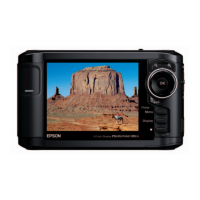
You can copy data from USB devices directly using the USB Standard-A connector of the
viewer. Only a USB device supporting the USB Mass Storage specification can be used.
You can use the following USB storage devices capable of copying: digital cameras,
external HDD drives, USB memories, and card reader/writers. You can also use the
following Epson Multimedia Storage Viewers: P-2000, P-4000, P-2500, P-4500, and
P-3000.
Connecting a USB device
1. Connect the AC adapter to the viewer if possible.
Note:
Some USB devices require the viewer to be powered via the AC adapter.
2. Connect the viewer and the USB device. Open the side upper cover and connect a USB
cable to the Host (Standard-A) connector and the other end to the USB device, or
connect a USB memory to the viewer.
3. Turn on the viewer and the USB device.
Note:
❏ If the USB device has a supplied AC power cord, plug it in also, to prevent data loss while
transferring.
❏ Using a USB hub is not supported.
❏ A USB device without power may not be activated.
❏ A USB device with the certification or encryption function cannot be used.
❏ When you connect a USB device to this viewer, use the USB cable supplied with the device.
❏ Do not connect USB interfaces (Host-standard A and Slave-Mini B) at the same time. It may
cause a malfunction.
❏ Do not touch the Slave-Mini B connector during the USB data transfer.



 To Next Page