Viewing Images 29
P-5000 User’s Guide
Chapter 4
Viewing Images
Copying Data to My Photos/My Videos Folder
Copying from a computer
Using the Epson Link2 software makes it easy to copy photo and video data from a
computer. For details about connecting a computer, see “Connecting the viewer to the
computer” (page 25).
Note:
Use the AC adapter while connected to the computer.
1. Connect to a computer, then open the Epson Link2 software.
2. Select My Photos or My Videos on the Epson Link2 software.
3. Select the data to transfer, then start transferring.
Note:
For details, see the online Epson Link2 User’s Guide.
Copying from Backup Files or Memory Card
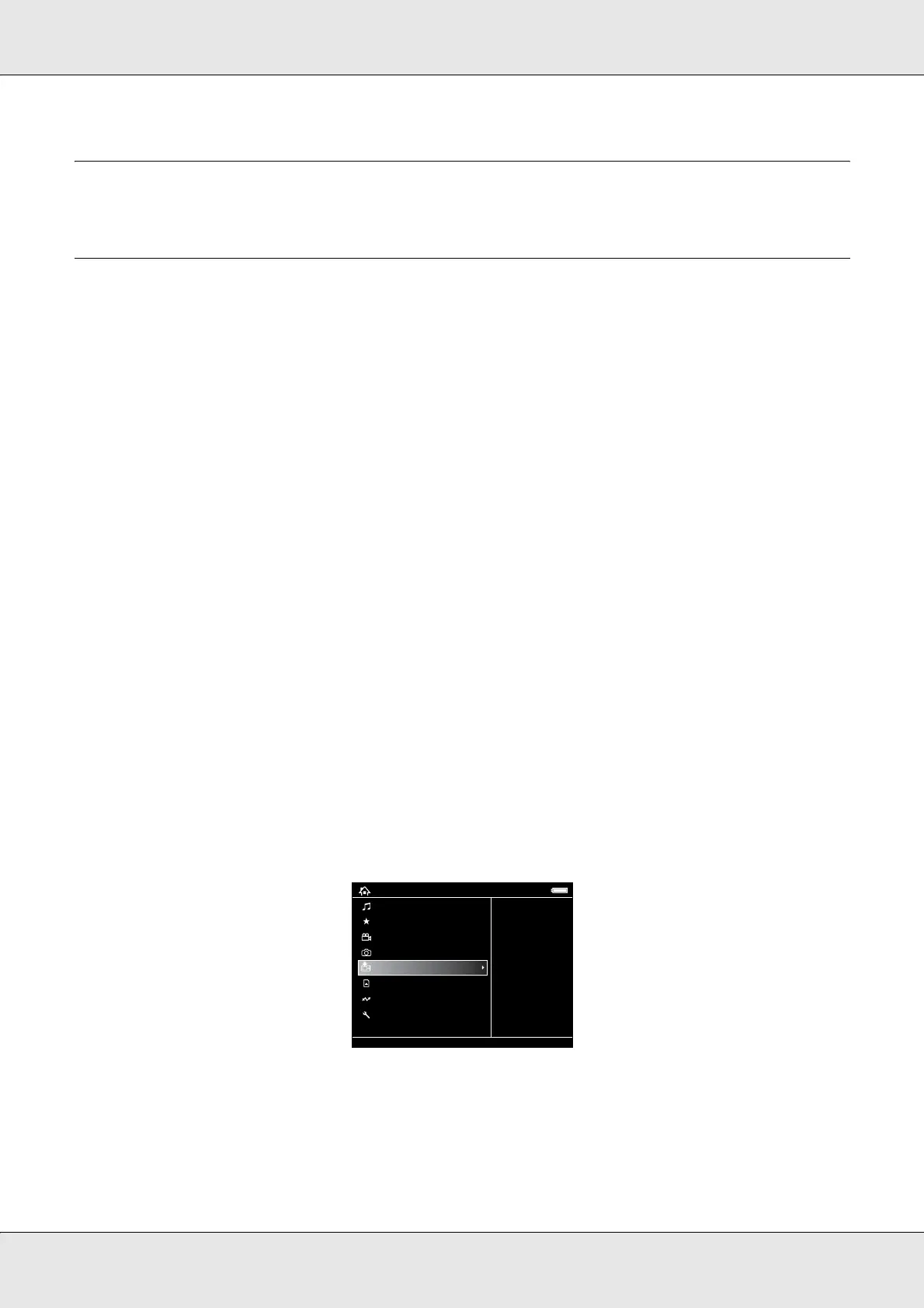
1. Select Backup Files or Memory Card in the Home screen using the Up or Down key,
then press the OK key.
2. Highlight a file or folder to copy to My Photos or My Videos.
3. Press the Menu key to display the pop up menu, select Copy/Move using the Up or
Down key, then press the OK or Right key.
My Music
View Rated Files
My Videos
My Photos
Backup Files
Memory Card
USB Device
Settings
20122006.001
19122006.002
19122006.001
18122006.001
17122006.001
Home



 To Next Page