Direct Printing 56
P-5000 User’s Guide
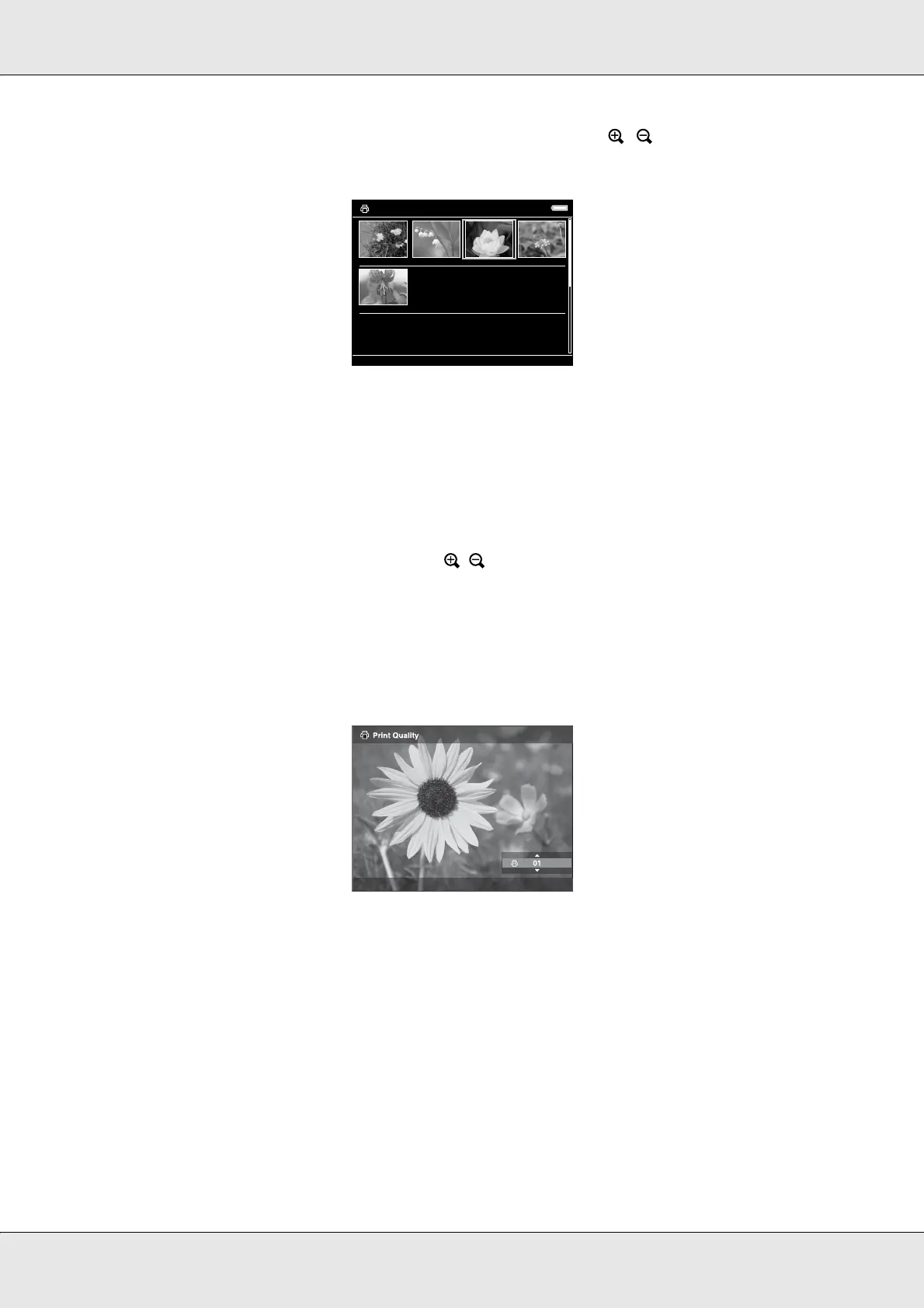
5. Select the number of prints using the 4-way ring and the / key, then press the OK
key.
Setting the number of prints in full screen
1. Press the Menu key to display the pop up menu.
2. Select Photo Print using the Up or Down key, then press the OK key.
3. Select the number of prints using the / key and press the OK key. (You can display
the other photos in the folder using the Right or Left key.)
Note:
Pressing the Display key enters the print preview mode. You can check the print color in the
case of selecting “PhotoEnhance6” with an Epson printer. However, the print result will differ
according to the printer. Pressing the Back key returns to the normal mode.
The viewer starts checking the printer connection.
01
00
01 01 00
EPSN0001.JPG EPSN0002.JPG EPSN0003.JPG EPSN0004.JPG
EPSN0005.JPG
Print Quality



 To Next Page