EasyManua.ls Logo

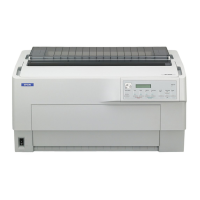
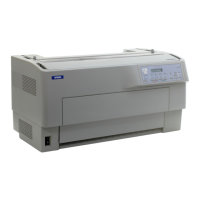
Epson DFX-900 - User Manual

Epson DFX-900
28 pages
Print Icon
To Next Page IconTo Next Page
Loading...
English
9-pin Dot Matrix Printer
®
User’s Guide
This manual explains how to set up your printer and provides
basic product information.
For detailed information, see the on-screen Reference Guide
(which is installed when you install the printer software). It
describes all the printer’s functions, optional products, printer
software, troubleshooting, and detailed technical specifications.

Questions and Answers

  • R
    robert06Aug 14, 2025
    Why does my Epson DFX-900 say 'Paper out'?
    • J
      joedorseyAug 14, 2025
      If your Epson Printer displays a 'Paper out' error, it may be because no paper is loaded on the selected tractor. To resolve this, load paper into the printer, or select a different tractor by pressing the Front/Rear button.
  • D
    Dennis StoneAug 17, 2025
    What to do if Epson DFX-900 Printer shows 'Paper out' error due to incorrect paper loading?
    • D
      Dr. Elizabeth HudsonAug 17, 2025
      If your Epson Printer displays a 'Paper out' error, it might be because the paper is not loaded correctly. Remove your paper and reload it correctly.
  • D
    Debbie HopkinsAug 21, 2025
    How to fix 'No paper loaded' error on my Epson Printer?
    • O
      oliverdevinAug 21, 2025
      If your Epson Printer displays a 'No paper loaded' error, it means that continuous paper is not fed to the standby position. Tear off the printed page at the perforation; then press the LF/FF Load button. The printer feeds the paper to the standby position.
  • W
    Wayne PhillipsAug 25, 2025
    What to do if my Epson Printer shows 'Cover open' error?
    • C
      Calvin MirandaAug 25, 2025
      The 'Cover open' error on your Epson Printer means that the printer’s top cover is open. Because the printer will not print if the cover is open, you should close the cover.
  • M
    Michael MurrayAug 27, 2025
    How to fix 'Ribbon out' error on my Epson Printer?
    • S
      Steven Rodriguez DVMAug 27, 2025
      The 'Ribbon out' error on your Epson Printer indicates that the ribbon is not installed. Install the ribbon cartridge and press the Pause button. See page 4 for instructions.
  • D
    Donna JamesAug 30, 2025
    What to do if my Epson DFX-900 shows an unknown error?
    • N
      Norma RossAug 31, 2025
      If your Epson Printer displays an unknown error, turn it off and leave it off for several minutes; then turn it on again. If the error recurs, contact your dealer.
  • S
    shannonmooneySep 3, 2025
    How to resolve a 'Ribbon jam' error on Epson DFX-900?
    • A
      Angelica OwensSep 3, 2025
      If your Epson Printer displays a 'Ribbon jam' error, it means that the ribbon has jammed. You should remove and re-install the ribbon cartridge. See page 4 for instructions.
  • K
    Kim CarrSep 6, 2025
    What to do if my Epson DFX-900 says 'Print head hot'?
    • K
      karen30Sep 7, 2025
      If your Epson Printer displays 'Print head hot', it means that the print head is overheated. Wait a few minutes; the printer resumes printing automatically once the print head cools.
  • R
    Robert DiazSep 10, 2025
    What to do if my Epson DFX-900 shows 'Switching not completed' error?
    • D
      Darren MurphySep 10, 2025
      If your Epson Printer displays 'Switching not completed', it means that the printer fails to change the paper. Cut the paper at the top and press the Pause or Front/Rear button.

Summary

Setting Up the Printer

Unpacking the Printer

Steps to unpack the printer and check for included items.

Choosing a Place for the Printer

Guidelines for selecting a suitable location for the printer.

Installing the Ribbon Cartridge

Instructions for installing the ribbon cartridge into the printer.

Printer Connectivity

Connecting the Power Cord

Procedure for connecting the printer to a power outlet.

Connecting the Printer to Your Computer

Steps to connect the printer to a computer using various interfaces.

Printer Software Installation

Installing the Printer Software

Guide to installing the printer software from the CD-ROM.

Installing and Viewing the Online Reference Guide

Instructions on how to install and access the online reference guide.

Printer Utilities

Installing and Using the Remote Configuration Manager

Steps to install and utilize the remote configuration manager software.

Loading Paper

Using the Two-Tractor System

Explanation of how to use the front and rear tractors for paper feeding.

Supported Paper Types and Sizes

Lists the types of continuous paper compatible with the printer.

Loading Paper On the Front Tractor

Step-by-step guide for loading paper using the front tractor.

Loading Paper On the Rear Tractor

Step-by-step guide for loading paper using the rear tractor.

Switching Between Front and Rear Tractors

Instructions on how to switch between the front and rear paper tractors.

Changing Paper

Procedure for changing the paper loaded on either tractor.

Using the Control Panel

Buttons and Lights Overview

Details the function of each button and light on the printer's control panel.

Selecting a Font and Pitch

Detailed steps for selecting fonts and pitch settings via the control panel.

Changing Printers Default Settings

Methods for changing the printer's default settings.

Using SelecType Mode

Guide to using SelecType mode for printer configuration.

Default-setting Mode

Instructions for using Default-setting mode to adjust printer settings.

Continuous Forms with Labels

How to adjust settings for printing continuous forms with labels.

Locking the Control Panel Buttons

Steps to enable Lock-out mode for control panel buttons.

Troubleshooting

Using the Error Indicators

How to diagnose printer errors using LCD messages and panel lights.

Clearing Paper Jams

Instructions for clearing paper jams from the printer.

Where To Get Help

Information on how to get technical assistance and support for the printer.

Product Information

Printer Specifications

Technical specifications of the Epson DFX-9000 printer.

Interfaces and Electrical Specifications

Details on printer interfaces, voltage, and power consumption.

Environmental Conditions

Environmental operating conditions for the printer.

Options and Accessories

Information on optional accessories and enhancements for the printer.

ENERGY STAR Compliance

Details on the printer's compliance with ENERGY STAR energy efficiency guidelines.

Safety Instructions and Precautions

Comprehensive safety guidelines and precautions for operating the printer.

FCC Compliance Statement

FCC compliance information for users in the United States.

Declaration of Conformity

Declaration of conformity to FCC rules for the printer model.

Limited Warranty

Warranty Coverage and Service

Details what is covered and how Epson handles warranty repairs.

Warranty Exclusions

Lists exclusions and limitations of the Epson limited warranty.

Copyright and Legal Information

Copyright notice and legal disclaimers for the manual.

Epson DFX-900 Specifications

General IconGeneral
BrandEpson
ModelDFX-900
CategoryPrinter
LanguageEnglish

Related product manuals