Note:
You can also adjust the image using following items.
❏ Text Enhancement: Select to make blurred letters in the original clear and sharp.
❏ Correct Document Skew: Select to correct the slant of the original.
❏ Skip Blank Page: Select to skip blank pages if there are any in the originals.
❏ Detailed Settings button: Select to use Epson Scan 2 features to adjust scanned images.
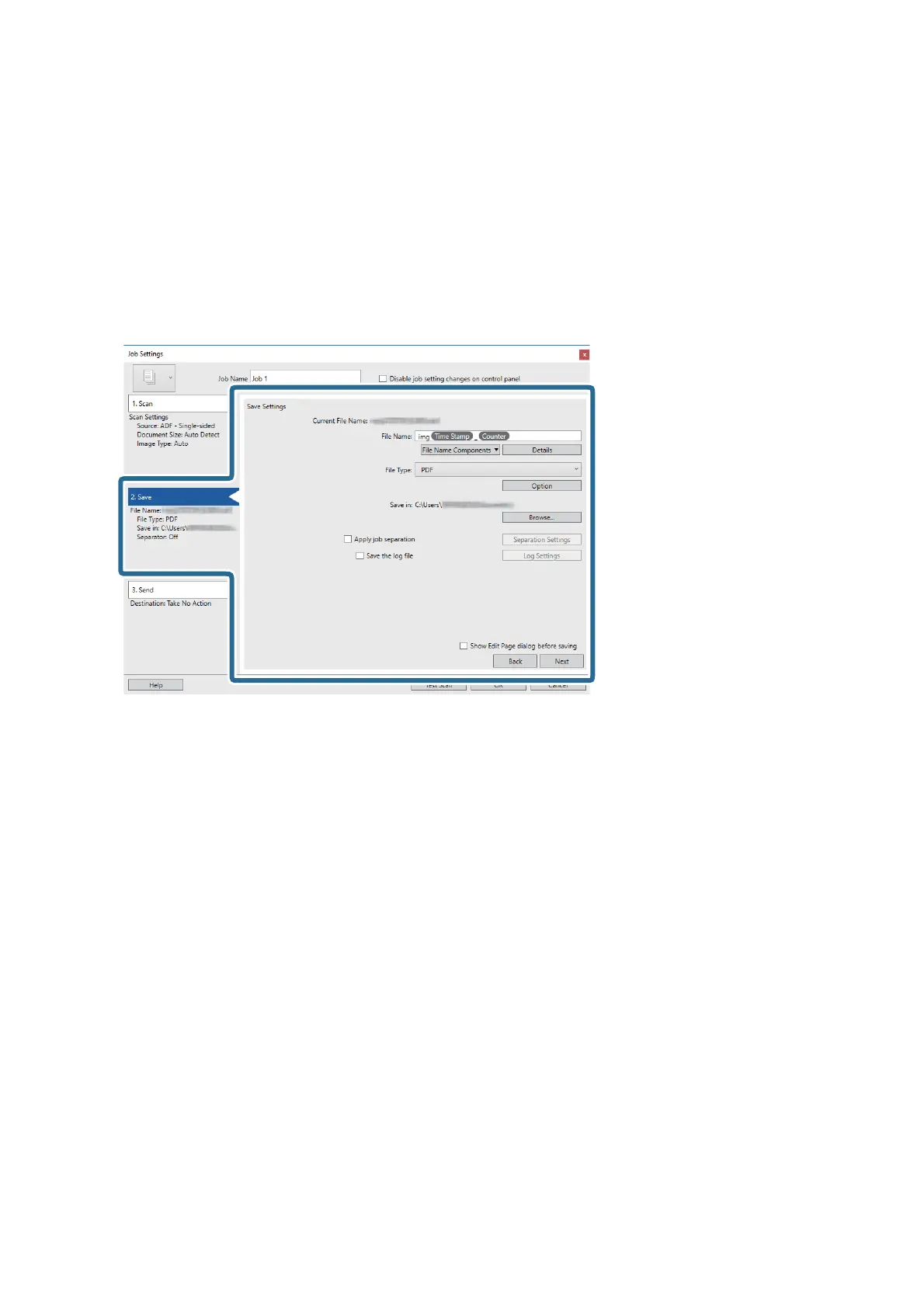
6. Click 2. Save, and then make the save settings.
❏ File Name: Set the le name you want to use when saving the scanned image. Click Details to change the
settings for component items for the le name, and then click File Name Components to add the items.
❏ File Type: Select the save format from the list. Click Option to make detailed settings for the
le.
❏ Browse: Select the save folder for the scanned image.
❏ Apply job separation: Select to make separation settings.
User's Guide
Basic Scanning
26


 To Next Page