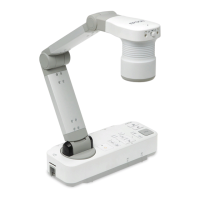
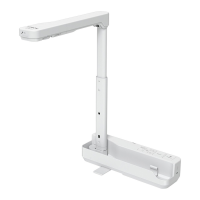
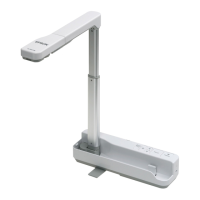
Outputting Images and Sound
When connecting multiple devices to one document camera, the image and
audio are output as follows.
When [ ] is selected using the Source button
• Display Out port: Images from the computer
• HDMI port: Live images from the document camera
• USB-B port: Live images from the document camera and audio from
the internal microphone
a
Images on the computer connected to the document camera are only
output from the Display Out port.
When [ ] is selected using the Source button
When projecting live images from the document camera
• Display Out port: Live images from the document camera
• HDMI port: Live images from the document camera
• USB-B port: Live images from the document camera and audio from
the internal microphone
a
When recording live images or taking photos using the document
camera, images and audio cannot be output from the USB-B port.
When projecting images from an SD card
• Display Out port: Images from the SD card
• HDMI port: Images and audio from the SD card
a
When a computer is connected to the USB-B port, the SD card viewer
is unavailable.
Freezing an Image
Press and release the [Freeze] button on the document camera or the
remote control to freeze the image.
After freezing the image, you can remove your document while leaving its
image displayed on the screen. Place your next document under the camera
lens and press the [Freeze] button again; your presentation continues
without interruption.
Projecting Small Objects
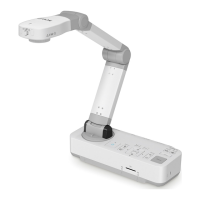
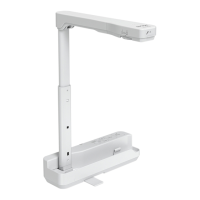
To project a small object, lower the camera arm. You can place the camera
head within approximately 10 cm (4 inches) of the object.
To zoom in on part of the image, press the [Zoom] - [
z
] button on the
document camera or remote control. Press the [Zoom] - [
x] button to
zoom out.
Displaying Whiteboard Images
You can use the document camera to display a lecture or presentation at
the front of a room, or to capture images of a whiteboard or chalkboard.
a
Press the [Rotate Image] button [ ] on the remote control to turn
an image upside-down. You can also rotate the image by pressing
the [Menu] button and then selecting Image > Image Rotation > 180
degrees.
a
Rotate the camera head and set it in the direction of the object.
Projecting
26


 To Next Page