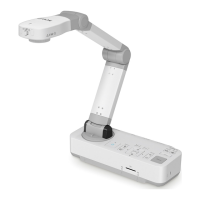
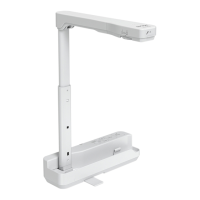
You can save images and audio from the document camera to an SD card
as movies.
a
• Movies are saved in AVI format (images: Motion JPEG 720p/30 fps,
audio: Linear PCM).
• You can record individual files at the following sizes:
Capacity: up to 2 GB
Recording time: up to approximately 29 minutes
If the maximum capacity or recording time are exceeded while
recording, the movie up to that point is saved and the recording
ends.
• You can check the amount of available free space on the SD card in
SD Card Info. s SD Card - SD Card Info. p.43
• Set Sleep Mode to Off to prevent the power turning off while
recording. s Function - Sleep Mode p.41
a
Insert an SD card into the SD card slot on the document camera.
b
Project the image you want to save.
c
Press the [Record] button [ ] to start recording.
The recording indicator is lit blue while recording.
a
• While recording, the elapsed time is displayed at the top right
of the screen. This is not displayed on the saved image.
• If there is no space on the SD card, the message "No free
space on the SD Card." is displayed, and the movie is not
saved.
• Do not remove the SD card while recording.
• The following operations are available while recording.
Freeze, Zoom (Pan/Tilt), Auto Focus, Brightness adjustment,
Focus adjustment
Note that operation sounds are also recorded.
• While recording, a blue screen is displayed on the computer
connected to the document camera using a USB cable.
d
To stop recording, press the [ ] button again.
While saving recordings, the recording indicator flashes blue, and
when saving is complete the indicator turns off. Movies are saved to
the following folder on the SD card:
Recording Movies
32


 To Next Page