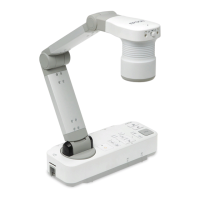
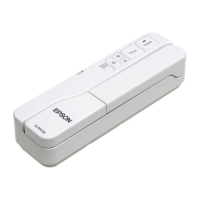
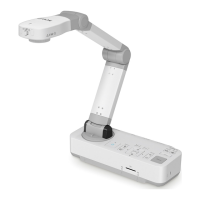
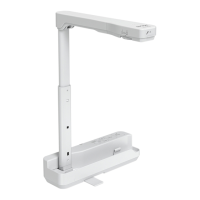
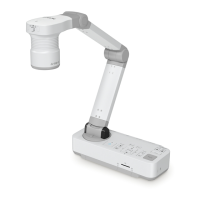
You can save images from the document camera to an SD card as still
images.
a
• Images are saved in JPEG format (1920 x 1080).
• You can change the background color for the image in Background
Color. When White is set and the image is saved, if you print the
image on white paper, the area around the image may not stand
out. s Function - Background Color p.41
a
Insert an SD card into the SD card slot on the document camera.
b
Project the image you want to save.
c
Press the [Capture] [ ] button to capture the image.
The number of photos available is displayed at the top right of the
screen next to
, and captured images are saved to the following
folder on the SD card:
d
Repeat steps 2 and 3 for any additional images you want to save.
a
If there is no space on the SD card, the message "No free space
on the SD Card." is displayed, and the image is not saved.
Saving Images
31


 To Next Page