b
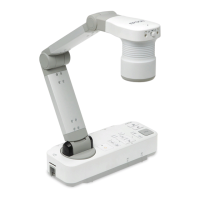
Press the [Focus] button on the document camera or the [Auto
Focus] button on the remote control.
The image is automatically focused.
a
You can make an audio/video recording of your projection. The
recorded images are saved to the SD card.
s
"Recording Movies" p.32
Projecting Through a Microscope
Projected image
To display objects as seen through a microscope, use the included
microscope adapter.
a
• Before installing the document camera, make the following settings:
- Focus the microscope and adjust the zoom
- Press the [Menu] button, and then select Image > Microscope >
On.
• Images may not be displayed correctly depending on the optical
properties of your microscope.
a
Attach the microscope adapter to the microscope's eye piece.
Projecting
27


 To Next Page