24
Turning on and Projecting
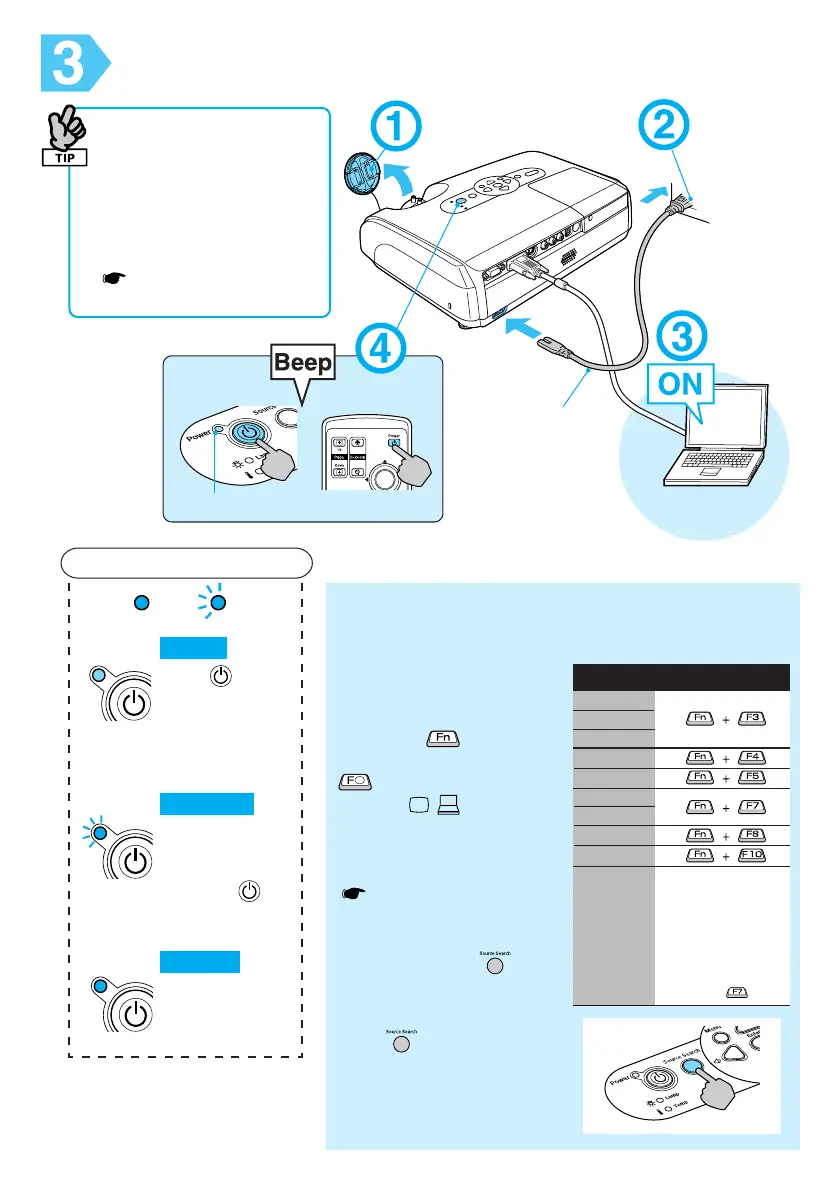
* For video equipment,
press "play" to start
playback.
Control Panel Remote Control
Power Indicator
Lit
Flashing
Orange
Standby
Press to start
projecting.
Green
Green
Warming up
Wait for a short
time (about 30
seconds).
Projecting
In this mode, you can unplug
the power cable.
Reading the Indicators
In this mode pressing has
no effect.
(Accessory
Power Cable)
• When using the "Direct
Power On" feature, the
power turns on when the
power cable is connected.
• When using above an
altitude of about 1500 m,
make sure you set the "High
Altitude Mode" to "On".
User’s Guide "Extended
Menu"
● No image is projected ●
■For notebooks and computers with liquid
crystal displays
Change the computer’s
output source. Hold
down the
key and
press the appropriate
key (the one usually
labelled
/ ). After
changing the setting,
wait a few seconds for
projection to start.
Computer’s "User’s
Guide"
* If the image is not
projected, press
.
■ For video equipment
Start playback then
press
.
Examples
NEC
Panasonic
SOTEC
HP
TOSHIBA
IBM
SONY
DELL
FUJITSU
Macintosh
Set mirror setting
or display
detection.
Depending on
your OS, you can
select them by
pressing .



 To Next Page