EasyManua.ls Logo

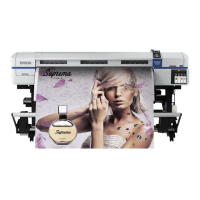
Epson SureColor S30670 - User Manual

Epson SureColor S30670
193 pages
Print Icon
To Next Page IconTo Next Page
Loading...
.
EPSON SureColor
®
S30670
S50670
S70670
User’s Guide

Table of Contents

Other manuals for Epson SureColor S30670

Questions and Answers

  • A
    Alan ThompsonAug 20, 2025
    Why is my Epson SureColor S30670 Printer not communicating with the computer?
    • S
      Stefanie NicholsAug 20, 2025
      There could be several reasons why your Epson Printer isn't communicating with your computer. Here are a few things to check: * Ensure the printer's interface cable is securely plugged into both the computer and the printer. * Verify the cable isn't broken or bent; try a spare cable if available. * Confirm the interface cable specifications match those required by the printer and computer. * Try connecting the printer directly to the computer with the interface cable to see if it prints normally. * If using a USB hub, plug the USB cable directly into your computer's USB port. * Make sure the USB hub is correctly recognized by the computer; if so, disconnect it and connect the printer directly to the computer.
  • M
    Mr. Mark WolfAug 22, 2025
    What to do if my Epson SureColor S30670 Printer sounds like it is printing, but nothing prints?
    • J
      Joseph TownsendAug 22, 2025
      If your Epson printer sounds like it's printing but nothing is coming out, try these solutions: * Print a test pattern to see if anything appears. * Wait for a while without turning off the printer; sometimes it just needs time.
  • T
    Tammy MontesAug 25, 2025
    How to fix Epson Printer when you cannot print (because the printer does not work)?
    • K
      Kristi LarsonAug 25, 2025
      If your Epson printer isn't working and you can't print, try the following: * Make sure the power cable is securely plugged into the printer. * Check if your outlet works by plugging in another electrical device.
  • A
    Amy JimenezAug 26, 2025
    Why Epson SureColor S30670 prints are not what you expected?
    • T
      Theresa BrooksAug 26, 2025
      If your prints from the Epson printer are not what you expected, try printing a test pattern. You can also select Head Alignment to realign the print head if the results appear grainy or out of focus. Perform Feed Adjustment according to the media used. Ensure you are using the correct ink cartridge, and replace old cartridges with new ones if needed. Raise the temperature if the print results are blurred or smudged. Confirm that the media settings in the software or on the printer match the media you are using. Note that selecting Data Width for Head Movement in the setup menu can increase print speed but may slightly reduce print quality. Finally, avoid opening the covers while printing.
  • J
    Joshua HuntAug 27, 2025
    What to do if Epson SureColor S30670 Printer test pattern does not print correctly?
    • A
      austin01Aug 27, 2025
      If the test pattern does not print correctly on your Epson printer, perform a head cleaning. Also, see "Notes when not using the printer" on page 31.
  • L
    Latasha SolisAug 29, 2025
    How to check Epson SureColor S30670 Printer for errors?
    • R
      Ronald TaylorAug 29, 2025
      To find out if your Epson printer has an error, confirm if errors have occurred in the printer by checking the lights and messages on the printer's control panel.
  • M
    Maria ReyesAug 31, 2025
    What to do if the prints are not what you expected with Epson Printer?
    • D
      dwagnerAug 31, 2025
      If your Epson printer isn't producing the print quality you expect, consider these steps: * Try printing a test pattern. * Select Head Alignment to realign the print head if prints are grainy or out of focus. * Perform Feed Adjustment according to the media used. * Ensure you are using the correct ink cartridge; replace it if it's old. * Raise the temperature if the print results are blurred, smudged, or the ink clots. * Confirm that the media settings in the software RIP or on the printer match the media actually in use. * For better quality results, select Printer Full Width for Head Movement.
  • P
    paultranSep 2, 2025
    How to fix Epson SureColor S30670 if Test Pattern Does Not Print Correctly?
    • P
      Paul SingletonSep 2, 2025
      If the test pattern on your Epson printer doesn't print correctly: * Perform a head cleaning. * If the printer hasn't been used for a long time, the nozzles may have dried up and clogged.
  • S
    Stacey DouglasSep 4, 2025
    What to do if Epson SureColor S30670 Printer media jams?
    • R
      Rachel GriffinSep 4, 2025
      If your Epson printer is experiencing media jams: * Do not use media affected by these types of problems. * Check the media specifications to determine whether it can be used in the printer. * Reduce Media Suction.
  • S
    Samuel ColemanSep 6, 2025
    Why I cannot print under the network environment with Epson Printer?
    • K
      Karen JohnsonSep 6, 2025
      If you're unable to print in a network environment with your Epson printer: * Ask your network administrator for the network settings. * If you can print via USB, there are some problems on the network environment.

Summary

Chapter 1 Introduction

Important Safety Instructions

Critical safety guidelines to follow before operating the printer.

Printer Parts Overview

Identification and description of major printer components.

Key Features

Highlights of the printer's capabilities and main functionalities.

Usage and Storage Guidelines

Recommendations for proper printer usage and storage conditions.

Supplied Software Installation

Instructions for installing and using the software provided with the printer.

Chapter 2 Basic Operations

Loading and Exchanging Media

Procedures for loading and exchanging different types of media.

Printer Settings and Adjustments

Configure and adjust various printer settings for optimal performance.

Print Quality Adjustments

Steps to resolve print quality issues like misalignment or poor output.

Media Handling and Positioning

Guidelines for positioning media and understanding printable areas.

Chapter 3 Maintenance

Daily Maintenance

Essential daily checks and cleaning for optimal printer operation.

Regular Part Cleaning

Procedures for cleaning and maintaining printer parts.

Replacing Consumables

Steps for handling waste ink and replacing consumables like ink cartridges and maintenance parts.

Maintenance Tracking and Parts

Tools to track maintenance and identify parts needing periodic replacement.

Chapter 4 Using the Control Panel Menu

Menu Navigation and Operations

How to navigate and operate the printer's control panel menus.

Menu Item Details

Detailed explanation of specific menu items and their settings.

Media Setup Menu Configuration

Access and configure media-related settings on the printer.

Chapter 5 Problem Solver

Printer Error Messages

Troubleshooting steps for common printer error messages displayed on the control panel.

Printer Not Working or Printing Incorrectly

Solutions for issues like the printer not turning on or prints being misaligned.

Print Quality Issues

Troubleshooting steps for poor, uneven, light, or dark print quality.

Media Handling Problems

Solutions for issues related to media loading, skewing, or creasing.

Chapter 6 Appendix

Options and Consumables

List of available options, consumable products, and their part numbers.

Media Compatibility and Handling

Information on supported media types, handling, and specifications.

Printer Moving and Setup

Guidelines for moving, transporting, and setting up the printer.

Technical Specifications and Compliance

Technical specifications, compliance, and approval information for the printer.

Appendix A Where To Get Help

Contacting Epson Support

Information on how to contact Epson support for assistance and resources.

Chapter B Software License Terms

Open Source Software Licenses

Details regarding the terms of open source software used in the printer.

Bonjour Software License

Specific license terms for the Bonjour software component.

Epson SureColor S30670 Specifications

General IconGeneral
ColorYes
Printing colorsBlack, Cyan, Magenta, Yellow
Print technologyInkjet
Maximum resolution1440 x 1440 DPI
Number of print cartridges4
Maximum print size-
Maximum roll diameter248.92 mm
Print margin cut-sheet431.8 - 1625.6 mm
DisplayLCD
Product colorBlack, White
Sound pressure level (printing)59 dB
Power consumption (off)0.6 W
Power consumption (standby)30 W
Power consumption (typical)650 W
Storage temperature (T-T)-20 - 40 °C
Operating temperature (T-T)10 - 35 °C
Storage relative humidity (H-H)5 - 85 %
Operating relative humidity (H-H)40 - 60 %
Sustainability certificatesENERGY STAR
USB connectorUSB Type-A
USB 2.0 ports quantity1
Weight and Dimensions IconWeight and Dimensions
Depth1270 mm
Width2616.2 mm
Height1320.8 mm

Related product manuals