EasyManua.ls Logo

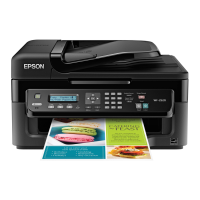
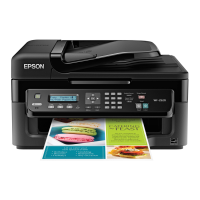
Epson WF-2531 - User Manual

Epson WF-2531
79 pages
Print Icon
To Next Page IconTo Next Page
Loading...
SERVICE MANUAL
CONFIDENTIAL
Color Inkjet Printer
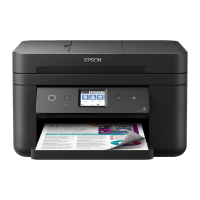
EPSON WF-2540/WF-2548/WF-2541
EPSON WF-2530/WF-2532/WF-2538/WF-2531
EPSON WF-2520/WF-2528/WF-2521
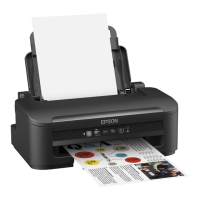
EPSON WF-2510/WF-2511/WF-2512
EPSON WF-2010
SEMF12-003

Other manuals for Epson WF-2531

Questions and Answers

  • V
    Veronica MartinSep 23, 2025
    What to do when Epson All in One Printer ink pad is at the end of its service life?
    • M
      Michael ScottSep 23, 2025
      If your Epson All in One Printer indicates that the ink pad is at the end of its service life, contact Epson support to replace the ink pads.
  • M
    Mark HillAug 23, 2025
    Why is my Epson printer feeding multiple pages?
    • D
      Donna TurnerAug 25, 2025
      If your Epson printer is feeding multiple pages, try these steps: * For plain paper, do not load paper above the line just under the H arrow mark inside the edge guide. * Make sure the edge guides are snug against the edges of the paper. * Ensure the paper is not curled or folded. * Remove the stack of paper and make sure it is not too thin. * Fan the edges of the stack to separate the sheets before reloading.
  • A
    averybarbaraAug 25, 2025
    Why is printed side smeared or scuffed on my Epson printer?
    • H
      Heather GonzalezAug 26, 2025
      If the printed side is smeared or scuffed on your Epson printer, try these solutions: * Flatten paper curled toward the printable side, or curl it slightly in the opposite direction. * Make several copies without placing a document on the scanner glass. * Reinstall the printer driver.
  • J
    justin88Aug 27, 2025
    How to fix incorrect or missing colors on Epson WF-2531?
    • C
      coopermarkAug 27, 2025
      To resolve incorrect or missing colors on your Epson printer: * For Windows, clear the Grayscale setting in the Main window of your printer driver. * For Mac OS X, clear the Grayscale setting in Print Settings in the Print dialog box. * Adjust the color settings in your application or printer driver. * Run the Head Cleaning utility. * Check the ink cartridge replacement date. * Use genuine Epson ink cartridges and Epson-recommended paper.
  • D
    Debbie JonesAug 27, 2025
    What to do if Epson printer paper does not feed?
    • T
      tjohnstonAug 27, 2025
      If your Epson printer paper does not feed, check the following: * Ensure the paper is not curled or creased. * Make sure the paper is not too old. * For plain paper, do not load paper above the line just under the H arrow mark inside the edge guide. * Check for paper jammed inside the printer. * Ensure the ink cartridges are not expended. * Follow any special loading instructions that came with your paper.
  • C
    Christopher GriffinSep 17, 2025
    What to do if my Epson All in One Printer has no dial tone detected?
    • C
      Christopher BryantSep 18, 2025
      If your Epson All in One Printer detects no dial tone, ensure the phone cable is correctly connected and the phone line works. If the product is connected to a PBX (Private Branch Exchange) phone line or Terminal Adapter, turn off the Dial Tone Detection by pressing K and then x, then select Fax Settings > Communication > Dial Tone Detection.
  • V
    vholdenSep 14, 2025
    What to do if my Epson All in One Printer has a communication error?
    • S
      Suzanne SantosSep 14, 2025
      If your Epson All in One Printer shows a communication error, check that the computer is correctly connected to the printer. If the error persists, ensure that the scanning software is installed on your computer and that the software settings are correct.
  • E
    esmithSep 15, 2025
    What to do if my Epson All in One Printer shows no dial tone?
    • J
      John ThomasSep 16, 2025
      If your Epson All in One Printer indicates no dial tone and the fax job is incomplete, ensure the phone cable is correctly connected and the phone line is working. If connected to a PBX phone line or Terminal Adapter, turn off Dial Tone Detection by pressing K and then x, then select Fax Settings > Communication > Dial Tone Detection.
  • K
    Kimberly HawkinsSep 6, 2025
    How to correct incorrect margins on Epson printer?
    • M
      Matthew BeckerSep 6, 2025
      To correct incorrect margins on your Epson printer: * Ensure the paper is loaded correctly in the rear paper feed. * Check the margin settings in your application to ensure they are within the printable area. * Verify the printer driver settings are appropriate for the paper size. * Reinstall the printer driver.
  • R
    Robert LongSep 3, 2025
    How to fix horizontal banding on Epson WF-2531 Printer?
    • A
      Aaron GonzalezSep 3, 2025
      To troubleshoot horizontal banding on your Epson printer, try these solutions: * Run the Head Cleaning utility to clear clogged ink nozzles. * Ensure the printable side of the paper is face up in the rear paper feed. * Use ink cartridges within six months of opening. * Use genuine Epson ink cartridges. * Select the appropriate paper type in the LCD menu or printer driver. * Run the Print Head Alignment utility if banding appears at 2.5 cm intervals. * Adjust the Reduce/Enlarge setting or shift the original's position if a moire pattern appears. * Clean the exterior of the printer if there are copy quality issues.

Epson WF-2531 Specifications

General IconGeneral
FunctionsPrint, Copy, Scan, Fax
Print Resolution5760 x 1440 dpi
Scanner TypeFlatbed
Scan Resolution1200 x 2400 dpi
Fax Speed33.6 Kbps
Paper Capacity100 sheets
ConnectivityUSB, Wi-Fi
Input Capacity100 sheets
Output Capacity30 sheets
Mobile PrintingApple AirPrint
Paper SizesA4, A5, A6, B5, Letter
DisplayLCD
Ink CartridgesBlack, Cyan, Magenta, Yellow

Related product manuals