EasyManua.ls Logo

Epson WF-2531 - User Manual

Epson WF-2531
79 pages
Print Icon
To Next Page IconTo Next Page
Loading...
SERVICE MANUAL
CONFIDENTIAL
Color Inkjet Printer
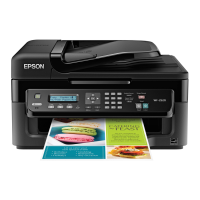
EPSON WF-2540/WF-2548/WF-2541
EPSON WF-2530/WF-2532/WF-2538/WF-2531
EPSON WF-2520/WF-2528/WF-2521
EPSON WF-2510/WF-2511/WF-2512
EPSON WF-2010
SEMF12-003

Other manuals for Epson WF-2531

Questions and Answers

  • M
    mark03Sep 7, 2025
    How to fix incorrect or garbled characters on Epson WF-2531 Printer?
    • B
      Barbara TrevinoSep 7, 2025
      If your Epson printer is printing incorrect or garbled characters: * Clear any stalled print jobs. * Turn off the printer and computer, then ensure the interface cable is securely plugged in. * Uninstall and reinstall the printer driver.
  • A
    Angela FisherAug 22, 2025
    How to fix blurry or smeared print on my Epson WF-2531 Printer?
    • M
      millermadisonAug 22, 2025
      To resolve blurry or smeared prints with your Epson printer: * Run the Head Cleaning utility to clear any clogged ink nozzles. * Use genuine Epson ink cartridges and paper. * Ensure the printer is on a flat, stable surface. * Use paper that is not damaged, dirty, or too old, and make sure the printable side is face up. * Flatten curled paper or curl it in the opposite direction. * Select the correct paper type in the LCD menu or printer driver. * Remove each sheet from the output tray as it prints and avoid touching the printed side of shiny paper. * Run the Print Head Alignment utility. * Clean the interior and exterior of the printer if the paper is smeared with ink or if there are copy quality problems.
  • B
    Bonnie MyersSep 5, 2025
    How to resolve vertical banding or misalignment on Epson WF-2531 Printer?
    • M
      Michele JohnsonSep 5, 2025
      To fix vertical banding or misalignment on your Epson printer: * Run the Head Cleaning utility to clear any clogged ink nozzles. * Ensure the printable side of the paper is face up in the rear paper feed. * Run the Print Head Alignment utility. * For Windows, clear the High Speed check box in the More Options window of your printer driver. * For Mac OS X, select Off from High Speed Printing. * Make sure the paper type selected in the LCD menu or printer driver is appropriate for the paper loaded. * Clean the exterior of the product if there are copy quality problems.
  • R
    Robert LongSep 3, 2025
    How to fix horizontal banding on Epson WF-2531 Printer?
    • A
      Aaron GonzalezSep 3, 2025
      To troubleshoot horizontal banding on your Epson printer, try these solutions: * Run the Head Cleaning utility to clear clogged ink nozzles. * Ensure the printable side of the paper is face up in the rear paper feed. * Use ink cartridges within six months of opening. * Use genuine Epson ink cartridges. * Select the appropriate paper type in the LCD menu or printer driver. * Run the Print Head Alignment utility if banding appears at 2.5 cm intervals. * Adjust the Reduce/Enlarge setting or shift the original's position if a moire pattern appears. * Clean the exterior of the printer if there are copy quality issues.
  • M
    mitchellandersonSep 2, 2025
    What to do if my Epson All in One Printer has a scanner error?
    • J
      Joshua FergusonSep 2, 2025
      If your Epson All in One Printer displays a scanner error, turn the product off and then back on. If the error message continues to appear, contact Epson support.
  • G
    Gary SmithAug 31, 2025
    What to do if my Epson All in One Printer has a paper jam error?
    • J
      Joseph RobinsonSep 1, 2025
      If your Epson All in One Printer displays a paper jam error, turn the printer off and then back on. Make sure that no paper is still inside the printer. If the error message continues to appear, contact Epson support.
  • K
    Kevin CarterAug 30, 2025
    What to do if Epson WF-2531 Printer ink pads nearing end of service life?
    • D
      Danielle MooreAug 30, 2025
      To address the issue of ink pads nearing the end of their service life in your Epson printer, contact Epson support to replace them. When the ink pads are saturated, the printer will stop, and Epson support will be required to continue printing.
  • R
    ryan26Aug 29, 2025
    What to do if an ink error is indicated after you replace the cartridge in Epson WF-2531 Printer?
    • J
      Joseph ValentineAug 29, 2025
      If your Epson printer indicates an ink error after cartridge replacement: * Make sure the ink cartridge holder is at the ink cartridge replacement position. * If the holder is at the far right, press x, select Maintenance, and then select Ink Cartridge Replacement.
  • D
    Debbie JonesAug 27, 2025
    What to do if Epson printer paper does not feed?
    • T
      tjohnstonAug 27, 2025
      If your Epson printer paper does not feed, check the following: * Ensure the paper is not curled or creased. * Make sure the paper is not too old. * For plain paper, do not load paper above the line just under the H arrow mark inside the edge guide. * Check for paper jammed inside the printer. * Ensure the ink cartridges are not expended. * Follow any special loading instructions that came with your paper.
  • J
    justin88Aug 27, 2025
    How to fix incorrect or missing colors on Epson WF-2531?
    • C
      coopermarkAug 27, 2025
      To resolve incorrect or missing colors on your Epson printer: * For Windows, clear the Grayscale setting in the Main window of your printer driver. * For Mac OS X, clear the Grayscale setting in Print Settings in the Print dialog box. * Adjust the color settings in your application or printer driver. * Run the Head Cleaning utility. * Check the ink cartridge replacement date. * Use genuine Epson ink cartridges and Epson-recommended paper.

Epson WF-2531 Specifications

General IconGeneral
FunctionsPrint, Copy, Scan, Fax
Print Resolution5760 x 1440 dpi
Scanner TypeFlatbed
Scan Resolution1200 x 2400 dpi
Fax Speed33.6 Kbps
Paper Capacity100 sheets
ConnectivityUSB, Wi-Fi
Input Capacity100 sheets
Output Capacity30 sheets
Mobile PrintingApple AirPrint
Paper SizesA4, A5, A6, B5, Letter
DisplayLCD
Ink CartridgesBlack, Cyan, Magenta, Yellow

Related product manuals