4. Select the orientation of your document.
5. To print on both sides of the paper, select one of the Print on Both Sides settings.
6. To change the printing order of the pages, select one of the Page Order settings.
7. To print multiple pages on one sheet of paper, adjust the Pages per Sheet setting.
8. To create a folded booklet out of your photo or document, select the Booklet option.
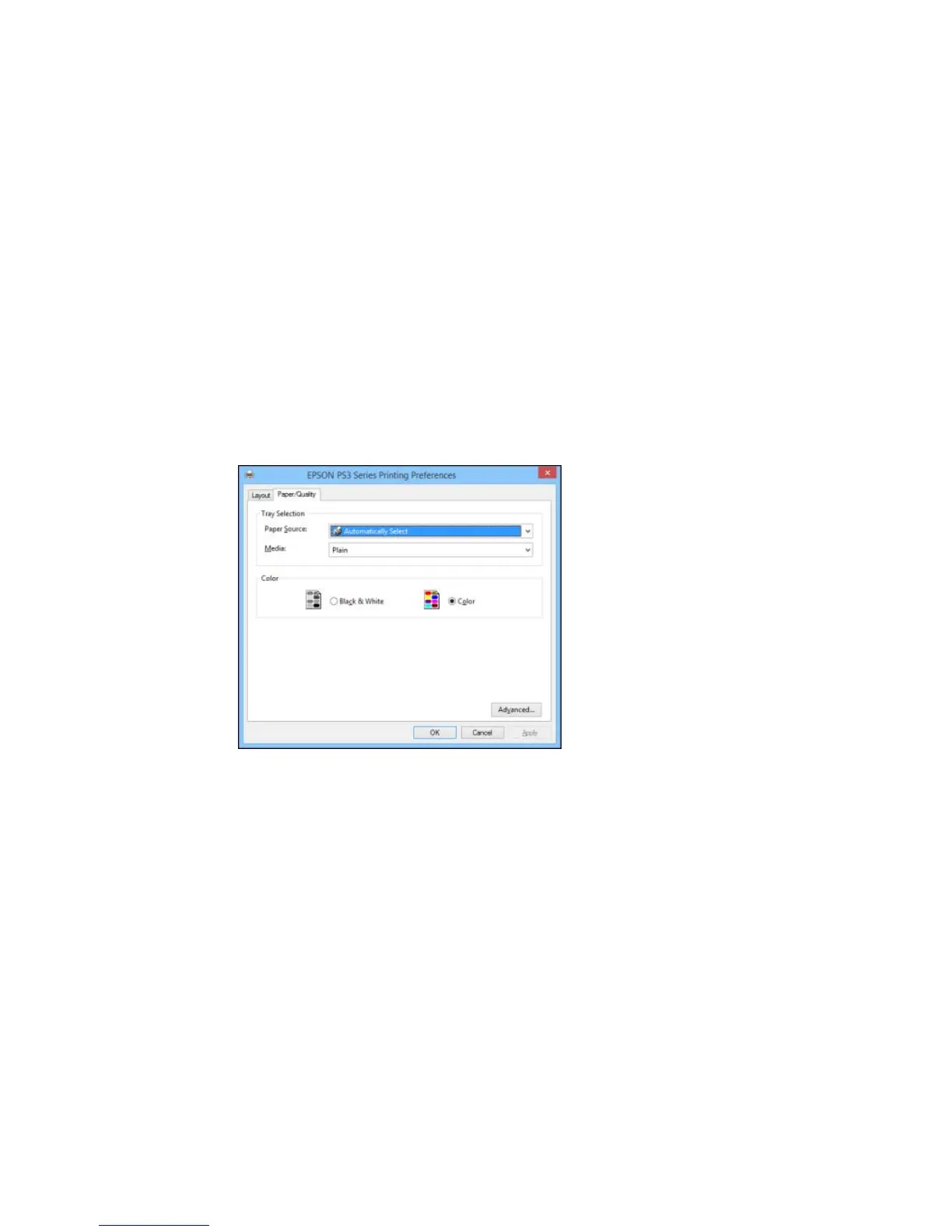
9. Click the Paper/Quality tab.
You see this window:
10. Select the Paper Source that matches where you loaded the paper you want to print on.
11. Select Plain as the Media setting.
Note: The PostScript printer software supports plain paper printing these paper and envelope sizes:
• A4 (8.3 × 11.7 inches [210 × 297 mm])
• Letter (8.5 × 11 inches [216 × 279 mm])
127



 To Next Page