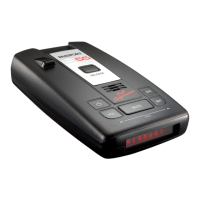
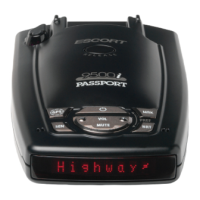
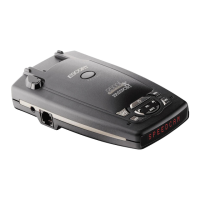
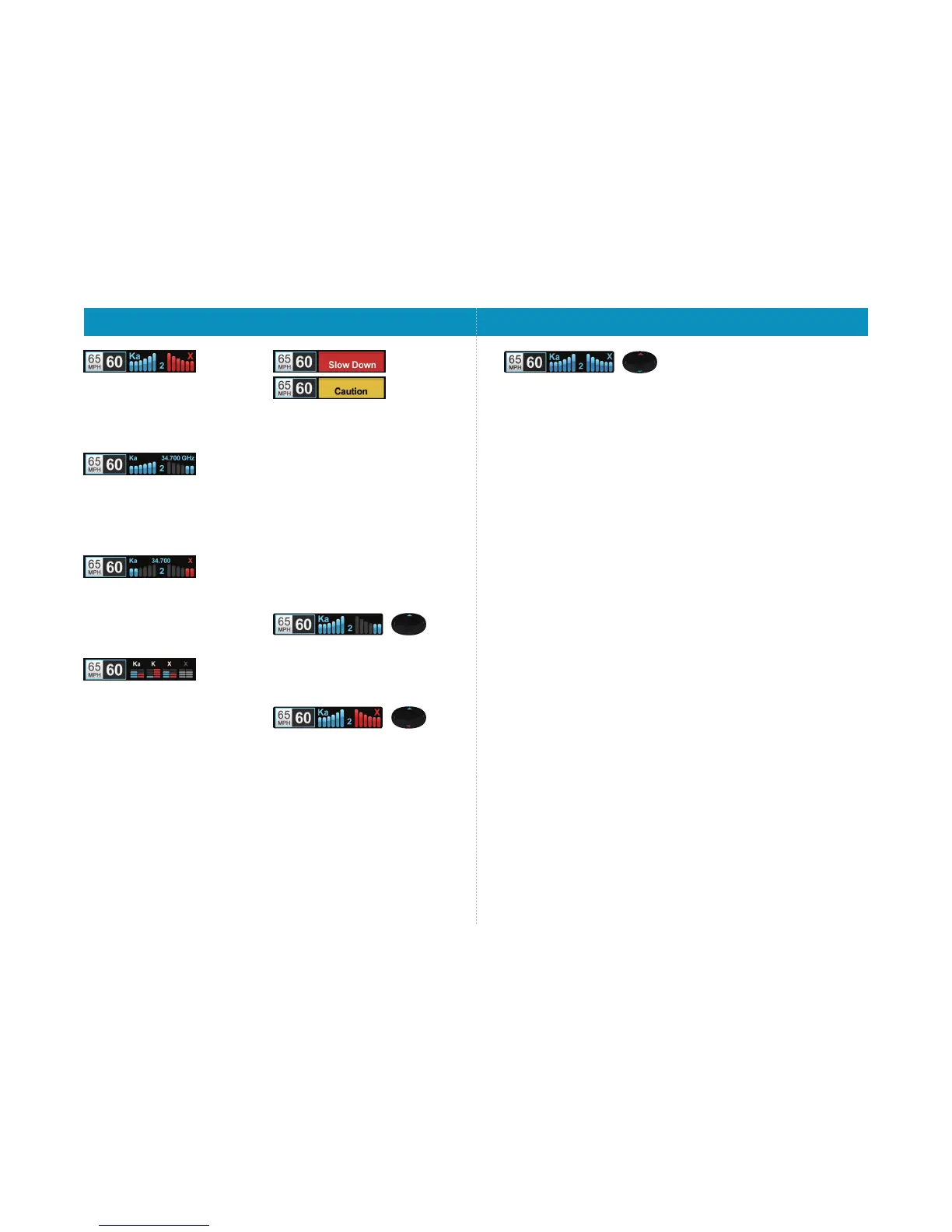
Standard FR2
The Standard FR2 option can provide information on
the type and direction of up to two threats. (ESCORT
Max 360 will determine which threats are the most
important to display.) In this mode, the display shows
the bands of threats as well as front and/or rear bar
graphs indicating their direction.
Spec FR1
The Spec FR1 option is an advanced display for
experienced detector users. In this mode, ESCORT
Max 360 will display the type and direction of the
primary threat (with front and/or rear bar graphs of
signal strength), as well as the actual numeric radar
frequency being received.
Spec FR2
The Spec FR2 option is also an advanced display for
experienced detector users. In this mode, ESCORT
Max 360 will display the type and direction of up to
two threats (with front and/or rear bar graphs of
signal strength), as well as the actual numeric
frequencies for each.
Expert FR
ESCORT’s exclusive Expert FR option is also designed
for the advanced detector user. In this mode, ESCORT
Max 360 simultaneously tracks up to four radar
signals. It shows each band, along with front and/or
rear bar graphs of signal strength. In the image above,
a Ka band, K band and two X bands are being
detected with the greyed out X band being a locked
out false. ExpertFR can help you spot a change in your
normal driving environment (e.g., a traffic radar unit
being operated in an area where there are normally
other signals present).
Simple
In this mode, Simple messages replace actual bands
and signal strengths or frequencies. “Caution” is
used when an alert is received while you are traveling
below your current Cruise Alert setting (or posted
speed limit for current location, when connected to
ESCORT Live). “Slow Down” is displayed when an alert
is received while you are traveling above the current
Cruise Alert setting (or posted speed limit for current
location, when connected to ESCORT Live).
NOTE: ESCORT Max 360’s selectable bands feature
allows you to customize which bands are monitored. For
details on modifying your band detection, see the
Settings & Preferences section. For details on the various
radar/laser bands and how they work, see the
Understanding Your Detector section.
Threat-Direction Arrows
ESCORT Max 360 offers three arrow modes for threat-
direction reporting:
Arrow mode: Single; Meter mode: Standard FR1
Single
In Single arrow mode, arrows are displayed indicating
only the direction of the primary threat. All arrows
use your selected display color.
Arrow mode: Multiple; Meter mode: Standard FR2
Multiple
In Multiple arrow mode, threat-direction arrows are
displayed for multiple threats. When multiple threats
are displayed then the direction arrow of the primary
threat will blink. The front and side arrows will match
your selected display color while the rear arrow will
be the opposite color. If your display color is blue or
green then the rear arrow will be red. If your display
color is red or amber then the rear arrow will be
green. In the example shown in the picture above,
the blue top arrow is blinking because it is the
primary threat.
Arrow mode: Band; Meter mode: Standard FR2*
Band
In Band arrow mode, the threat-direction arrows are
color-coded for the band that is being detected.
When multiple threats are displayed then the
direction arrow of the primary threat will blink. In the
example shown in the picture above, the top red
arrow, indicating a Ka threat is ahead, is blinking
because it is the primary threat.
X band = green
K band = blue
Ka band/Laser = red
* When using Band arrow mode with Standard FR2
and Spec FR2 meter modes.
Clearing the Database
At some point, you may wish to clear some of the data
in ESCORT Max 360’s database. This may include any
of the following: Defender Database data, marked
locations or locked-out locations. For details on how
to clear the database, see the Settings & Preferences
section.
Serial Number & Software Version
To view your ESCORT Max 360’s serial number and
software revision, press MRK and MUTE while
powering on the detector.
How To Use Preferences
To access Preferences, press and hold both the BRT
and SEN buttons. ESCORT Max 360 will display
“Preferences,” indicating it is in program mode.
Once the unit is in Preferences mode, the BRT button
is used to review the preference categories, and
the + and − buttons are used to change the individual
settings within the selected option.
To exit Preferences, simply wait a few seconds
without pressing a button. A “Completed” message
will display, confirming your selection(s).
Example:
Here’s how you would turn the Speed Display off:
1 Enter Preferences by pressing and holding both the
BRT and SEN buttons. ESCORT Max 360 will display
“Preferences.”
2 Press the BRT button to scroll through the
categories to “Speed Display.”
3 Since the factory setting is for Speed Display to be
ON, ESCORT Max 360 will show Speed Display as
ON.
4 Press the + or − button to change from ON to OFF.
5 To complete this change, simply wait a few seconds
without pressing a button. The unit will display
“Completed” to confirm your selection.
NOTE: You can only access and customize the Speed
Display feature while in the Advanced user mode. See
the Overview of Preferences chart for details on how to
switch user modes.
Settings & Preferences


 To Next Page
 Loading...