9
Controls & Features
Voice Alerts
PASSPORT Max provides digital voice announcements
for alerts and selection feedback. If you prefer, you
can turn off the voice feature. See the Settings &
Preferences section for details.
Signal-Strength Meter
PASSPORT Max offers four different settings for
displaying alerts:
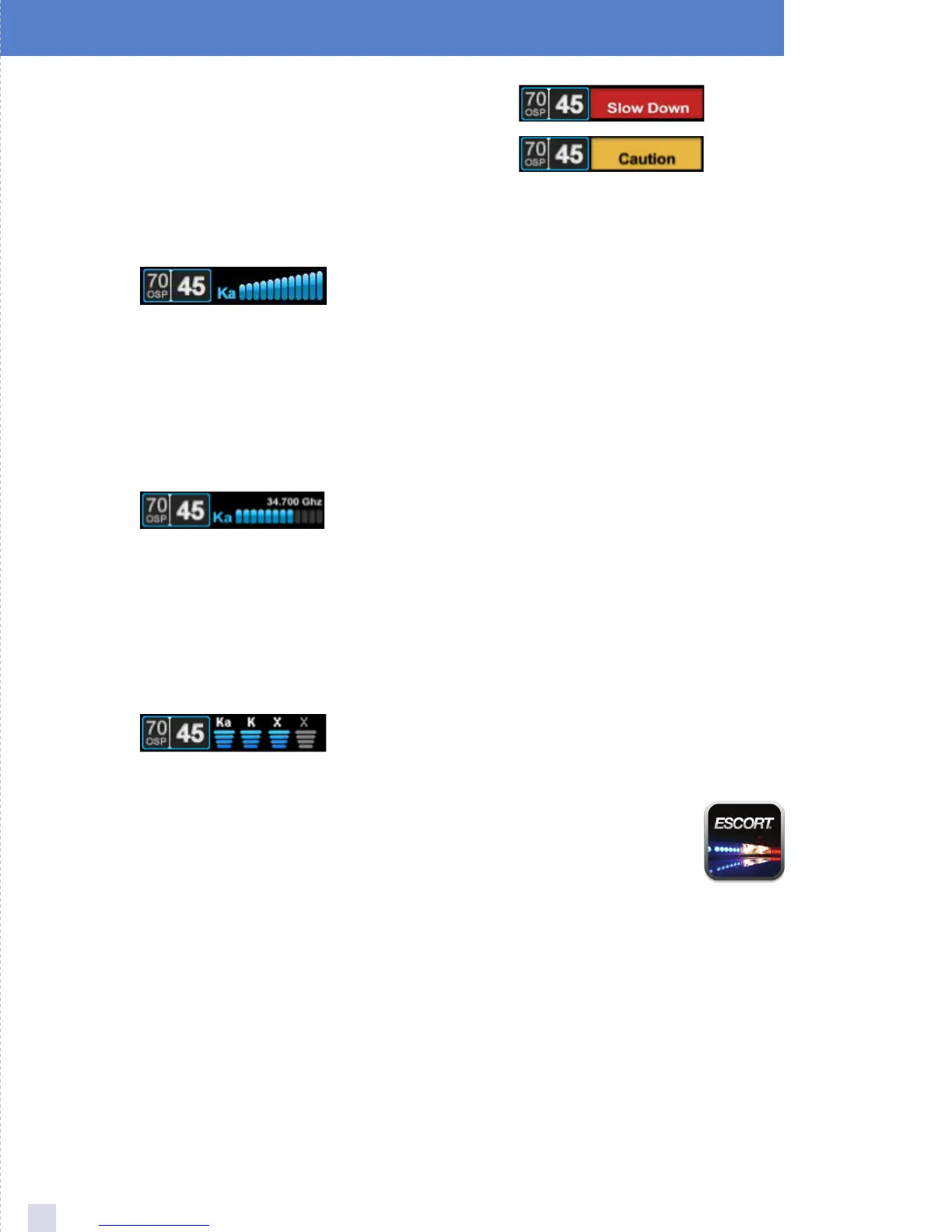
Standard
The Standard option provides information on a
single radar signal. When PASSPORT Max detects
radar, it displays the band of the radar (X, K or Ka) and
a bar graph of the signal’s strength. When laser is
detected, the display will simply read “Laser.” If there
are multiple signals present, PASSPORT Max will
determine which one is the most important threat to
display.
SpecDisplay
The SpecDisplay option is an advanced display for
experienced detector users. In this mode, it will
display the actual numeric radar frequency being
received. Even long-time detector users will require
some time to get familiar with this new level of
information about detected signals. To use
SpecDisplay instead of the Standard bar graph meter,
you must select it (Spec) in Preferences.
ExpertMeter
ESCORT’s exclusive ExpertMeter option is also
designed for the advanced detector user. To use the
ExpertMeter instead of the Standard bar graph meter,
you must select it (Expert) in Preferences.
ExpertMeter simultaneously tracks up to four radar
signals: Ka band, X band, K band and X band. It
shows each signal along with a bar graph of its
strength. ExpertMeter can help you spot a change in
your normal driving environment (e.g., a traffic radar
unit being operated in an area where there are
normally other signals present).
Simple
In this mode, Simple messages replace actual bands
and signal strengths or frequencies. “Caution” is
used when an alert is received while you are traveling
below your current Cruise Alert setting (or posted
speed limit for current location, when connected to
ESCORT Live). “Slow Down” is displayed when an
alert is received while you are traveling above the
current Cruise Alert setting (or posted speed limit for
current location, when connected to ESCORT Live).
NOTE: PASSPORT Max’s selectable bands feature allows
you to customize which bands are monitored. For details
on modifying your band detection, see the Settings &
Preferences section. For details on the various radar/laser
bands and how they work, see the Understanding Your
Detector section.
Clearing the Database
At some point, you may wish to clear some of the data
in PASSPORT Max’s database. This may include any of
the following: DEFENDER Database data, marked
locations or locked-out locations. For details on how
to clear, see the Settings & Preferences section.
Restoring Detector Settings
To restore PASSPORT Max to its original factory
settings, press and hold the SEN and BRT buttons
while powering on the detector. A “Restored”
message will display, acknowledging the reset.
ESCORT Live!
PASSPORT Max is fully compatible with the new
SmartCord Live and ESCORT Live
smartphone application. For
comprehensive information on these
options and all of ESCORT Live’s features
and functions, visit escortinc.com.





 To Next Page