ESI Neva Uno
6
2.3.1 Installation under Windows
The following explains how to install Neva Uno under Windows 10. If you use Windows 11, the
steps are basically the same. Do not connect Neva Uno to your computer before you install the driver
- if you have connected it already, disconnect the cable for now.
To start the installation, launch the setup program, which is an .exe file that is inside a recent driver
download from our website by double clicking on it. When launching the installer, Windows might
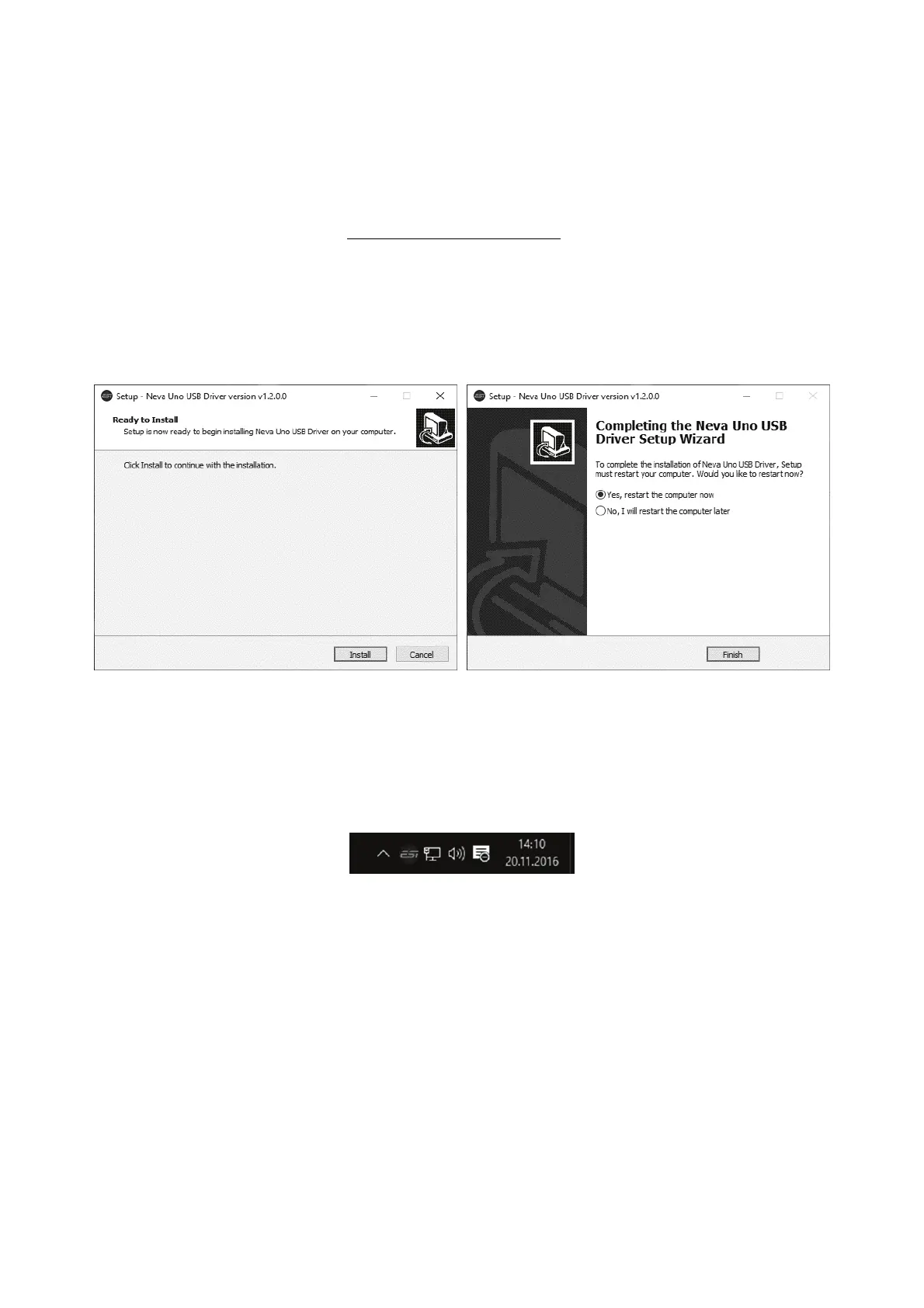
display a security message. Make sure to allow the installation. After that, the following dialog on
the left will appear. Click Install and then the installation will be done automatically. The dialog on
the right will appear:
Now click Finish - it is strongly recommended to leave Yes, restart the computer now selected to
reboot the computer. After the computer has rebooted, you can connect Neva Uno. Windows will
automatically setup the system so you can use the device.
To confirm the completion of the installation, please check if the orange color ESI icon is displayed
in the taskbar notification area as shown below.
If you can see it, the driver installation has been completed successfully.


 To Next Page