ESI Neva Uno
13
4. OS X / macOS Control Panel
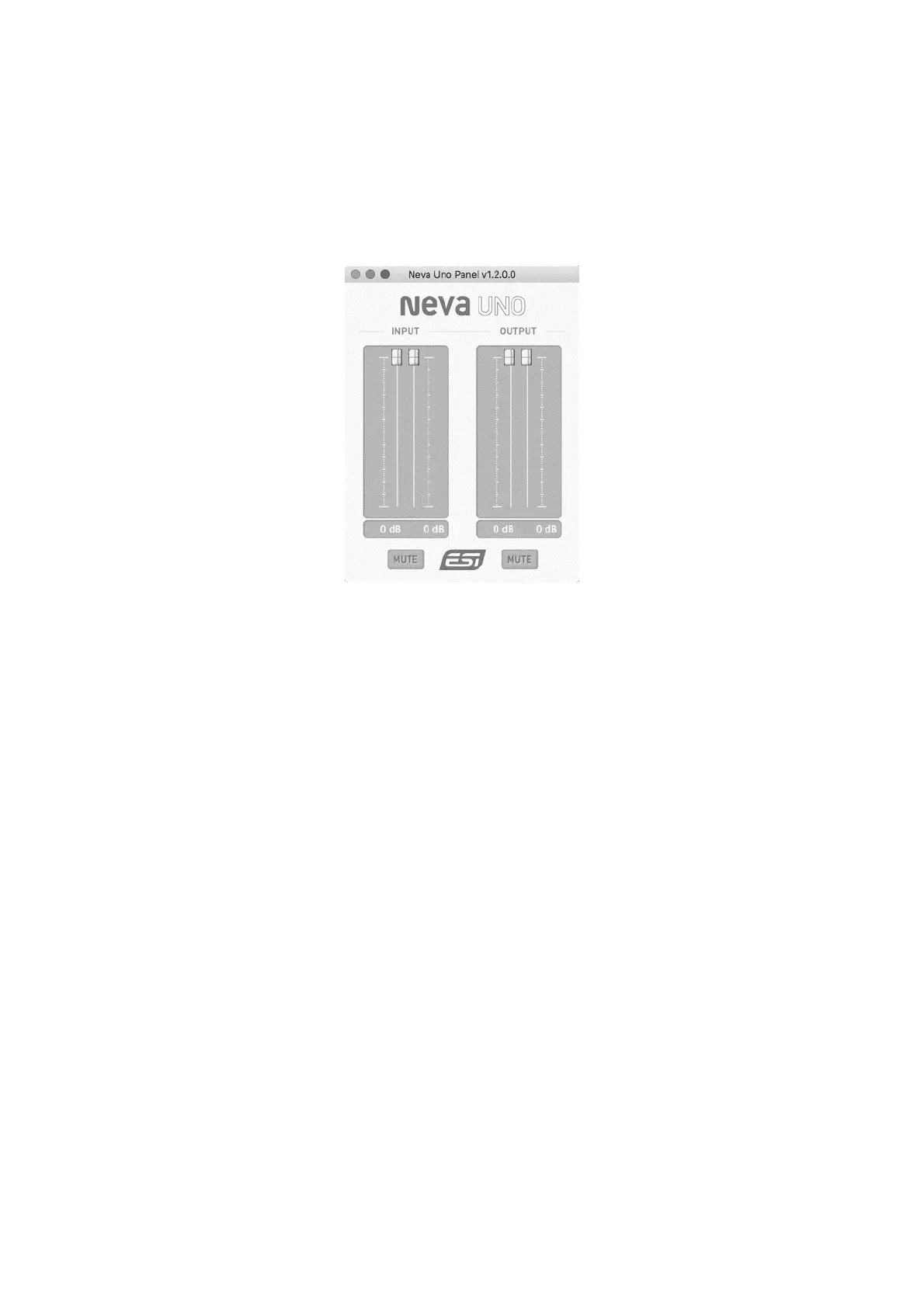
This chapter describes the Neva Uno Control Panel and its functions on the Mac. Under OS X /
macOS, you can find a Neva Uno icon in the Applications folder. Double click on this to launch the
control panel software and the following dialog will appear:
The File menu provides an option called Always on Top that makes sure the Control Panel stays
visible even when working in other software and you can launch the macOS Audio Settings there.
The Config menu allows you to load the Factory Defaults for the panel parameters and you can select
the Sample rate there as well. As Neva Uno is a digital audio interface, all applications and audio data
will be processed with the same sample rate at a given time. The hardware natively supports rates
between 44.1 kHz and 192 kHz.
The Help > About entry shows current version information.
The main dialog has two sections:
INPUT
This section allows you to control the input volume. Under it there is a button that allows you to
MUTE the input signal. The change in level is shown in dB values.
To control both left and right channels simultaneously (stereo), you need to move the mouse pointer
in the middle between the two faders. Click directly on each fader to change channels independently.
OUTPUT
This section contains volume control sliders for the two playback channels. Under it there is button
that allows you to MUTE playback and there are playback level values displayed for each channel in
dB.
To control both left and right channels simultaneously (stereo), you need to move the mouse pointer
in the middle between the two faders. Click directly on each fader to change channels independently.


 To Next Page