Accessing your CCTV on a Windows PC
(compatible with Internet Explorer only)
1. Insert the supplied CD into your CD/DVD-ROM drive and install all software on
the CD.
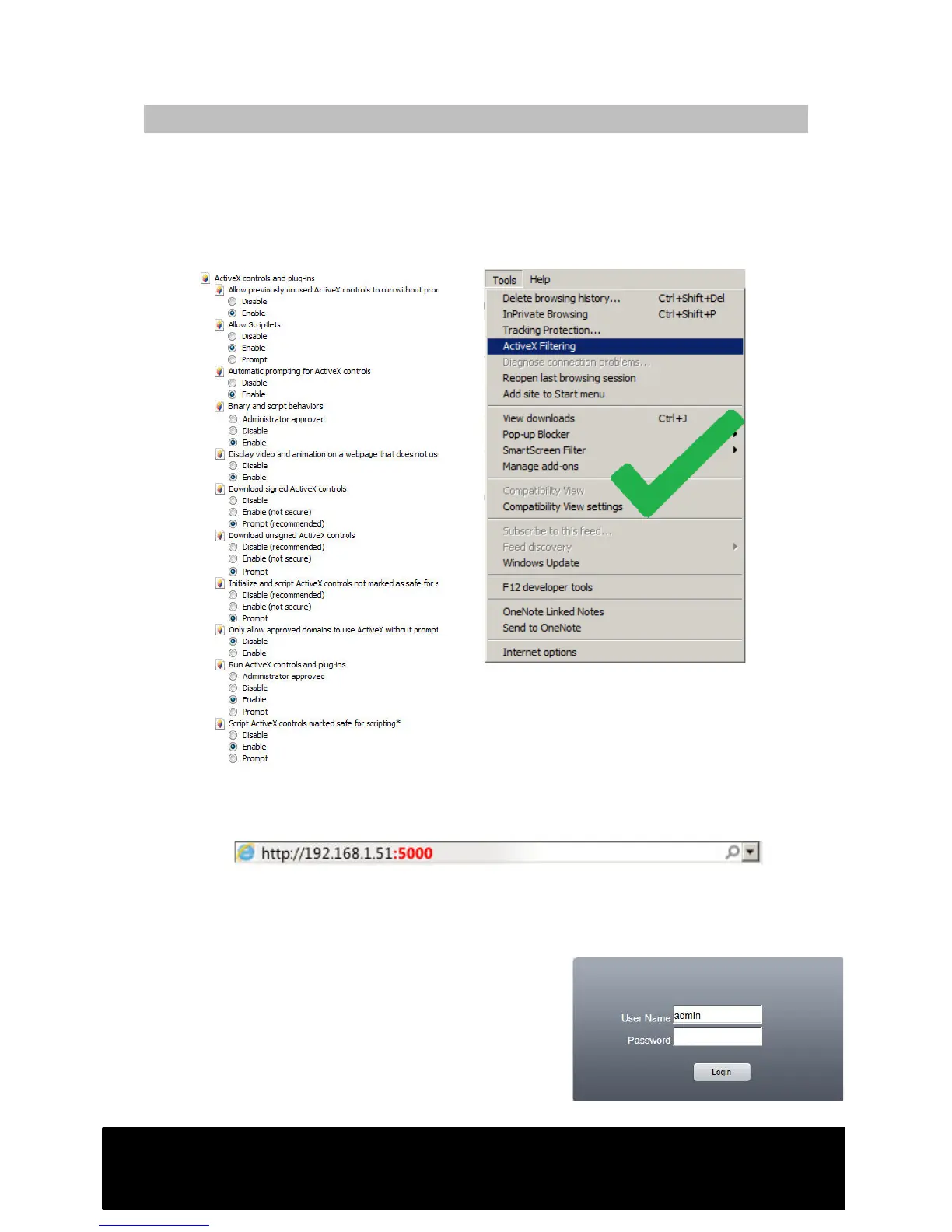
2. Open Internet Explorer, from the “Tools” menu select “Internet Options”.
Choose the “Security” tab from the top of the new window, then click the
“Custom Level” button.
3. Change any options regarding ActiveX to either “Prompt” or “Enable” then
click “OK.”
4. Disable/de-select ActiveX Filtering from the “Tools” menu as shown above.
5. (For versions of Internet Explorer 9 and above). From the “Tools” menu, select
“Compatibility view settings” then add the DVR’s IP address to the list. Close
the window when complete.
6. Enter your DVR IP into the Address Bar. Add a
colon and your http port number (shown in red
above) this will connect to the DVR login
screen. If the “User Name/Password/Login”
text is not displayed then recheck steps 1 to 4
- something has been missed out.
7. Add a bookmark for the page for easy access
in the future.


 To Next Page