8. To access from outside the building via Broadband or 3G/4G, use your public IP
address. To find this go to www.whatismyip.com.
You must also program your router to forward ports 5000-5002 to your
DVR’s local IP address. Contact your Internet Service Provider for support on
port forwarding or visit http://www.portforward.com for further guidance.
Tip?
Always run first connection attempt from a pc (or mobile) on the same local network
as the dvr, using the local or “private” ip address.
Do not use the your public ip address until you are sure that a direct connection can
be established.
?”What if i do not have a static ip address?”
If you do not have a static (fixed) IP then your dynamic IP will change periodically.
This makes it impossible to connect to your DVR as you will not know what it will
change to.
If your Internet Service Provider cannot supply you with a fixed IP address you can
sign up with DYNDNS.com who will supply you with a domain name to use in place of
your dynamic IP address. See Appendix A.
Appendix A: Setting up DDNS
You will need to set up an account at www.dyndns.com
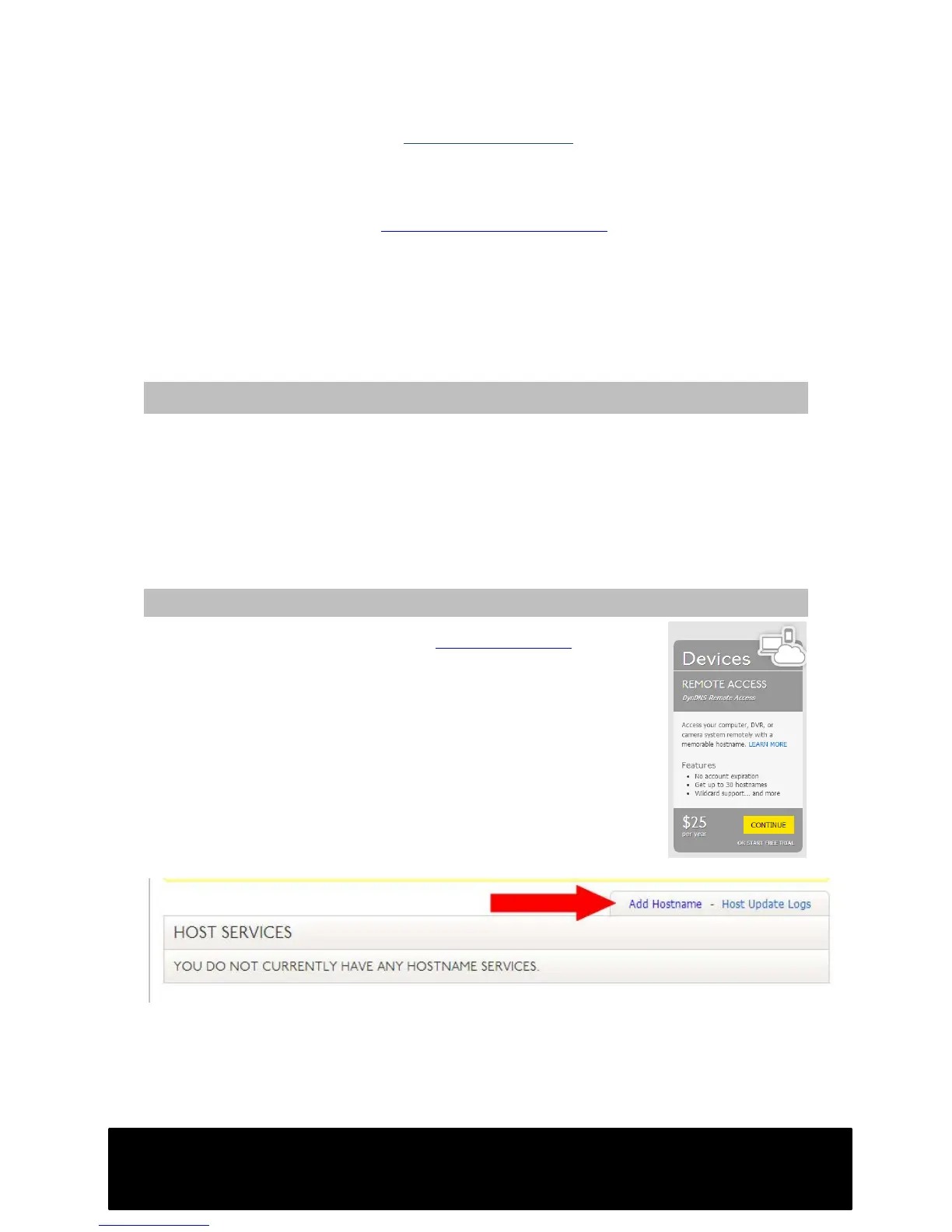
The option shown here is the type of account you will need to
sign up for. This is likely to be far lower in cost than being
provided with a fixed IP by your Internet Service Provider.
Once signed up, select “My Services” from the menu on the left
then add a new host, shown below.


 To Next Page