8
Ver. 0517
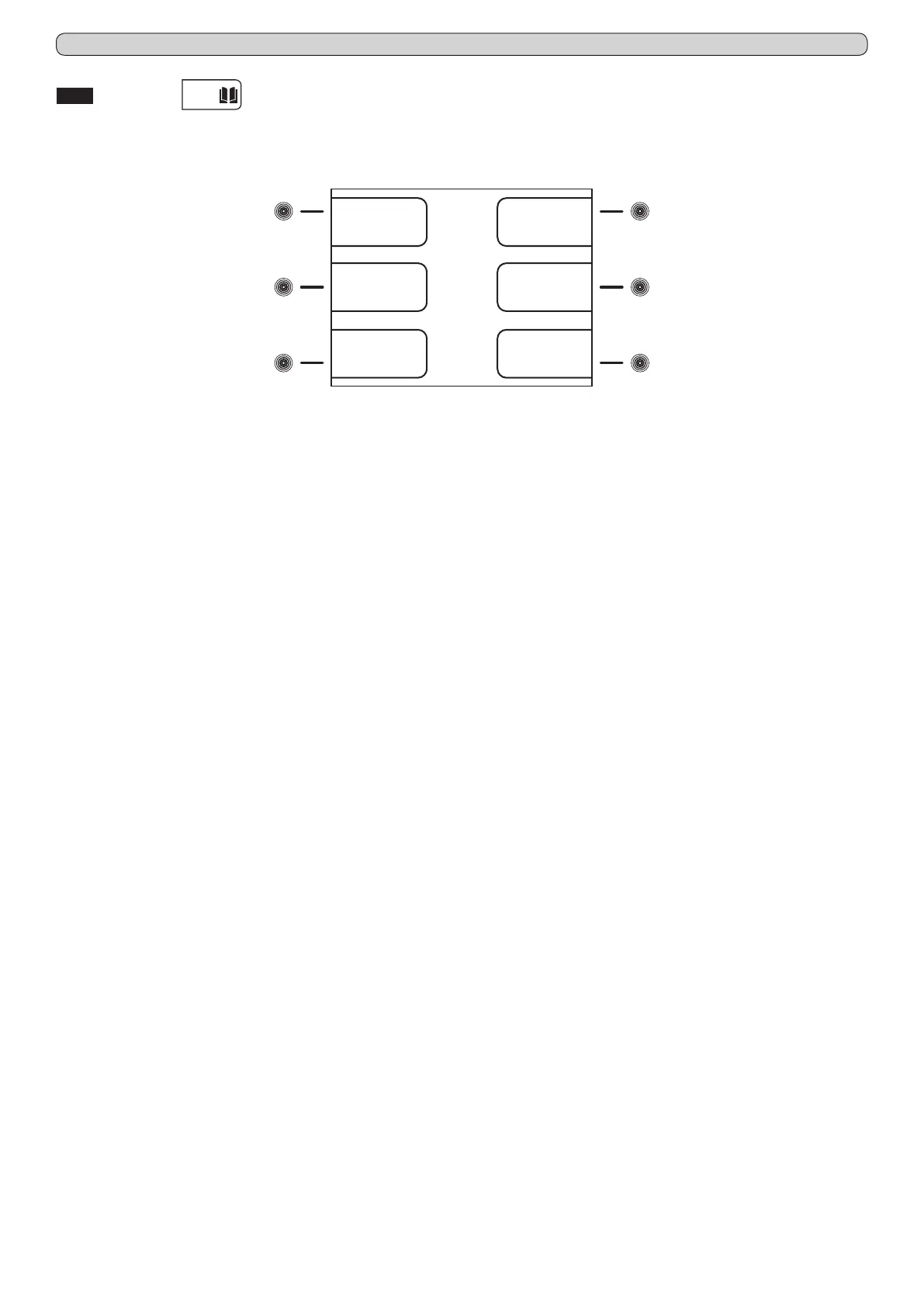
Fig.13
(5)
(6)
(2)
(3)
(4) (7)
Temperature
chart
Battery
level
Door
openings
Defrosting
Sensors
Functioning
timers
8.3.2 Datas Menu
(touch-button (3) Fig.12)
From the main menu screen-shot (Fig.12), press the touch-button (3) to access to the Datas Menu.
The Datas Menu appears as follow (Fig.13)
8.3.2.1 Temperature chart (touch-button (2) Fig.13)
The chart shows, in a graphical form, the temperature trend of the last operating period of the appliance.
- from the datas menu, press the touch-button (2) to access to the TEMPERATURE CHART menu
It is possible to operate on the chart displaying using the following touch-buttons:
- press the touch-button (2)Y+ and the touch-button (4)Y-, the chart moves on the vertical ordinate axis, the temperature range,
granting a wider view of the temperatures
- press the touch-button (5)X+ and the touch-button (7)X-, the chart moves on the horizontal x-axis, allowing a more detailed
monitoring of the chart trend in the time (till 600 minutes) and then in hours (till 46 hours)
- press the touch-button (3)IN and the touch-button (6)OUT, the chart zoom in and out for a enlarged or dwarfed view of the
chart in its totality
- press the ESC touch-button (11) to return back to the previous menu or HOME touch-button (10) to return back to the main
screen-shot
8.3.2.2 Battery level (touch-button (3) Fig.13)
To display the actual status of charge of the back-up battery, proceed as follow:
- from the datas menu, press the touch-button (3) to access to the BATTERY LEVEL screen-shot
- the display will show the word "CHARGING" if the battery is being charged or the number "100%" if the battery is fully charged
- press the ESC touch-button (11) to return back to the previous menu or HOME touch-button (10) to return back to the main
screen-shot
8.3.2.3 Functioning timers (touch-button (4) Fig.13)
The functioning timers show important information about the appliance life and its working. This details can not be erased.
- from the datas menu, press the touch-button (4) to access to the FUNCTIONING TIMERS menu
- press the touch-button (5)é and the touch-button (7)ê, it is possible to display the following timers:
• Time Comp ON (average functioning times with compressor ON)
• Time Comp OFF (average times with compressor OFF)
• Time Comp2 ON (average functioning times with back-up compressor ON - if present)
• Time Comp2 OFF (average times with back-up compressor OFF - if present)
• % Comp ON per day (daily percentage of compressor functioning)
• % Comp ON per hour (hourly percentage of compressor functioning)
• % Comp2 ON per day (daily percentage of back-up compressor functioning - if present)
• % Comp2 ON per hour (hourly percentage of back-up compressor functioning - if present)
• Total hours Comp ON (total hours of compressor functioning)
• Total hours Comp2 ON (total hours of back-up compressor functioning - if present)
• Total hours appliance (appliance life)
- press the ESC touch-button (11) to return back to the previous menu or HOME touch-button (10) to return back to the main
screen-shot
8.3.2.4 Door openings (touch-button (5) Fig.13)
It is possible to check the door events of the latest 50 days of the appliance functioning. For each day of functioning of the appliance,
it is dedicated a page in the door log in which are indicated the total number of the door openings, how many of this have given an
alarm and the total time that the door has been left opened.
To check the door opening log, proceed as follow:
- from the datas menu, press the touch-button (5) to access to the DOOR OPENINGS menu
- press the touch-button (5)é and the touch-button (7)ê to scroll the daily reports of the door openings
- press the ESC touch-button (11) to return back to the previous menu or HOME touch-button (10) to return back to the main
screen-shot


 To Next Page