PHOTO
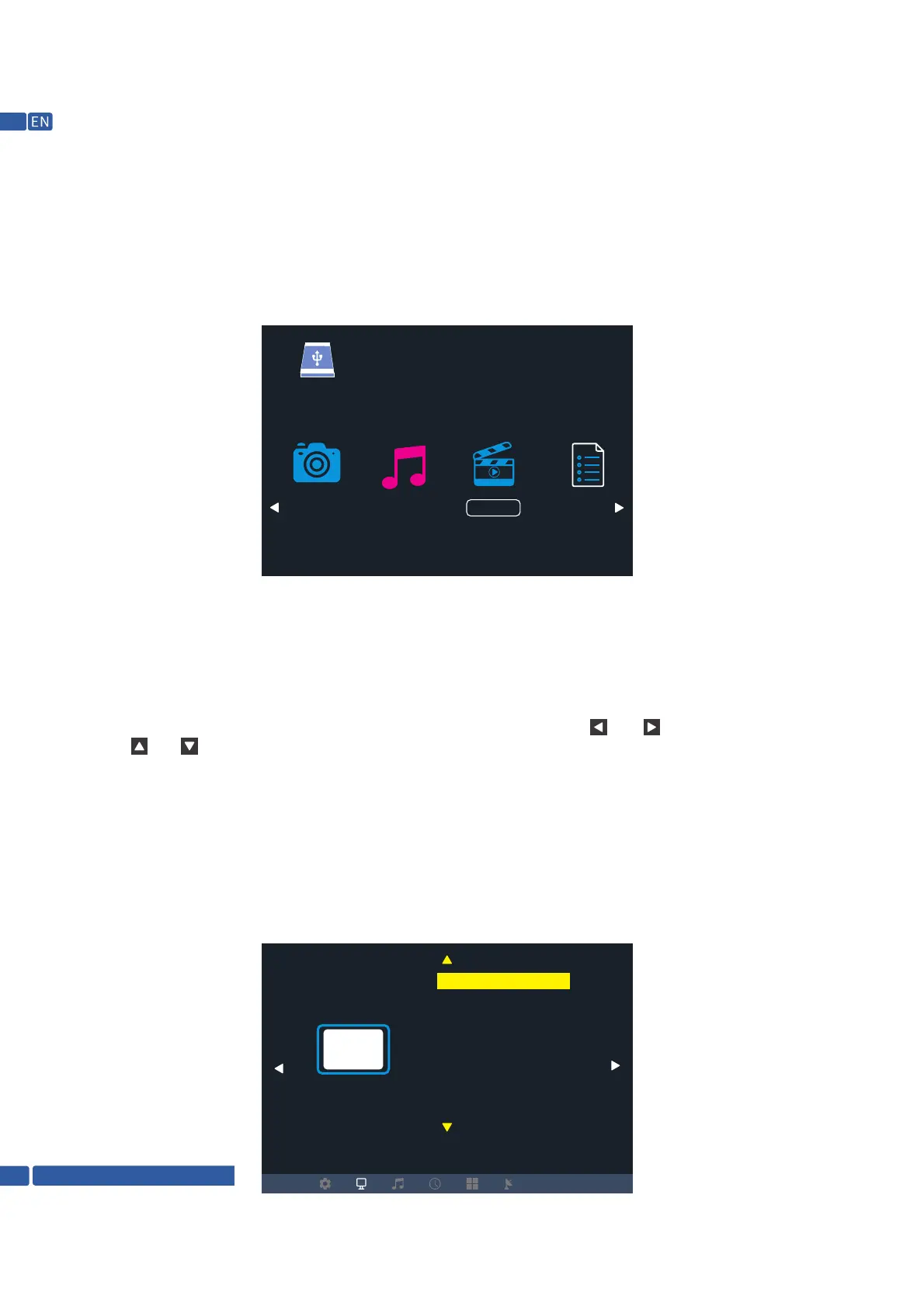
USB 2.0
MUSIC MOVIE TEXT
MULTIMEDIA MENU
To play video, select 'MOVIE" to enter the next menu for selection:
To play music, select 'MUSIC' to enter the next menu for selection,
To play photo, select PHOTO" to enter the next menu for selection,
To play text. select 'TEXT' to enter the next menu for selection
After USB or SD signal channel is selected, the following operation interface will be generated
SETTING OF MAIN MENU
1.1 Image submenu
1.1.1 Operation of the remote controller
Press the key "MENU" on the remote controller to call out the main menu, then press the key " “ or “ " to enter the image submenu:
press the key “ “ or “ “ to select the items to be adjusted, and press the key "OK" to enter setting.
1.1.2 Operation of keys on the projector
Press the key "MENU" to call out the main menu, then press the key "V-” or "V+" to enter the image submenu: press the key "CH- or "CH+"
to select the items to be adjusted, and press the key "OK" to enter setting.
In the image menu, you can set the picture mode, color temperature, scaling pattern, noise reduction,
and flip front of the projector as well as the computer screen.
PICTURE
Picture Mode User
Color Temperat
Aspect Ratio
Noise Reduction
Screen
Flip
HDMI mode AV
Reduce Display
Support @ 1800-121-4480
08


 To Next Page