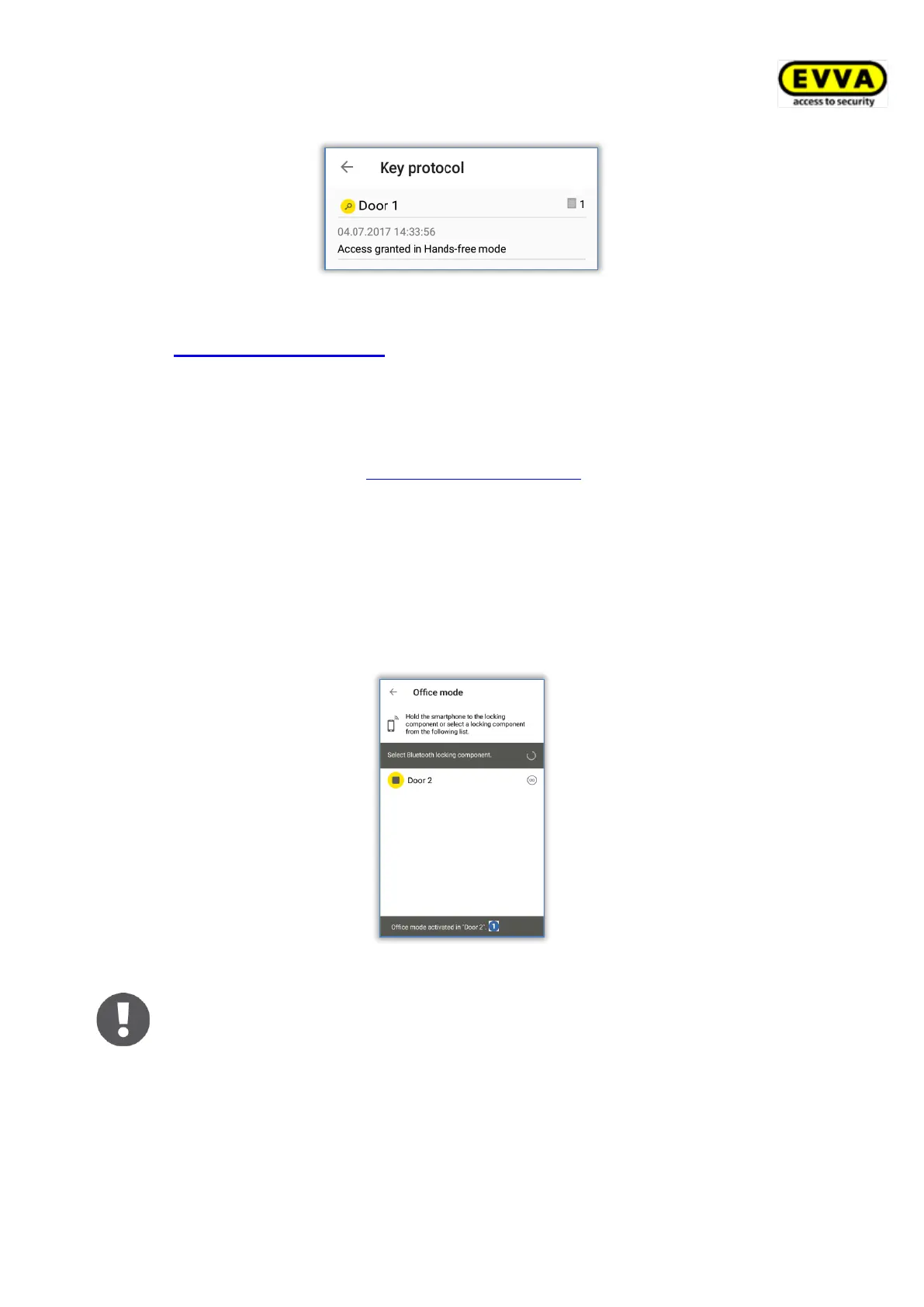
Figure 221: Event log data for authorisations
6.4 Maintenance tasks: See chapter 6.12
6.5 Office mode
Office mode requires having activated manual office mode for the locking component in the
AirKey Online Administration (see Editing locking components) for Bluetooth and NFC locking
components.
> Select Office mode in the AirKey app menu.
> Select a Bluetooth locking component from the displayed list or hold the smartphone
to the NFC locking component.
> The locking component provides visual and audible feedback.
> A confirmation appears .
Figure 222: Office mode confirmation message
Activating office mode in AirKey components and media increases compo-
nents’ power consumption. Exclusively activate office mode in AirKey com-
ponents and media that actually use this function.
6.6 Entering PIN code
You can temporarily save an active PIN code for a certain time within the AirKey app by
using the Enter PIN code function.
> Open the menu in the AirKey app and select Enter PIN code.


 To Next Page
 Loading...