AirKey system manual version 2.7 |
06/03/2024 | Subject to technical changes and misprints
> "Not current" exclusively lists locking components where the status is not up to
date.
> Export the locking component list to a CSV file for further processing .
AirKey allows an authorisation of locking components for external access
control systems. The list differentiates between your own and external
locking components. Please refer to Sharing locking components for other
access control systems for more information.
5.5.2 Adding locking components: See chapter 4.11
5.5.3 Editing locking components
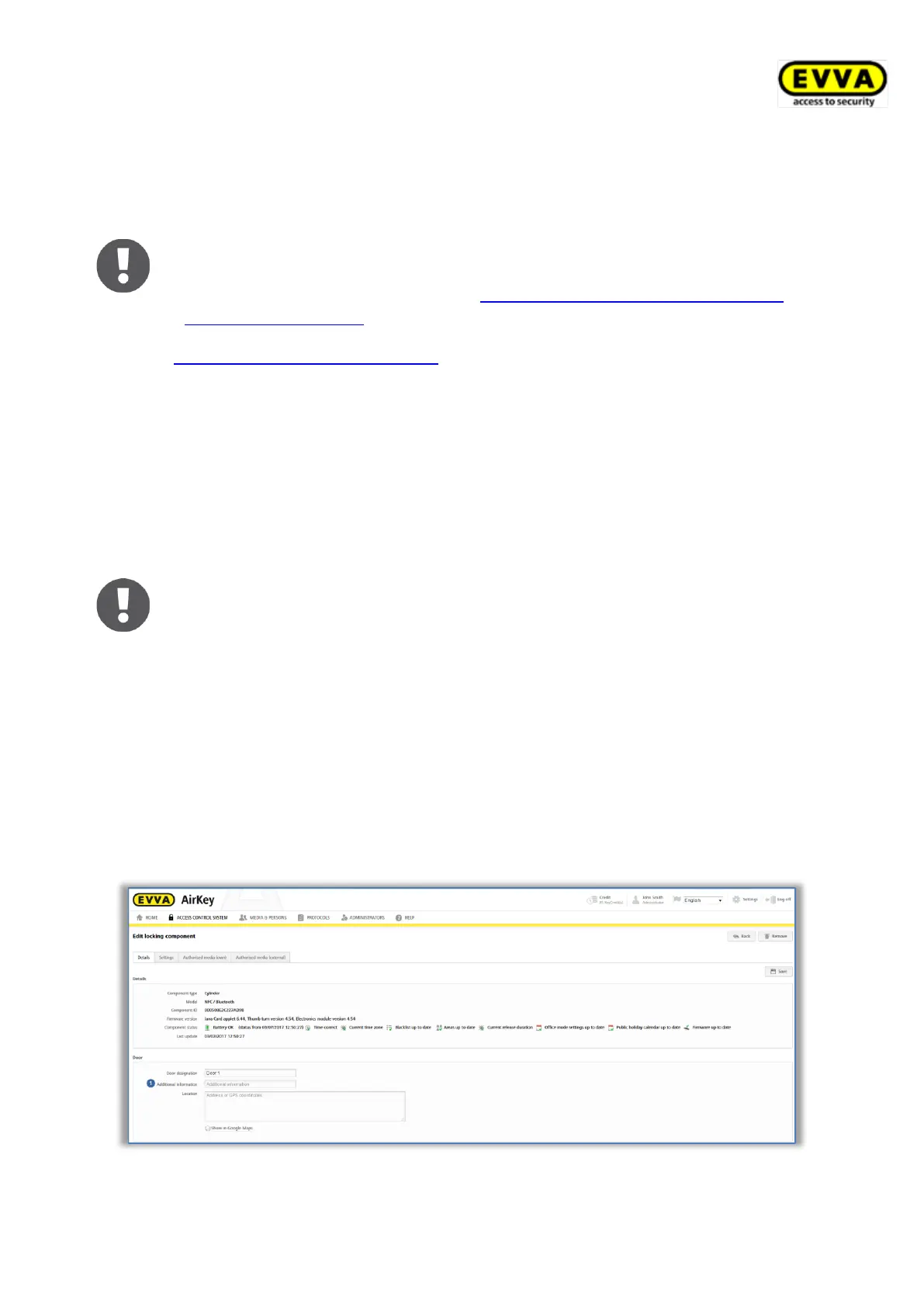
The Edit locking component application window in the Details tab provides different
information, such as component type and model, component ID, firmware version or
component status as well as information about doors, areas, and authorisations. You also
have the option here to show locking component locations in Google Maps. The Settings tab
shows all configured settings relating time zone and holiday calendar, access as well as
logging and repair options.
The battery status shown corresponds to the status at the last update or
the last transferred event log entry. For this reason, the actual battery
status of the locking component may deviate from the battery status shown
in the AirKey Online Administration.
> On the Home screen, click the Cylinders or Wall readers tile.
> Alternatively, select Access control system → Locking components in the main
menu.
> Click the locking component you would like to edit in the list.
> For instance, assign an optional door designation in the Details tab add optional
information or enter the location or address of locking components. The unique
characteristics of this data are verified within the access control system.
Figure 140: Editing locking components


 To Next Page
 Loading...