EasyManua.ls Logo

EXFO IQS-600 Series - User Manual

EXFO IQS-600 Series
379 pages
Print Icon
To Next Page IconTo Next Page
Loading...
User Guide
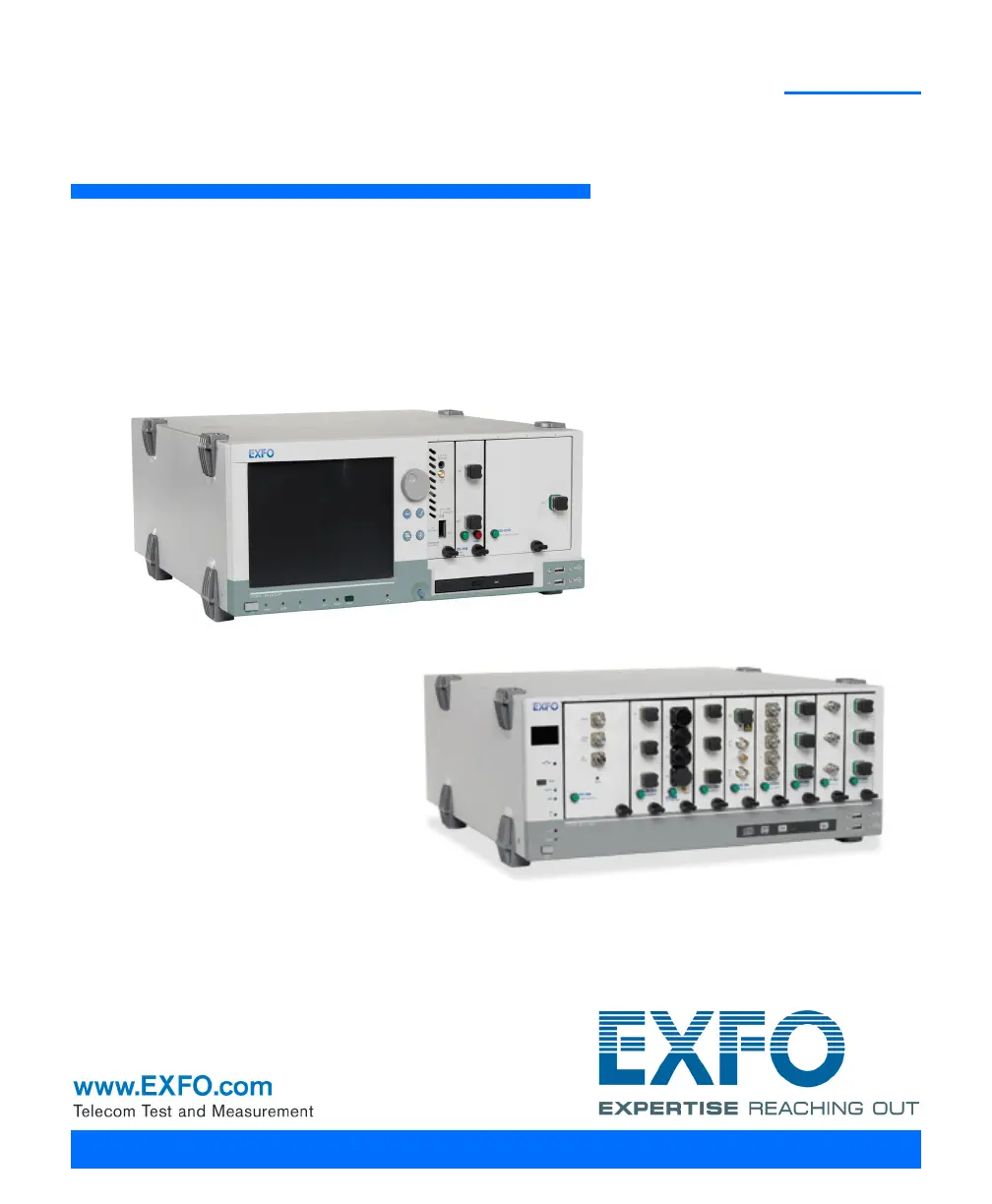
Integrated Qualification System
IQS-600

Table of Contents

Questions and Answers

  • M
    Melissa SmithAug 15, 2025
    What to do if the EXFO IQS-600 controller unit does not detect IQS modules?
    • A
      Aaron LindseyAug 15, 2025
      If the controller unit of your EXFO Test Equipment isn't detecting the IQS modules in your expansion unit, first, ensure that the expansion unit is turned on. Next, verify that the modules are correctly inserted into the expansion unit, remembering to turn off the unit before doing so. Also, check that the IQS interface cable is properly connected between the expansion unit and the main unit. Finally, confirm that the modules are compatible with high-speed units if your expansion unit has 'HS' inscribed on its front panel; contact the technical support team for a complete list of supported modules.
  • A
    Alexa DunnAug 18, 2025
    How to fix EXFO IQS-600 IQS-600 module that does not turn on?
    • D
      dominic10Aug 18, 2025
      If your EXFO Test Equipment's IQS-600 module won't turn on, start by checking the AC power cord connection and then power the unit back on. If that doesn't work, ensure the main power switch is in the 'On' position. If the AC current has been interrupted, press the front On/Off button twice to turn the unit on. If none of these steps work, the fuse may be blown, in which case you should contact EXFO.
  • X
    xmartinAug 21, 2025
    What to do if EXFO IQS-600 displays error about high-speed module insertion?
    • T
      Timothy DavisAug 21, 2025
      If you get an error message on your EXFO Test Equipment indicating that you must insert your high-speed module into a high-speed unit, even though it already is, the units might not be chained in the correct order. Make sure all high-speed units are connected before any standard units. Also, ensure that the high-speed module is inserted into one of the first three high-speed units.
  • S
    Stanley WestAug 25, 2025
    Why is a USB device not functioning on my EXFO IQS-600 Test Equipment?
    • K
      Katherine RodriguezAug 26, 2025
      If a USB device is not functioning with your EXFO Test Equipment, the system may not have recognized it. Try disconnecting and then reconnecting the USB device.
  • J
    jacksonkevinAug 28, 2025
    What to do if EXFO IQS-600 does not detect standard module in high-speed unit?
    • S
      Steven HernandezAug 28, 2025
      If the standard module inserted into your high-speed controller or expansion unit of EXFO Test Equipment is not detected, it is probably not compatible with high-speed units (bearing the 'HS' inscription on their front panels). Ensure that the module is compatible with high-speed units. For a complete list of supported modules, contact the technical support team.
  • W
    wattskennethAug 31, 2025
    What to do if my EXFO IQS-600 Test Equipment is on, but the screen remains black?
    • R
      Rebecca BrownAug 31, 2025
      If the screen remains black when your EXFO Test Equipment is on, verify the external monitor connection.
  • J
    johnsonstephenSep 3, 2025
    Why are SCPI commands not displayed in EXFO IQS-600 IC SCPI Monitoring window?
    • M
      moralesedwardSep 3, 2025
      If SCPI commands are not displayed in the IC SCPI Monitoring window of your EXFO Test Equipment, it could be because communication has not been established from this window. Establish a connection by clicking the Connect to IC button. Also, ensure that communication has been established on the GPIB or Ethernet port by verifying that all cables are properly connected, the Remote option is selected, and all parameters are properly set.
  • E
    Edward FosterSep 7, 2025
    How to troubleshoot external keyboard, printer, or mouse not functioning with EXFO IQS-600?
    • C
      Christopher MurraySep 7, 2025
      If external keyboard, printer, and/or mouse do not seem to function with your EXFO Test Equipment, ensure that the peripheral is connected properly and that the corresponding drivers are installed.
  • P
    Paul PierceSep 12, 2025
    How to set screen resolution to 600 x 800 on EXFO IQS-600 Test Equipment?
    • R
      Roger GarciaSep 12, 2025
      To set your screen resolution to 600 x 800 on your EXFO Test Equipment, and if the Windows screen resolution utility doesn't allow this setting, use the GMA driver utility in the Windows Control Panel.

Summary

Introducing the IQS-600 Integrated Qualification System

Safety Information

Laser Safety Information

Guidelines and warnings regarding laser safety for modules used with the system.

Electrical Safety Information

Precautions and warnings related to the electrical safety of the unit and its operation.

Getting Started with Your Integrated Qualification System

Turning the Integrated Qualification System On and Off

Steps for properly powering the IQS-600 controller and expansion units on and off.

Configuring Your Unit At First Startup

Steps for initial setup and configuration of the unit using the Windows wizard.

Accessing your IQS-600 Remotely

Working with Remote Desktop

Instructions for connecting to the unit using Remote Desktop Connection.

Working with TightVNC

Guide on using TightVNC for remote control of the unit.

Preparing for Automation

Changing Communication Settings

Procedure for modifying communication settings for instrument control.

Troubleshooting

Solving Common Problems

A table listing common issues, their probable causes, and recommended solutions.

Restoring Your Controller Unit to Normal Operation

Procedures for reverting the unit to its initial state or a previous backup image.

Technical Specifications

SPECIFICATIONS

Technical details for IQS-605P-HS, IQS-610P-HS, and IQS-610E-HS units.

SCPI-Based Errors

Error Number Description Probable Cause

List of SCPI error codes, their descriptions, and probable causes.

IEEE 488.2 and Specific Commands

Communicating Through TCP;IP over Telnet

Activating TCP;IP over Telnet

Steps to activate the TCP/IP over Telnet Service for remote communication.

EXFO IQS-600 Series Specifications

General IconGeneral
BrandEXFO
ModelIQS-600 Series
CategoryTest Equipment
LanguageEnglish

Related product manuals