EasyManua.ls Logo

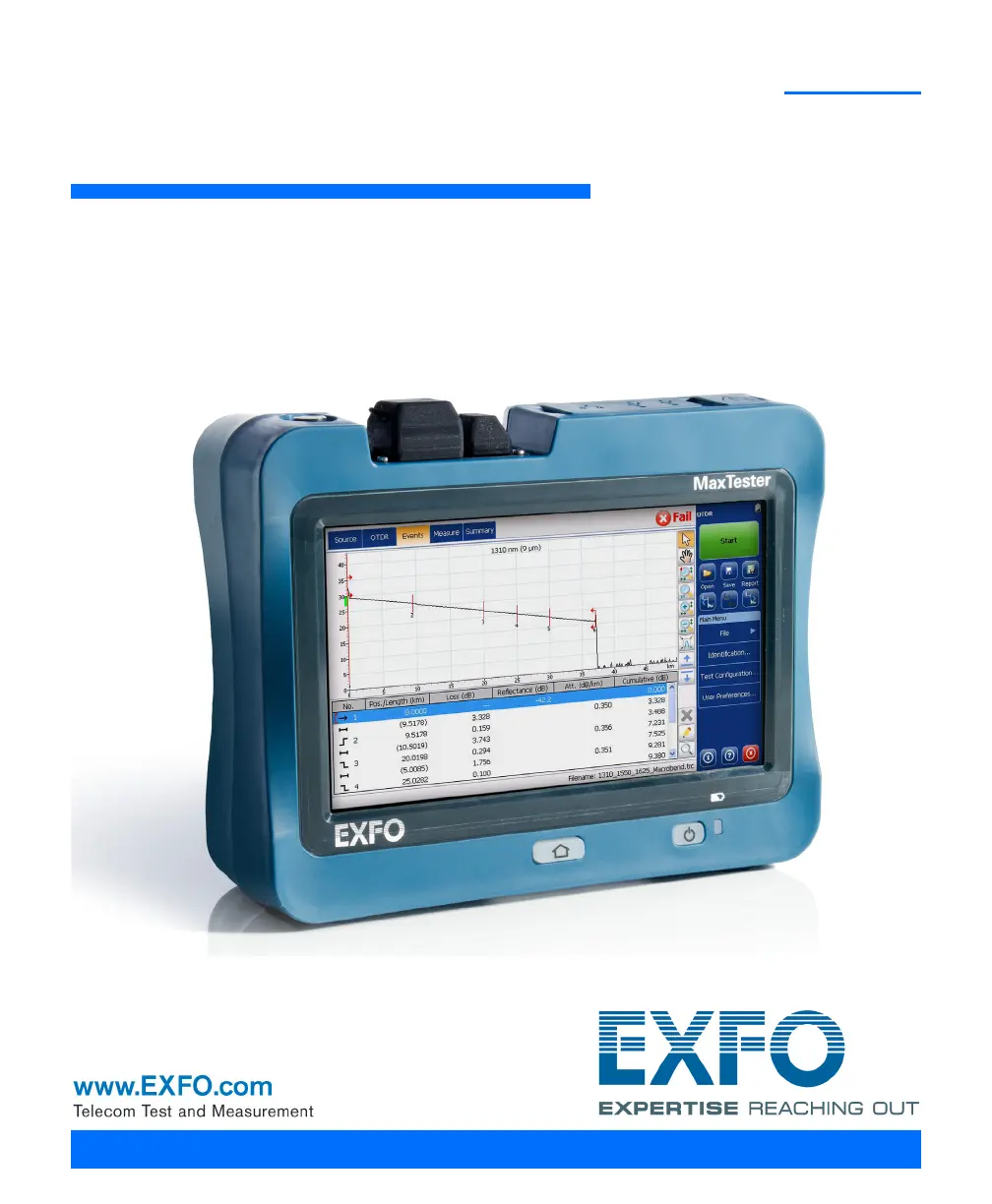
EXFO MaxTester series - User Manual

EXFO MaxTester series
175 pages
Print Icon
To Next Page IconTo Next Page
Loading...
User Guide
MaxTester Series

Table of Contents

Other manuals for EXFO MaxTester series

Questions and Answers

  • Y
    ybondAug 18, 2025
    How to fix EXFO MaxTester Test Equipment that does not turn on?
    • F
      Felicia ShepardAug 18, 2025
      If your EXFO Test Equipment unit does not turn on, first ensure it is connected to an external power supply using the AC adapter/charger or the car outlet adapter. If it still doesn't turn on, press and hold the power button for at least 12 seconds to force a hardware reset. Release the power button, and then restart your unit as usual. Also, check that the external power supply is properly connected at both ends. If the battery is discharged, charge it.
  • J
    Julie CastanedaAug 21, 2025
    What to do if the USB memory key is not working on EXFO MaxTester?
    • J
      Jessica SpencerAug 21, 2025
      If the USB memory key is not working with your EXFO Test Equipment, try disconnecting it and then reconnecting it. Also, the file system used on the memory key may not be supported. Ensure that the USB memory key is formatted to FAT, FAT32, or exFAT. To avoid losing data, back up any important data that you want to keep. Format the USB memory key to one of the supported file system (FAT, FAT32,or exFAT).
  • M
    michaellopezAug 23, 2025
    How to brighten a dark screen on EXFO Test Equipment?
    • A
      Alex EnglishAug 23, 2025
      If your EXFO Test Equipment unit screen is dark, try modifying the brightness settings. If the battery is discharged and the unit has shut down, charge the battery.
  • H
    Haley SotoAug 26, 2025
    Why are the batteries not charging in my EXFO MaxTester Test Equipment?
    • J
      jenniferbrownAug 26, 2025
      If the batteries are not charging in your EXFO Test Equipment, ensure that the temperature in the charging location is within the specified range. Also, verify that the AC adapter/charger (or the car outlet adapter) is correctly connected to both the unit and the power outlet. Make sure that the AC adapter/charger in use has the correct voltage for your unit.
  • K
    Kevin BrownAug 27, 2025
    Why does my EXFO MaxTester Test Equipment switch to suspend mode unexpectedly?
    • M
      Melanie GarciaAug 28, 2025
      If your EXFO Test Equipment unit switches to suspend mode unexpectedly, ensure that the power management options are defined correctly to suit your needs.
  • M
    Maria SmithAug 30, 2025
    How to troubleshoot an external keyboard not working on EXFO MaxTester Test Equipment?
    • B
      Brian WoodAug 30, 2025
      If your external keyboard is not working with your EXFO Test Equipment, disconnect the keyboard and then reconnect it. Also, try turning off the unit, connecting the keyboard, and then turning the unit back on.
  • S
    ssmithSep 1, 2025
    What to do if EXFO MaxTester battery LED remains red after charging?
    • R
      Rachael SpearsSep 1, 2025
      If the battery LED remains red and the charge status indicates a battery level below the critical value on your EXFO Test Equipment, even after charging, press and hold down the power button for at least 12 seconds to force a hardware reset on the unit. Release the power button, and then restart your unit as usual. The battery level should now be indicated correctly.
  • M
    Michael ShermanSep 4, 2025
    Why does EXFO MaxTester disconnect from Wi-Fi after a few seconds?
    • D
      Dawn ButlerSep 4, 2025
      If your EXFO Test Equipment unit only remains connected to the Wi-Fi network for a few seconds before disconnecting, disconnect the unit from the Wi-Fi network, and then try to establish a new connection with the password.
  • L
    Laura MillerSep 6, 2025
    What to do if keyboard, mouse, or USB memory key are not detected after Maintenance and Recovery menu on EXFO Test Equipment?
    • K
      Kelly JonesSep 6, 2025
      If the keyboard, mouse, or USB memory key no longer seem to be detected properly after browsing the Maintenance and Recovery menu on your EXFO Test Equipment, restart your unit.
  • R
    Robert GregorySep 8, 2025
    How to fix dim screen characters on EXFO MaxTester Test Equipment?
    • A
      Anne CruzSep 8, 2025
      If the screen characters are dim on your EXFO Test Equipment, modify the brightness settings.

Summary

1 Introducing the MaxTester Series Unit

Main Features

Overview of the unit's primary hardware and software capabilities.

Technical Specifications

Key technical data and performance parameters of the unit.

2 Safety Information

Laser Safety Information

Critical safety guidelines related to laser radiation.

Electrical Safety Information

Safety precautions for handling electrical components and power.

3 Getting Started with Your Unit

Turning On or Off the Unit

Procedures for powering the unit on, off, and into suspend mode.

Configuring Your Unit At First Startup

Steps to set up regional, language, and other initial settings.

Navigating Through the Applications

How to move between and launch applications on the unit.

4 Setting Up Your Unit

Configuring the Internet Options

Setting up network and internet connection parameters.

Recalibrating the Touchscreen

Process for correcting touchscreen input inaccuracies.

Configuring the Network Settings

Setting up wired and wireless network configurations.

6 Using the Optional Built-In Power Meter and VFL

8 Managing Data

Connecting to a Wireless Network

Steps to establish a Wi-Fi connection for network access.

9 Accessing Your Unit Remotely

Configuring the VNC Server

Setting up the VNC server for remote unit control.

Connecting to Your Unit with TightVNC

Establishing a remote connection to the unit using TightVNC.

10 Maintenance

Recharging the Battery

Steps and considerations for charging the unit's battery.

Recalibrating the Unit

Guidance on when and how to perform unit recalibration.

11 Troubleshooting

Solving Common Problems

A table listing common issues and their solutions.

Restoring Your Unit to Normal Operation

Steps to reset the unit to its factory default state.

Contacting the Technical Support Group

Contact details and procedures for obtaining technical assistance.

12 Warranty

Service and Repairs

Details on how to obtain service and repair for the unit.

EXFO MaxTester series Specifications

General IconGeneral
Display7-inch touchscreen
ConnectivityUSB, Ethernet, Wi-Fi
Operating Temperature-10 °C to 50 °C (14 °F to 122 °F)
CategoryOTDR
Wavelengths1310 nm, 1550 nm
Event Dead Zone0.8 m
iOLMYes
ApplicationFiber optic network testing and troubleshooting
Humidity5% to 95% non-condensing

Related product manuals