Managing Data
86 MaxTester Series
Viewing Disk Space and Managing Files
Viewing Disk Space and Managing Files
To help you manage the data that is stored on your unit, you can easily view
the remaining disk space. You can also copy, move, rename, delete files
and folders directly on your unit.
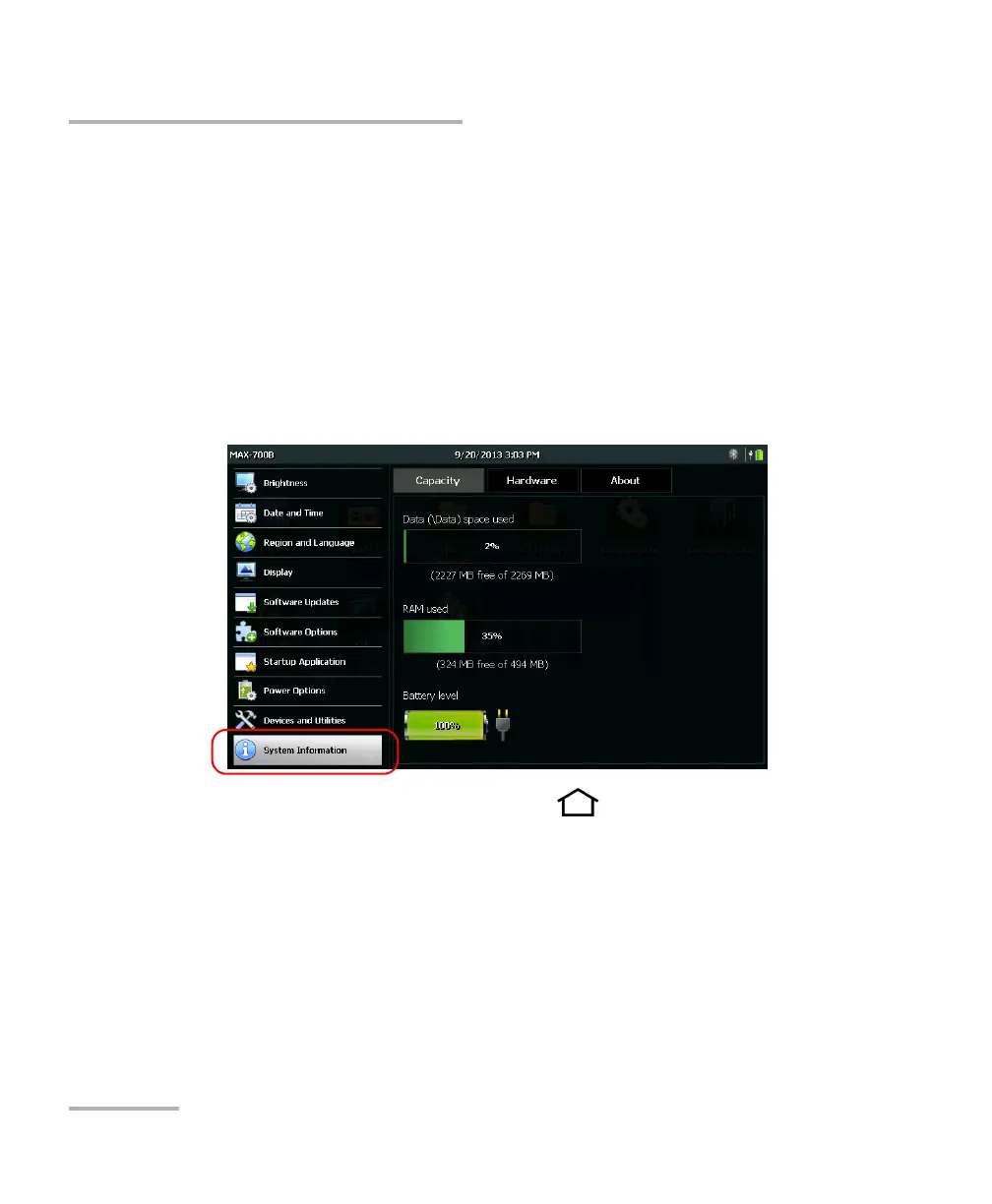
To view the free disk space on your unit (DATA partition):
1. From the Home screen, tap Configuration.
2. Tap System Information > Capacity.
The free disk space is displayed under Data (\ Data) space used.
3. From the unit’s front panel, press the button to return to the
Home screen.
To manage files or folders on your unit only:
From the Home screen, select File Manager.
To transfer files or folders between your unit and a USB memory
key:
Use the Data Mover application to easily transfer files and folders to a USB
memory key (see Transferring Files with the Data Mover Application on
page 106).






 To Next Page