EasyManua.ls Logo

EXFO IQS-610P-HS - User Manual

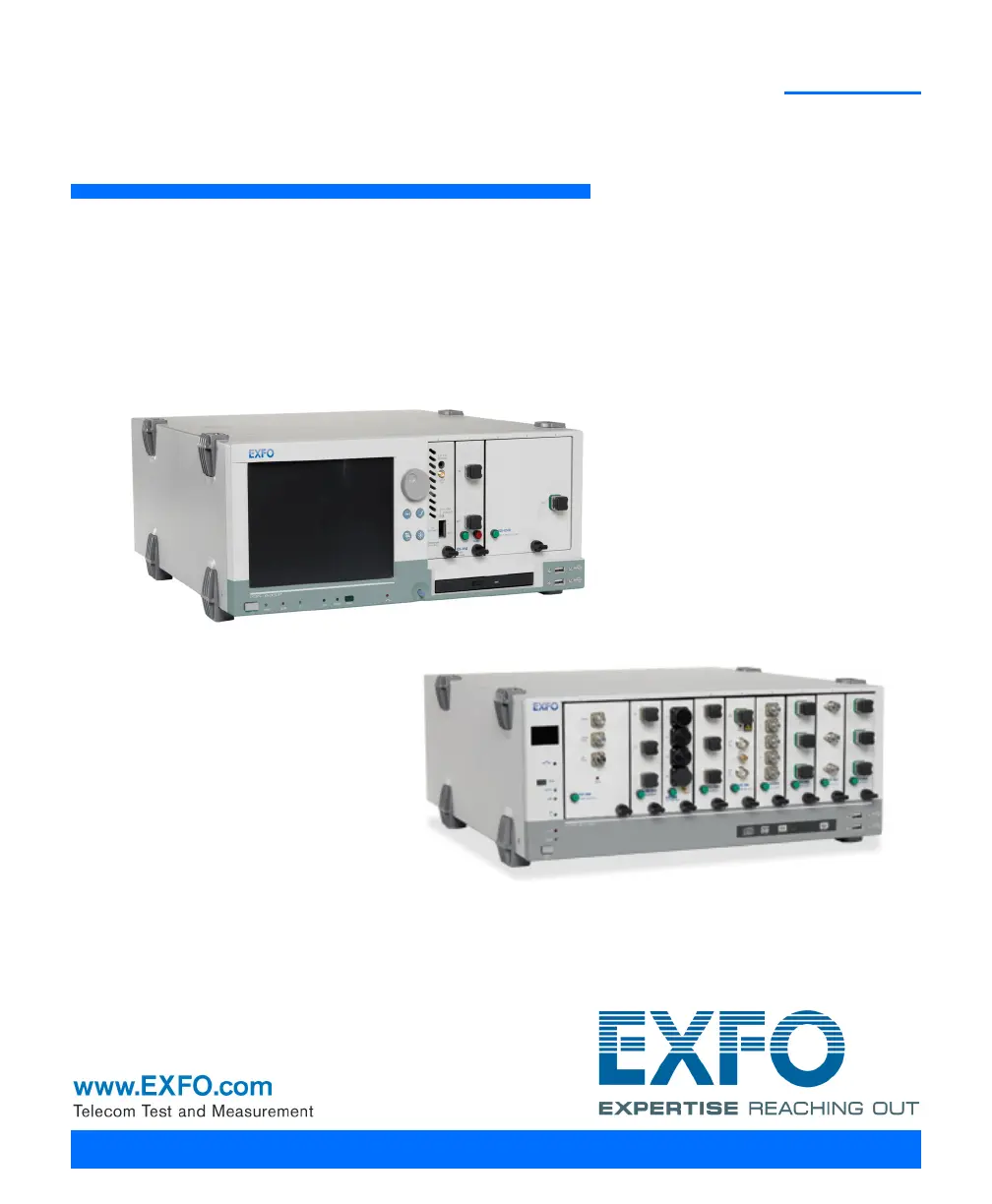
EXFO IQS-610P-HS
379 pages
Print Icon
To Next Page IconTo Next Page
Loading...
User Guide
Integrated Qualification System
IQS-600

Table of Contents

Questions and Answers

  • D
    daniel69Aug 14, 2025
    What to do if the EXFO IQS-610P-HS Test Equipment controller unit does not detect IQS modules?
    • L
      Leah RobertsonAug 14, 2025
      If the controller unit of your EXFO Test Equipment isn't detecting the IQS modules in your expansion unit, first, ensure that the expansion unit is turned on. Next, verify that the modules are correctly inserted into the expansion unit, remembering to turn off the unit before doing so. Also, check that the IQS interface cable is properly connected between the expansion unit and the main unit. Finally, confirm that the modules are compatible with high-speed units if your expansion unit has 'HS' inscribed on its front panel; contact the technical support team for a complete list of supported modules.
  • B
    Benjamin RodriguezAug 18, 2025
    How to fix EXFO IQS-610P-HS IQS-600 module that does not turn on?
    • A
      Amber ShieldsAug 18, 2025
      If your EXFO Test Equipment's IQS-600 module won't turn on, start by checking the AC power cord connection and then power the unit back on. If that doesn't work, ensure the main power switch is in the 'On' position. If the AC current has been interrupted, press the front On/Off button twice to turn the unit on. If none of these steps work, the fuse may be blown, in which case you should contact EXFO.
  • K
    Kathleen WalkerAug 21, 2025
    What to do if EXFO IQS-610P-HS Test Equipment displays error about high-speed module insertion?
    • K
      Kristin McleanAug 21, 2025
      If you get an error message on your EXFO Test Equipment indicating that you must insert your high-speed module into a high-speed unit, even though it already is, the units might not be chained in the correct order. Make sure all high-speed units are connected before any standard units. Also, ensure that the high-speed module is inserted into one of the first three high-speed units.
  • S
    Stacy SmithAug 25, 2025
    Why is a USB device not functioning on my EXFO IQS-610P-HS Test Equipment?
    • J
      Joshua LyonsAug 25, 2025
      If a USB device is not functioning with your EXFO Test Equipment, the system may not have recognized it. Try disconnecting and then reconnecting the USB device.
  • K
    Kimberly AndersonAug 27, 2025
    What to do if EXFO IQS-610P-HS does not detect standard module in high-speed unit?
    • M
      Michael MillerAug 28, 2025
      If the standard module inserted into your high-speed controller or expansion unit of EXFO Test Equipment is not detected, it is probably not compatible with high-speed units (bearing the 'HS' inscription on their front panels). Ensure that the module is compatible with high-speed units. For a complete list of supported modules, contact the technical support team.
  • D
    David EvansAug 31, 2025
    What to do if my EXFO Test Equipment is on, but the screen remains black?
    • H
      hollanddennisAug 31, 2025
      If the screen remains black when your EXFO Test Equipment is on, verify the external monitor connection.
  • A
    Anne MillerSep 3, 2025
    Why are SCPI commands not displayed in EXFO IQS-610P-HS IC SCPI Monitoring window?
    • M
      Mary CallahanSep 3, 2025
      If SCPI commands are not displayed in the IC SCPI Monitoring window of your EXFO Test Equipment, it could be because communication has not been established from this window. Establish a connection by clicking the Connect to IC button. Also, ensure that communication has been established on the GPIB or Ethernet port by verifying that all cables are properly connected, the Remote option is selected, and all parameters are properly set.
  • M
    Michele WoodwardSep 6, 2025
    How to troubleshoot external keyboard, printer, or mouse not functioning with EXFO IQS-610P-HS Test Equipment?
    • W
      wwhiteSep 6, 2025
      If external keyboard, printer, and/or mouse do not seem to function with your EXFO Test Equipment, ensure that the peripheral is connected properly and that the corresponding drivers are installed.
  • Z
    Zoe RodriguezSep 10, 2025
    How to set screen resolution to 600 x 800 on EXFO IQS-610P-HS?
    • C
      Christian PowellSep 10, 2025
      To set your screen resolution to 600 x 800 on your EXFO Test Equipment, and if the Windows screen resolution utility doesn't allow this setting, use the GMA driver utility in the Windows Control Panel.

Summary

2 Safety Information

Laser Safety Information

Safety precautions related to laser components in modules.

Electrical Safety Information

Guidelines for safe electrical operation and connections.

3 Getting Started with Your Integrated Qualification System

Installing Your Controller and Expansion Units in a Rackmount

Instructions for mounting units in a 19-inch rackmount.

Connecting One or More Expansion Units to a Controller Unit

Steps to connect expansion units to the controller via EXFO Bus.

Inserting and Removing Test Modules

Procedures for safely installing and removing modules from the unit.

4 Setting Up Your Integrated Qualification System

Calibrating Your Touchscreen (IQS-605 P-HS)

Procedure to calibrate the touchscreen for optimal accuracy.

Customizing Access Levels

How to manage user access rights to IQS Manager functions.

5 Using the IQS Manager Interface

Accessing Current Modules

How to view and manage currently connected modules in IQS Manager.

6 Accessing your IQS-600 Remotely

Working with Remote Desktop

How to use Remote Desktop Connection for remote access.

Working with TightVNC

How to use TightVNC for remote access and control.

7 Preparing for Automation

8 Using IQS Products in an Automated Test Environment

9 Maintenance

10 Troubleshooting

Solving Common Problems

A table listing common problems, their causes, and recommended solutions.

Restoring Your Controller Unit to Normal Operation

Procedures for refreshing, resetting, or restoring the unit from a backup image.

B SCPI-Based Errors

D IEEE 488.2 and Specific Commands

F Communicating Through TCP;IP over Telnet

EXFO IQS-610P-HS Specifications

General IconGeneral
BrandEXFO
ModelIQS-610P-HS
CategoryTest Equipment
LanguageEnglish

Related product manuals