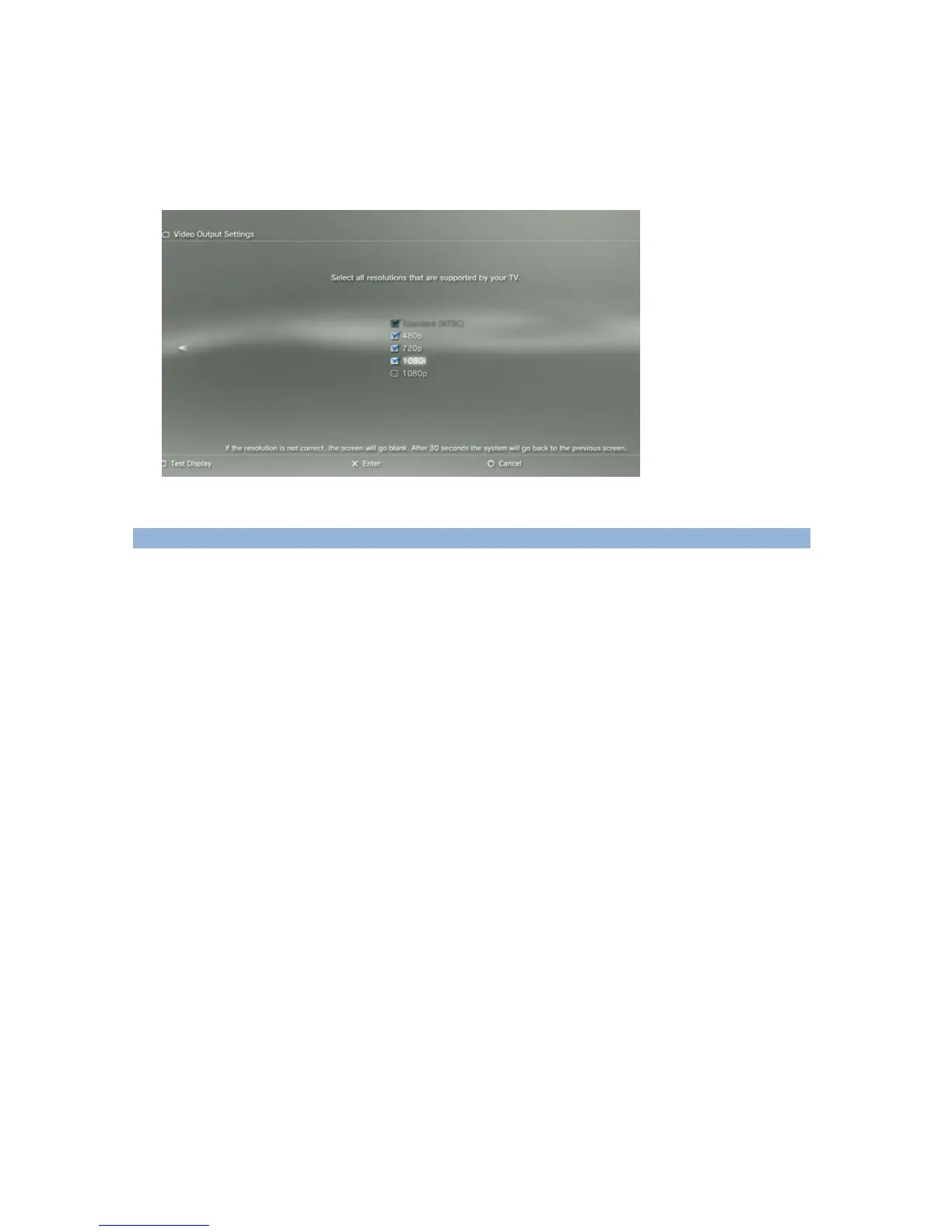
(2)At the resolutions setting, make sure the “1080P” option is NOT be ticked, otherwise some game
play (e.g. GT5) cannot be recorded by ezcap280:
Record:
After connection is ready (component, or HDMI), you should see the pass through video on the
screen. You will see the green indicator shows on. It means now it is ready to record.
To record video is very simple --- press the record button, then you will see the indicator turns to red, it
means now recording.
There are several reasons for no actions when press record button, you may need check:
1, The input video source disconnected.
2, The USB drive is out of memory.
3, The format for USB drive is not suitable, e.g. exFAT. Ezcap280 support FAT, FAT32, and NTFS.
4, The USB drive is not connected well.
5, The USB drive is not ready, normally, it will take 4~8 seconds after plug it on.
To stop recording, just press the button again, will see indicator flash few seconds then turns to green,
means the record is stopped, now you can take off your USB drive (or USB HDD).
Note: please do not take the memory off when the indicator is flashing. The recording will
automatically stop if the USB drive or USB HDD out of space.
After stop recording, connect the USB drive or USB HDD to computer will see the recorded files: for
1080P recording, file will be Encode_1080P_1, for 720 or 480p recording, file will be Encode_1.
Every record/stop operation will create a different recording file: Encode_1080P_1, Encode_1080P_2,
Encode_1080P_3… and so on.


 To Next Page