
 Need help?
Do you have a question about the Falcon CR-Laser and is the answer not in the manual?
Details the CR-Laser Falcon's working dimensions (400mm*415mm) and laser source type (Semiconductor).
Explains the use of the engraving profile for measurement and behavior during power loss.
Addresses shallow engraving, image-to-engraving discrepancies, and inconsistent depth issues.
Step-by-step guide on how to properly focus the laser module for engraving.
Covers workbench protection, G-code file reading, buzzer alarms, and power-on issues.
Instructions for replacing filter cotton and recommendation for wearing safety goggles.
Resolves abnormal homing, continuous hitting sounds, and belt tension effects on graphics.
Lists compatible materials for engraving and cutting processes.
Guidance on engraving cambered, reflective, or transparent materials.
Explains color-dependent effects, smoked traces, and cutting failures.
Identifies compatible software (LaserGRBL, LightBurn) and their download sources.
Lists supported file formats and where to find detailed tutorials.
Resolves COM port identification issues on Windows 7 and software connection problems.
This document provides a comprehensive FAQ for the CR-Laser Falcon, covering its functions, usage, and maintenance.
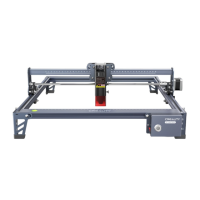
The CR-Laser Falcon is a laser engraving and cutting machine designed for various materials. Its primary function is to engrave designs onto surfaces and cut through certain materials using a semiconductor laser unit. The machine is equipped with a MEMS attitude sensor, which enhances safety by automatically stopping the laser module if the machine is tilted abnormally. This feature ensures that the laser operation is halted if the device is moved or turned on its side during operation, preventing potential hazards. The machine also includes a radium engraving on its profile, which serves as a convenient tool for measuring object sizes and assisting in precisely locating the engraving area. This integrated measurement system helps users accurately position their materials for engraving or cutting tasks.
The CR-Laser Falcon supports both engraving and cutting operations on a wide range of materials. For engraving, it can be used on paper, wood, bamboo, leather, textile, acrylic, painted metal, and plastic. For cutting, it is suitable for paper, wood, bamboo, cloth, leather, fabric, acrylic, and plastic. This versatility makes it a valuable tool for various creative and industrial applications. The machine is designed to work with G-code files for engraving and cutting tasks, allowing for precise control over the laser's path and intensity.
Operating the CR-Laser Falcon involves several key steps and considerations to ensure optimal results. Focusing the laser is a critical step for achieving desired engraving depth and clarity. For the 5W laser module, users need to place the engraving material in the processing area, adjust a hand-tight nut on the right side of the laser module, and turn the fixed focus bar counterclockwise until it contacts the material surface. After tightening the nut, the focus bar is turned clockwise until it is attracted by a magnet, indicating correct focus. For the 10W laser module, a multi-level fixed focus bar is used. Users place this bar between the laser module and the material, aligning the bottom of the laser module with the corresponding surface of the focus bar, and then locking it with two hand screws. This multi-level system allows for precise focusing based on material thickness.
The machine's performance is influenced by various parameters, including power and speed settings. If the engraving effect is too shallow, users should ensure the imported image is clear, the focus is correct, and the power and speed settings are appropriate for the material. Different materials, especially those with varying colors, have different optical properties, affecting how they absorb and reflect laser energy. Therefore, adjusting parameters is essential to achieve the desired effect for each material.
For materials that are reflective or transparent, such as ceramics or glass, an anti-reflective material must be applied to the surface before engraving. This prevents reflected light from damaging the laser module and ensures an effective engraving process. The machine also supports engraving on cambered materials, provided the radian is not too large to avoid slight deformation.
The CR-Laser Falcon is designed for both online and offline working. During offline working, if the machine experiences an abnormal "HOME" position or makes continuous hitting sounds, it indicates an issue with the limited switches. Users should ensure that the X-axis limited switch closes normally when the laser module moves to the left end, and the Y-axis limited switch closes normally when the module moves to the control box end. Obstructions or improper installation of the X-axis assembly can cause these issues, requiring checking wires and reinstalling the assembly to ensure parallelism.
In case of a rapid alarm sound, which occurs in preview or engraving mode if the machine is tilted or moved, the laser will turn off, the motor will stop, the indicator light will flash, and the buzzer will sound. To resolve this, users should return the machine to its original position and press the microswitch on the control box to clear the abnormality and resume operation (this microswitch function is only available during offline working).
The machine's working area is clearly defined, and the radium engraving on the profile helps users measure and position objects accurately. If the machine powers off during operation, it will stop working and will be initialized upon being powered on again.
Proper maintenance is crucial for the longevity and optimal performance of the CR-Laser Falcon. Ensuring the engraving effect is consistent in depth requires the material to be flat and the machine to be horizontal. Users should observe the gradienter on the machine and adjust it according to the user manual to ensure level operation.
If the engraved effect differs from the original image, users should check that the screws are tight and the belt tension is appropriate. The belt should be tight enough that the laser module can slide slowly on the X-axis profile by gravity, without any empty sliding in the pulleys.
To prevent damage to the workbench, especially when cutting, it is recommended to place objects that cannot be penetrated by the laser, such as stainless steel or aluminum alloy plates, underneath the material.
For issues with reading G-code files, users should check if the TF card is inserted correctly. The machine reads the latest engraving file (e.g., .gcode, .gc, .g, .nc, .ngc) from the root directory of the TF card by default. It is advisable to delete other engraving files from the root directory to avoid conflicts.
Replacing the filter cotton in the 5W laser module is a straightforward process. When the machine is powered off, the filter cotton can be directly removed, cleaned with water, dried, and then reinserted or replaced with a new one. Care must be taken not to touch the protective lens of the laser module during this process.
If the machine fails to turn on, users should check three things:
For software connectivity issues, especially if the software does not respond or connect during online working, users should ensure that the Type-C data cable supports communication. Restarting the software and the machine, then selecting the correct COM port for the engraving machine, should resolve the issue.
To address smoked traces on the material surface, users can reduce the power settings or consider purchasing an air assist system from Creality. If the machine is unable to cut through the material, several factors should be checked:
Wearing goggles is recommended during operation, even though the CR-Laser Falcon incorporates shading and eye protection, and its MEMS attitude sensor stops the laser if the machine is abnormally tilted. This extra precaution ensures user safety.
If the belt is too loose or too tight, the engraved graphics may be deformed and dislocated, for example, a circle might appear as an ellipse. Regular checks and adjustments of belt tension are therefore important for maintaining engraving accuracy.
 General
| Display | LCD |
|---|---|
| Power Supply | 2 x AAA batteries |
| Accuracy | ±1.0 mm |
| Resolution | 1mm |
| Laser Class | Class 2 |

 To Next Page