9
5. Using Personal Computer
5.1. Wireless connection to PC
Switch-on the WiFi Docking Station by pressing the power button at the front panel. Wait
for a few moments until the Wireless LED remains on. Enable the WiFi feature on your
PC and open the Wireless Network Connection. Select the WiFi Docking Station wireless
connection (default wireless SSID: WiFiSD, Password: 11111111). Once you have
successfully connected to your WiFi HDD, you can run the “NAS Client Login Utility” to
search for your device and complete the configuration process.
5.2. PC Client Login Utility
The Client Utility software is the only software that you will need to run on your computer.
This software utility allows you to easily search and look for your WiFi Docking Station
that is connected to your home network.
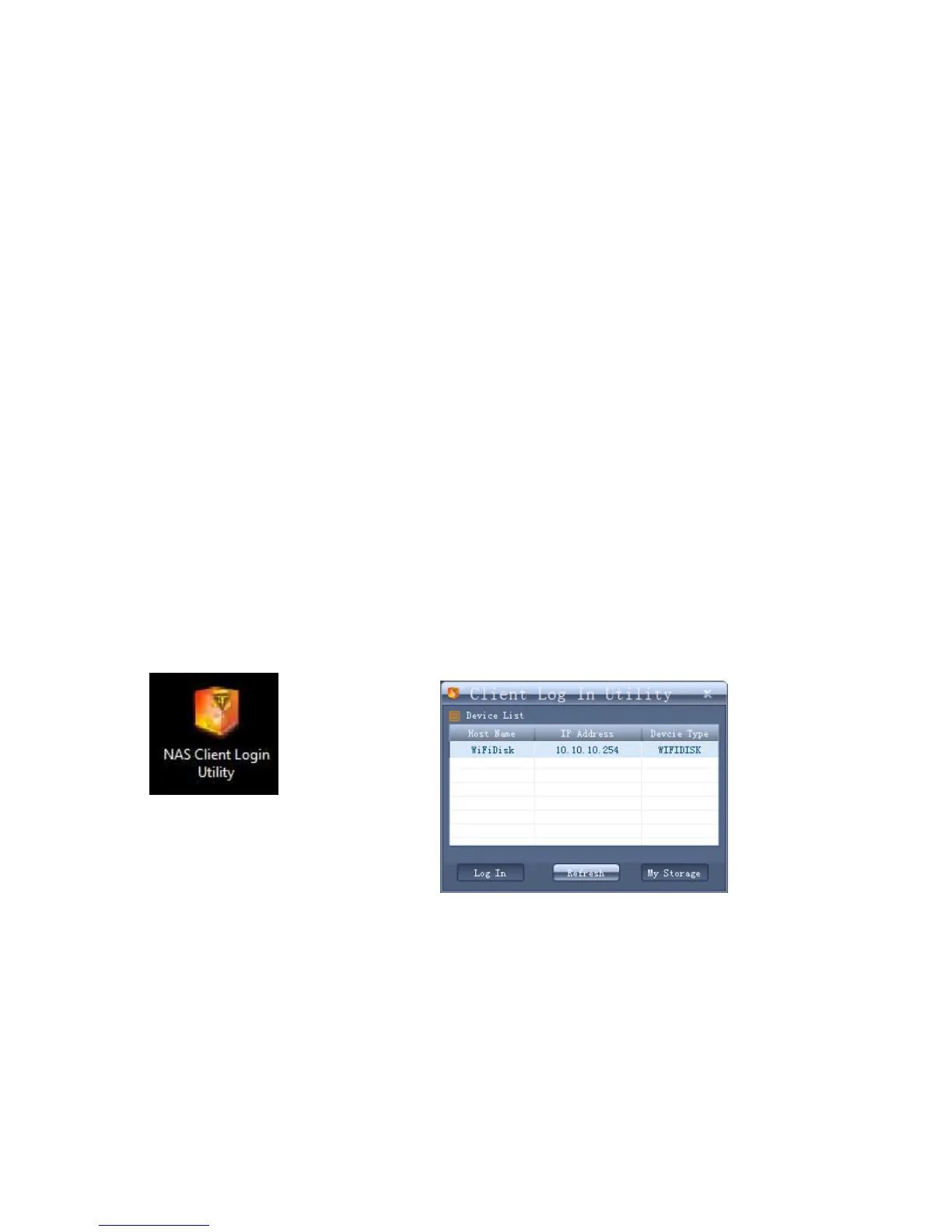
1. To run the tool, double-click on the “NAS Client Login Utility” file and follow the
on-screen instructions.
If you do not find the WiFi Docking Station on the list of devices connected in your
network, click on the “Refresh” button to refresh the device list.
Select the WiFi Docking Station on the list, then click on the “Log In” button to enter the
web interface as seen on the image below.


 To Next Page