www.feiyu-tech.com 1312
4.2 Connect Feiyu ON App
Steps:
(1) Turn on the gimbal.
(2) turn the camera's Wi (usually in camera's "setting- network-Wi" to control),
when the screen shows the name and the password of the Wi, stay at interface
(3) Log in Feiyu ON App (Register for the rst time).
(4) The App will search equipment nearby, and it will show "connection succeed"
after a while. If it's fail, please try to exit and log in the App again.
(5) Tap "connect to camera" in the screen, and choose your camera model in the
list. (Tips: App embedded many rmware for dierent band, and default to use
the rmware which you used last time. For example, if you used brand A's camera
last time, and use brand B's camera for this time, it will ask you to re-download
the rmware, please follow the prompts.
(6) Choose the right Wifi of the camera and enter the password according the
information that you get from step 2. You can control the gimbal after the screen
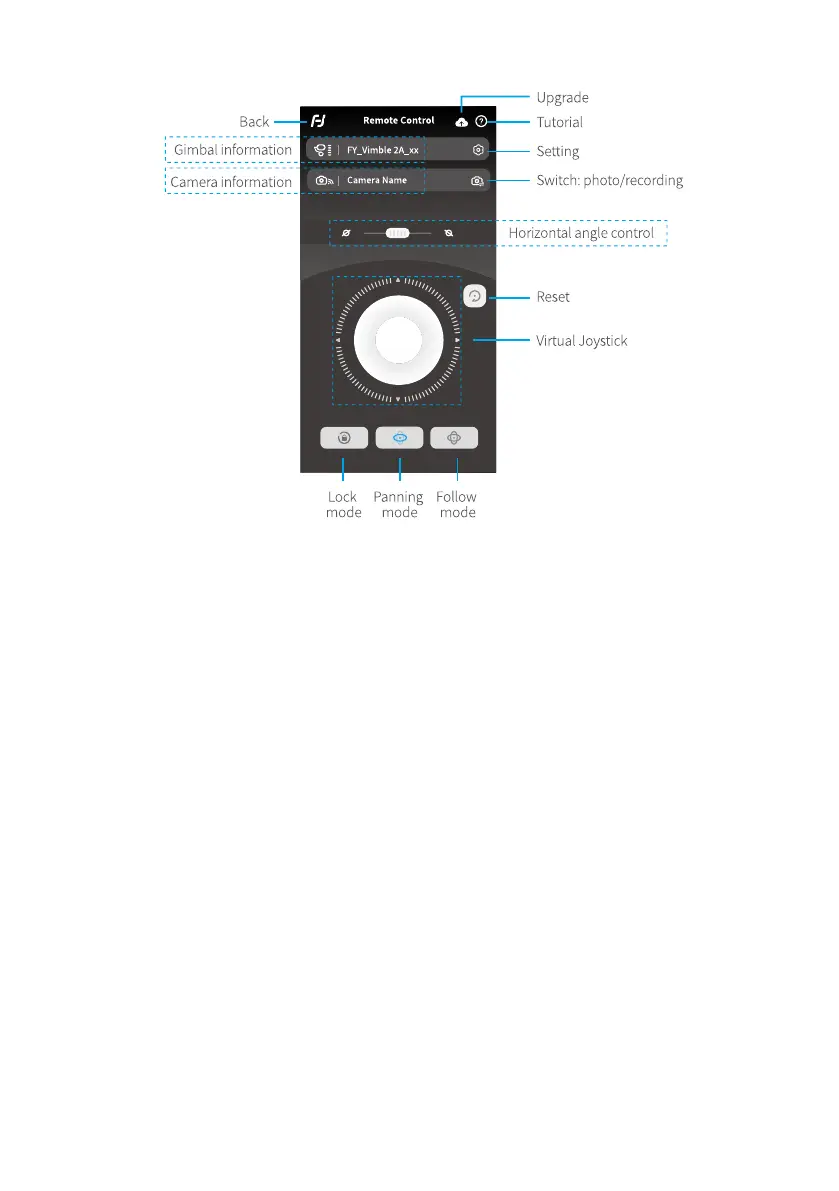
shows "connection succeed", including remote control the gimbal to move,
switch working mode and set parameters, etc. If the connection failed, please
conrm the Wi-Fi password are entered correctly. Or try to exit and log in the App
again.



 To Next Page