Pag 25
FINGERPRINTFINGERPRINT
FINGERPRINTFINGERPRINT
FINGERPRINT
FINGERPRINTFINGERPRINT
FINGERPRINTFINGERPRINT
FINGERPRINT
d 2. 1
REMOTE UNIT
FOR ACCES CONTROL
+
321
7 8 9
0
x
-
654
x
0 y
S e c
S e c
S t d
SECURITY
S
E
C
U
R
I
T
Y
REMOTE UNIT
FOR ACCES CONTROL
+
321
7 8 9
0
x
-
654
REMOTE UNIT
FOR ACCES CONTROL
+
321
7 8 9
0
x
-
654
A d d
M o d e
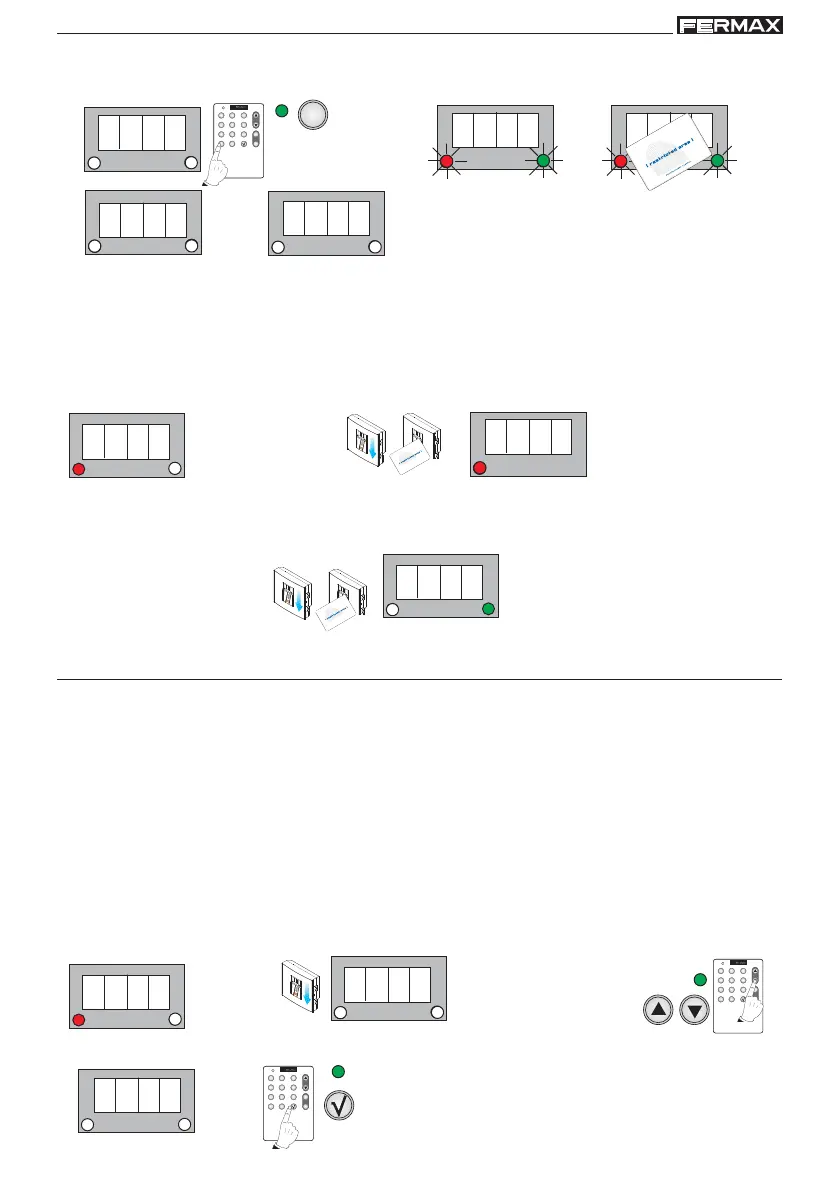
1b. d2.1 is shown, cancel if we wish to register a security card. The LEDs of the reader start to flash, present
the card that we wish to register in the system as the security card.
1 beep
Cancel for security
card
1 beep
1 beep
* Activate the Security/standard operation using the corresponding fingerprint or card
registered for this purpose
Activate one mode or other by sliding the security fingerprint or card over the reader
sensor in standby mode. The mode displayed will remain enabled until the security card
or fingerprint is presented again. It will then change to the other mode.
1. Enter the security
fingerprint or present
the security card
Standby Mode
enabled function shown: standard
This mode will remain active until the new security fingerprint is entered or the new security card presented
(can also be changed by programming. See the chapter on: "Function modes - Mode" below).
1 beep
2. Enter the security
fingerprint or present the
security card to change
mode
1 beep
enabled function shown: security
Operating Modes (Mode)
1. Standard mode (Std): double security is not enabled. We only pass the fingerprint or card
2. Security mode (Sec): double security is enabled: Fingerprint + Card or Fingerprint + Code.
NOTES:
- See functioning (chapter “Add users - Add”):
Standard Mode:
User mode 1 or 2 fingerprints.
User proximity only.
User ID only.
Security mode:
User mode 1 or 2 fingerprints + proximity.
User mode 1 or 2 fingerprints + code.
2. Search using the menu’s scroll keys:
Mode
1. Enter the master fingerprint.
1 beep
Enter Programming Mode
Standby Mode
3. Code is shown. Confirm with the OK key.
1 beep



 To Next Page