user’s manual
WANDLA by Ferrum
9
Figure 4
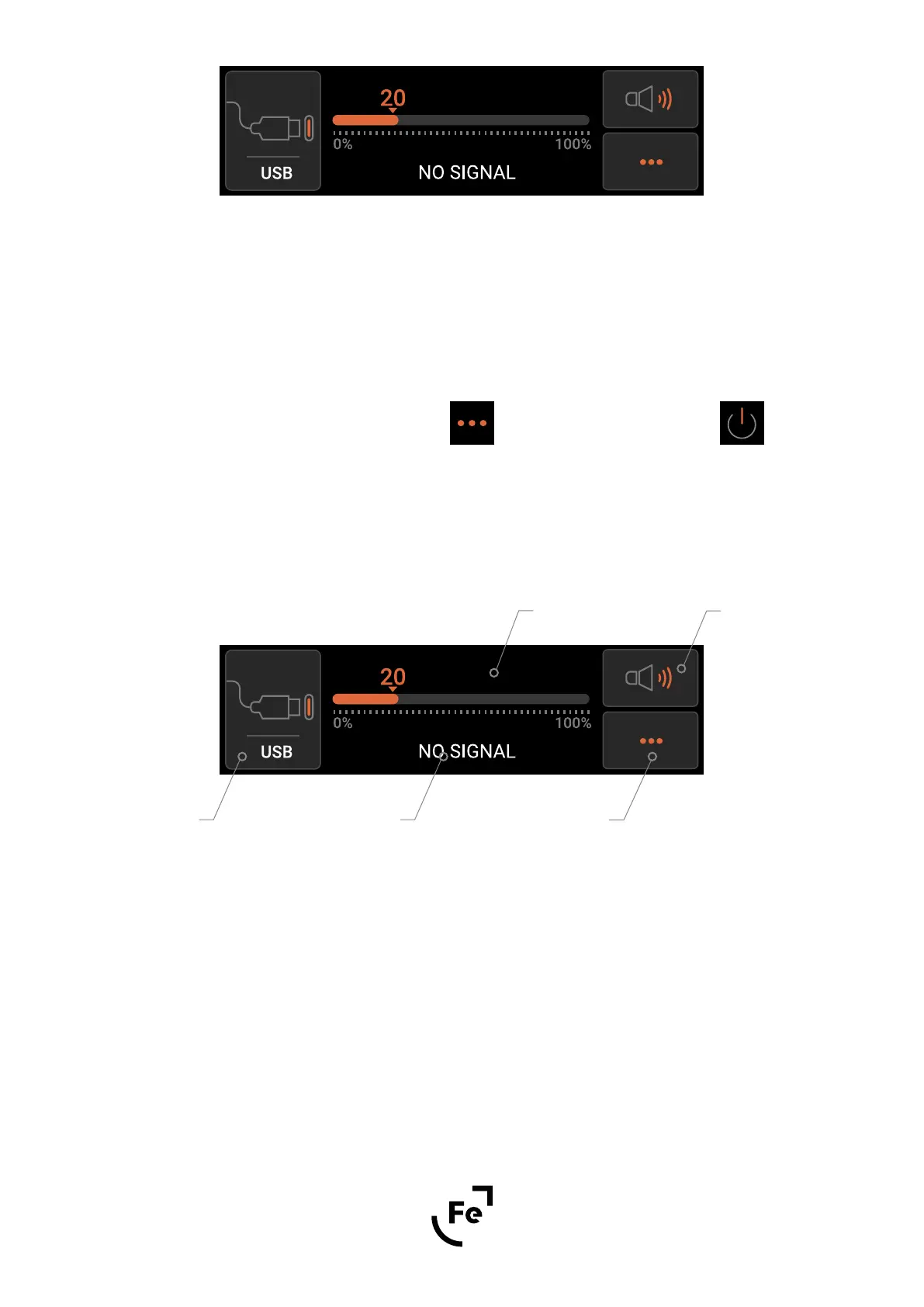
Touch the Input (see Figure 5) button to select the desired input, then adjust the volume using the knob located
on the front panel, remote control or directly on the touch display�
See the next paragraph for more information on how to use the touch screen or how to change WANDLA
settings�
To put WANDLA in standby mode touch Menu button
and then select ON/Standby icon
To turn WANDLA on, touch anywhere on the screen or rotate the knob in any direction - the ON/Standby icon
will appear on the screen� Touch this icon and the converter will turn on�
7� SCREEN AND MENU STRUCTURE
Figure 5
7�1 Main Screen
A� Input button
When the Input button is touched, a list of all inputs available in WANDLA will appear� Swipe left and right to
scroll through the list and activate the desired input with a tap� To go back to the main screen use the Back
button�
B� Data format
Display information about the currently playing file, such as sample rate, bit depth and file format�
C
D
A B
E


 To Next Page