21
Tips: (Applicable for Max and Windows)
1. Check if your microphone is turned on. Make sure that the Mic Channel volume of
mixer is not to zero or not in mute state before recording.
2. Make sure that the Headphone or Line Out Channel volume of the mixer is not to
zero, or Line Out Channel not in mute status before listening audio.
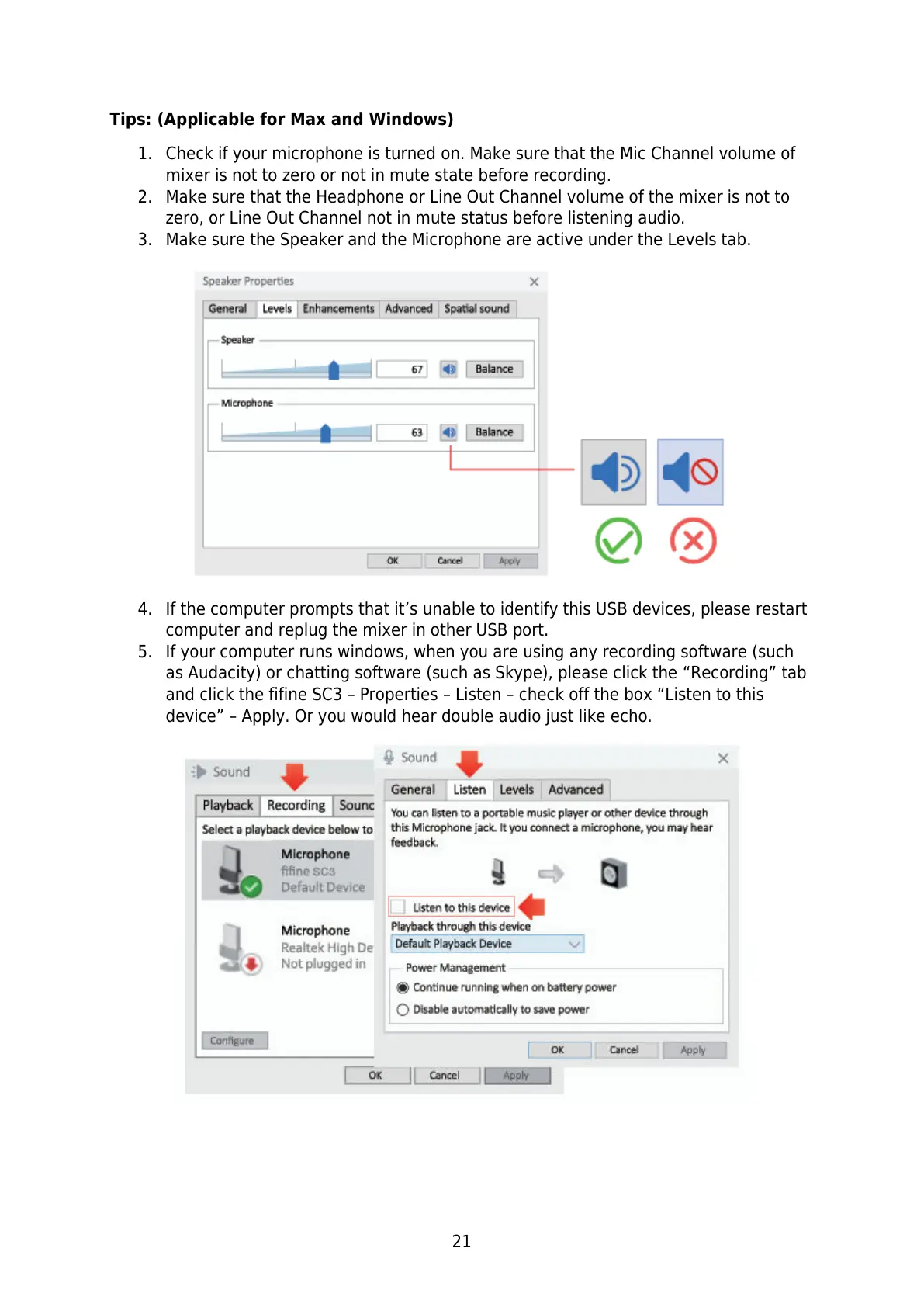
3. Make sure the Speaker and the Microphone are active under the Levels tab.
4. If the computer prompts that it’s unable to identify this USB devices, please restart
computer and replug the mixer in other USB port.
5. If your computer runs windows, when you are using any recording software (such
as Audacity) or chatting software (such as Skype), please click the “Recording” tab
and click the fifine SC3 – Properties – Listen – check off the box “Listen to this
device” – Apply. Or you would hear double audio just like echo.



 To Next Page