35
/
40
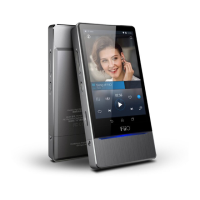
The X7 is connected to my computer. Now how to transfer songs from the
computer to the X7?
。A: Simply drag and drop folders of music from your computer to the X7, which appears as a regular
removable USB drive. If you prefer to use a music library management program on your computer, you
may use any management program that supports library management of connected regular removable
USB drives.
Is driver installation required for transferring songs?
A: No.
3. Firmware updates
How to tell whether the X7 has the latest firmware?
A: See section E.1. The X7 will automatically look for the latest firmware online whenever it is connected
to the internet via WiFi.
Other than that, you may also manually check the firmware version on your X7 (Android Settings ->
About X7 -> Build number) against the firmware versions listed at http://www.fiio.net/en/supports/37 .
You may also pay attention to general FiiO news at www.fiio.net or community news at
http://www.head-fi.org/f/180/fiio or www.fiio.me .
Would the X7 be bricked if update fails? What to do if the X7 is bricked?
A: Please ensure that the X7 is well charged, preferably fully charged, before updating. The X7 should not
brick during update even if it fails. Nevertheless, if your X7 is bricked, please contact us at
support@fiio.net and we will help you with it.


 To Next Page