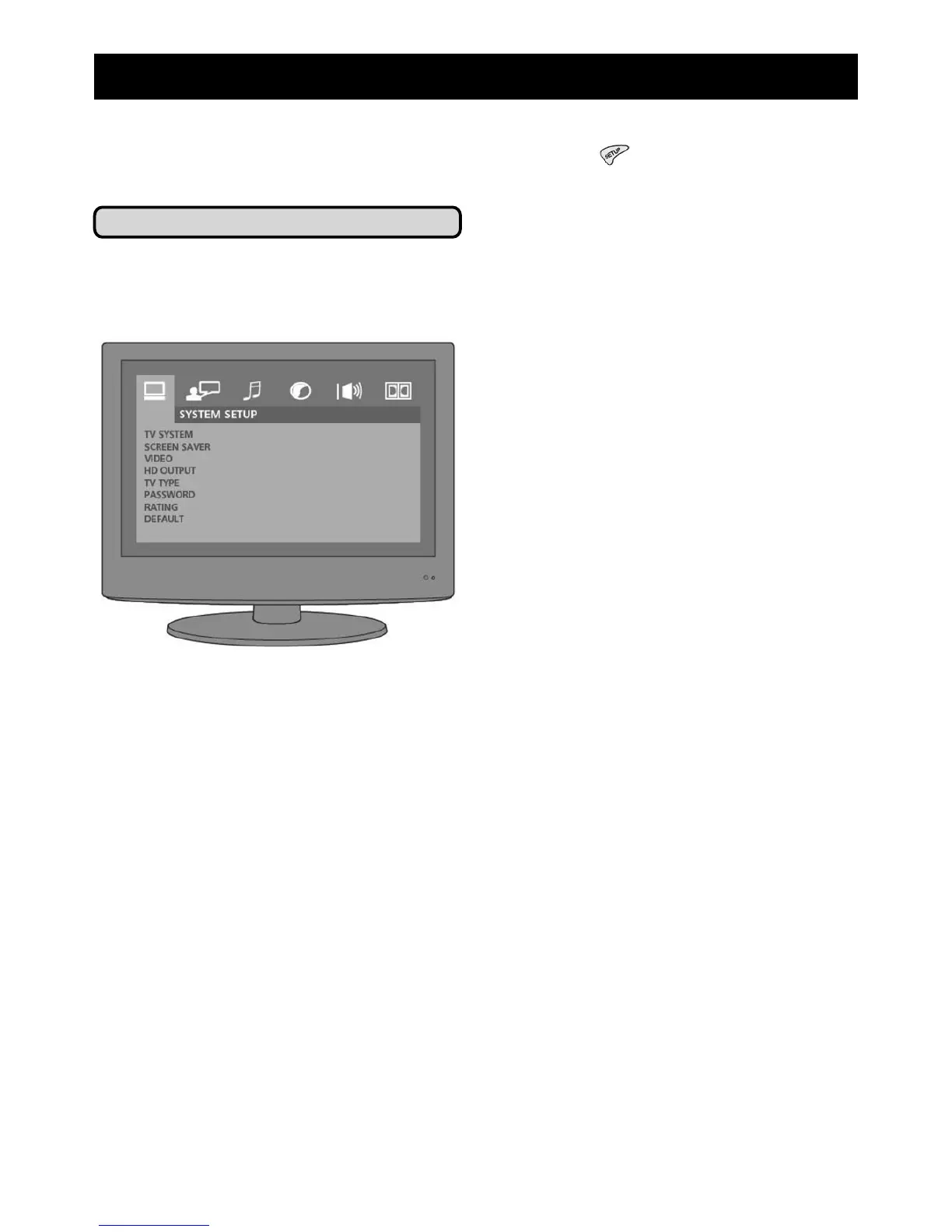
System Setup
Using the system setup menu you can
alter the general settings for your DVD
player.
• Television system: Choose
which output is required for your
television:
- NTSC (North American standard)
- PAL (European standard)
- AUTO (DVD player selects the
correct format)
• Screen saver: Choose whether to
display the DVD screensaver.
• Video: Choose between different
video outputs. Unless you have
a specific reasopn to change this
setting we recommend that you
leave it as the default.
- Interlace YUV
- TV-RGB - (output for standard televisions)
- P-SCAN - (for use with HD televisions)
- S-VIDEO
- YPBRPR
10
6) Adjust System Settings
The setup menu allows you to adjust the general settings for your DVD player as well
as the language, audio and video setings. Press SETUP
to enter the setup menu,
use the arrow buttons to select each option and the ENTER button to select it.
• HD output:
Choose the correct
High Definition output for your
television. You should consult
your television manufacturers user
guide for information on which
format is required.
Options are: 480P/576P, 720P,
1080I, and 1080P.
• TV type: To adjust the DVD output
for your television screen, choose
the correct aspect ratio for your
screen.
- 4:3PS - (standard screen size)
- 4:3LB - (letterbox - displays a widescreen
picture as a “strip” in the middle of
the screen)
- 16:9 - (widescreen format)
• Password: You can set a password
to stop children from adjusting the
Rating level (see below). The default
password is provided on a separate
card with this manual. To set a new
password:
1. Select the password option using
the arrow keys and ENTER key.
2. Enter the default password and
press the ENTER key. The
padlock icon will change and open.
3. Select password again and enter
your new 4 digit password.
4. Press ENTER to lock the Rating
option. The padlock icon will
change to closed. Please keep a
note of your new password as it
cannot be reset.
• Rating: You can use the Rating
setting to restrict which DVDs
your DVD player will play. There
are 8 levels, select the one you



 To Next Page